Editing
Creating features
Edit › Create draws new points, lines and polygons into the layer selected in Layers:
click once for a point, or click each vertex and double-click to finish a line or polygon
(Esc cancels). Delete (Del) removes the selected features across the map's layers.
Edit attributes in the attribute table (Ctrl+T): double-click a cell
to change it. Data › Data Design (and Data › Fields) adds and deletes fields and calculates a
field from an expression; Calculate Geometry (in the attribute table's toolbar) fills a new or
existing numeric field with each feature's area, perimeter, length or X/Y coordinate, in the units
you choose, for all features or the selected ones. Length and perimeter include feet and miles;
area includes square feet (ft2), acres (ac) and square miles (mi2). Every edit is one undo step.
Undo (Ctrl+Z) and Redo (Ctrl+Y or Ctrl+Shift+Z) restore project changes, not just feature edits; use Cmd instead of Ctrl on macOS. While typing in a text field, those shortcuts undo or redo the typing instead. Saving keeps the undo history; opening or creating a project clears it. Undo does not reverse files already written by an export.
Modifying features
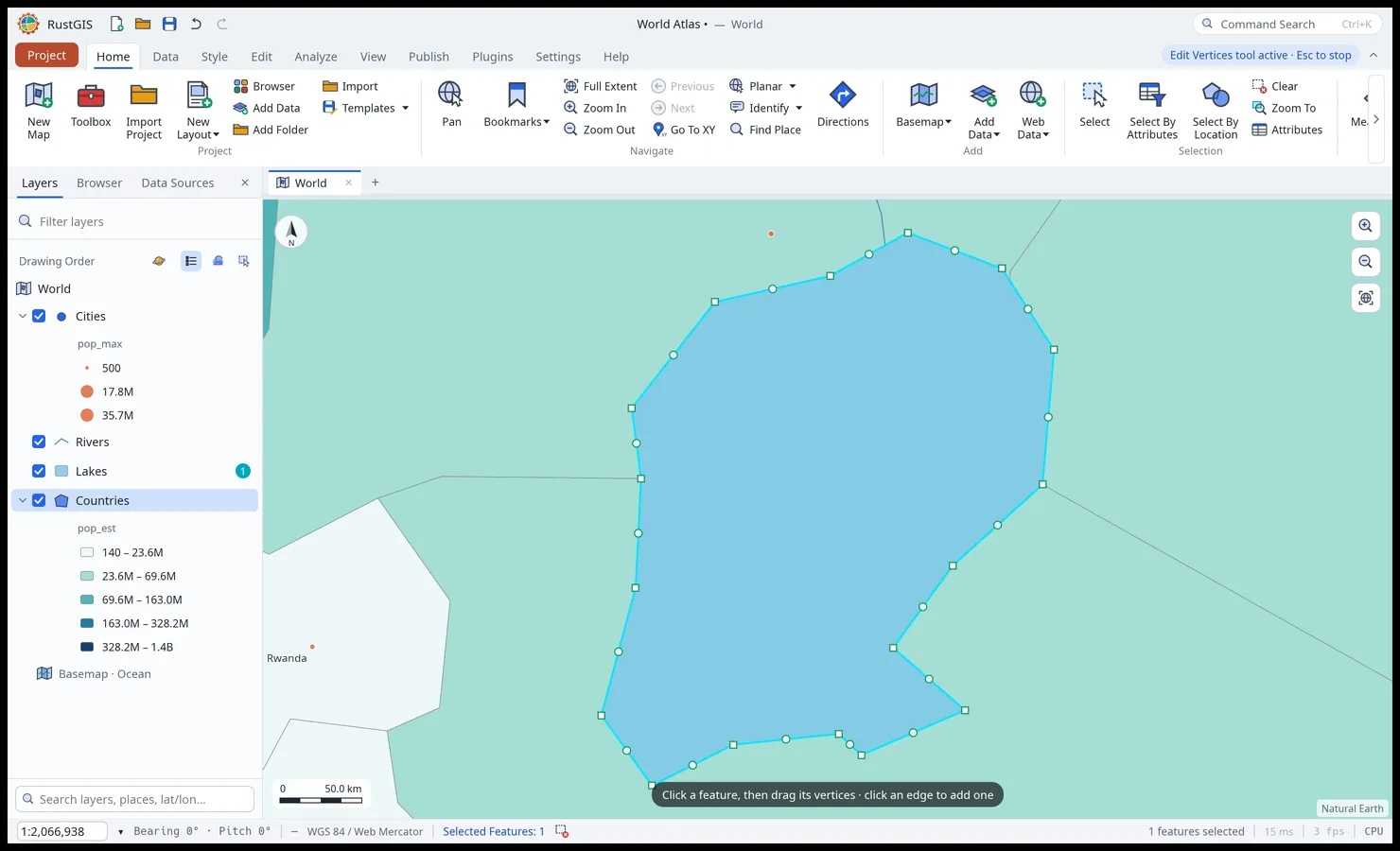
The Edit tab's Edit button turns feature editing on or off for the map; with it off, feature creation, geometry changes and attribute edits are disabled. The Editing pane (Settings, Templates, Status, Modify) holds the rest. Its Distance units selector sets the units used for Move and constant elevation. The choice is remembered independently of the live map's measurement units. The entered numbers are interpreted in the selected units when you click Move, Constant or Apply elevation. The current elevation stays in effect while you edit the value or choose units; click Apply elevation to apply the new inputs.
- Modify: move the selected features by distances east and north, rotate them, scale them, merge them (polygons are unioned), explode multipart features, split a line where you click, and flip line direction. A single point turns and scales on itself, so Rotate and Scale leave points (text graphics included) as they are: with only points selected they change nothing, say so, and add no undo step. Edit › Tools lists every editing tool.
- Edit Vertices (Edit › Features): reshape the selected features on the map. Their vertices
show as square handles and each edge has a round midpoint handle. Drag a vertex to move it;
drag a midpoint, or click an edge, to insert a vertex; click a vertex and press Del to
remove it (a line keeps at least two vertices, a polygon ring three). Clicking elsewhere
selects the feature there (Shift adds it). Multipart features and polygon holes work the
same way, dragged vertices snap when snapping is on, and each move, insertion or deletion is
one undo step. Esc finishes. From scripts and the command line,
edit.vertexdoes the same to one vertex andedit.setGeometry(Set Geometry) replaces a feature's whole shape. - Feature templates: named default values for new features, made from a selected feature; the Create tool uses the chosen template.
- Snapping (Edit › Snapping): new and dragged vertices snap to nearby vertices, edges and
line ends of visible feature layers at the current scale (magenta marker; graphics and rasters
are not targets). Vertices and ends take priority over edges within the tolerance. Snapping
starts off; its vertex, edge and end options start on. Both Point features and individual
MultiPoint members use the vertex option; they supply neither edges nor line ends. Dragging
a Point or MultiPoint member excludes its entire source feature. The tolerance is how near, in screen
pixels, a vertex must come to snap (10 by default, 1 to 100):
edit.snapping={"on": true, "tolerancePx": 12, "edge": false}(without"on"it toggles snapping, even when other options are supplied).edit.snap={"lon":12.5,"lat":41.9}queries the current snap target without editing a feature. - Settings: Show Vertices marks the vertices of the selected features even when Edit
Vertices isn't on (
edit.settings={"showVertices": true}). - Elevation: new features get a
zattribute, constant or sampled from a raster surface at the feature's label point; this is not a change to its geometry's coordinates. - Ground to grid: a scale factor and rotation applied to entered distances and directions
(Move, and
edit.traverse, which draws a line or polygon from distances and bearings). - Topology: rules (must not overlap, must not have gaps, must not self-intersect, must not have dangles, must be covered by); Validate lists the errors, and clicking one zooms to it.
- Status: features added, changed and deleted per layer since the last save.
Moving shared polygon vertices
Edit › Features › Shared Vertices opts polygon moves into linked editing. It starts off, lasts only for the current app session, and is not saved in projects or preferences. With it on, dragging a polygon vertex moves every polygon vertex in that layer stored at exactly the same original coordinate, including unselected and filtered-out rows, point-only contacts, other polygon parts and holes. Unrelated polygons touching by chance at that point move together too; turn the switch off to move just the source feature. Inserting and deleting vertices, and moving line or point vertices, keep their existing behaviour. Changing the switch cancels a held drag.
The command uses row positions and the same vertex addresses as edit.vertex:
{"layer":"Parcels","row":0,"part":0,"ring":0,"index":3,"lon":12.5,"lat":41.9}
Run these parameters with edit.moveSharedVertex. It returns the source part, ring and
index, plus modified: the number of features whose geometry or attributes actually changed.
Every matched feature runs through attribute rules and archiving in one transaction; a rejection
rolls back the whole edit. A successful command is one undo step. As with edit.vertex, a direct
same-position command still runs the rules and records an edit, even if modified is zero.
Undo retains cumulative edit counts. Streamed layers require Load All Features first.
This moves coincident vertices, not every shared boundary. For a boundary stored as P–Q
on one polygon and P–R–Q on its neighbour, moving Q moves the two stored Q vertices but leaves
R in place. It does not remap intermediate vertices, insert missing ones or refuse the edit
because vertex densities differ; the two boundaries can separate. There is no tolerance or
nearby-coordinate matching. Use the mustNotOverlap and mustNotHaveGaps topology rules, then
Edit › Manage Edits › Topology › Error Inspector (validate) (topology.validate) to inspect a coverage.
Distance units in commands
edit.move, edit.traverse and constant edit.elevation accept "units": "Feet",
"Meters", "Kilometers" or "Miles" (case insensitive). Omitting units keeps the
existing metre default. All traverse legs use the command's units. Conversion to metres
happens before ground-to-grid corrections and distance limits; stored elevation stays in
metres. Feet mean international feet (0.3048 m), independently of the source CRS's units.
For example, edit.move={"dx":500,"dy":0,"units":"Feet"} moves selected features
152.4 metres east.
Data design
The Data tab's Data Design pane keeps attributes valid, on every edit (creating, pasting, attribute edits, Calculate Field):
- Domains: coded values (
code=description) or a numeric range for a field. - Subtypes: an integer field's codes, each with a name and default values for new features; the layer is symbolized by subtype.
- Attribute rules: calculations (a field set from an expression on every insert and update) and constraints (a SQL condition every feature must meet).
- Contingent values: the combinations of values allowed across fields.
- Archiving: keeps every edit with its time; restore the layer as it was minutes ago.
- Relationships: link two layers by key fields; Related Data selects the rows related to the selection.
Clipboard and pop-ups
Copy (Ctrl+C) and Cut (Ctrl+X) take selected features from one layer: the active layer if it has a selection, otherwise the first layer with selected features. Paste (Ctrl+V) adds them to the layer selected in Layers, matching fields by name and converting values to the destination field types; unmatched fields stay empty. Geometry types must match. Paste Special adds them as a new layer instead. Copied features also go on the system clipboard as GeoJSON, so they can be pasted into another RustGIS window or a text editor, and GeoJSON copied elsewhere pastes into RustGIS. Copy Path copies the selected layer's data source path.
Whole-layer copying is separate: use Copy Layer or Copy Group and Paste Layer in the Layers pane's context menus to preserve symbology and other layer settings, including when moving layers between maps.
Pop-ups (Home › Navigate) choose which layers a click with Explore identifies: the topmost layer under the click, every visible layer, only selectable layers, only the layer selected in Layers, or nothing. The pop-up lists every feature under the click in those layers, overlapping ones included (up to 100): step through them with ‹ ›. The feature shown is the one selected. The magnifier in the pop-up's header zooms to it. Long feature titles and layer names are shortened with an ellipsis to leave room for the header controls; hover over either name to read it in full.
The topmost and visible modes also identify the features of vector tile layers under the click:
PMTiles and MBTiles archives and vector tiles added as data (not catalog basemaps or MapLibre
styles), beneath the map's own layers. Each shows its tile layer and source layer (firenze ›
buildings) and its attributes; tile features can't be selected or zoomed to.
They ask WMS layers too (WMS tile layers that are shown and, as far as their service's
capabilities say, queryable): RustGIS sends the service a standard GetFeatureInfo request for the
point (WMS 1.3.0 or 1.1.1, as in the layer's address), asking for GeoJSON when it offers it, else
GML, other XML, plain text or HTML, and the features it answers join the pop-up as they arrive.
When the service answers with an error in that format (swisstopo's MapServer can't write some of
its layers as GeoJSON, but answers them in GML), RustGIS asks again in the next format it offers,
and keeps asking that layer in it for the rest of the session.
Topmost asks only the highest WMS layer that can be asked at the point (one that covers it and is
queryable), and only when no feature of the map's own layers or of its vector tile layers is under
the click. A project doesn't save the request: a WMS layer from a project reads its service's
capabilities again on its first click (once for all the map's layers from that service), so until
then Topmost takes it as one that can be asked.
identify lists the requests in featureInfo, and identify.featureInfo reads an answer (or, on
the command line, asks the service and waits).