AI Assistant
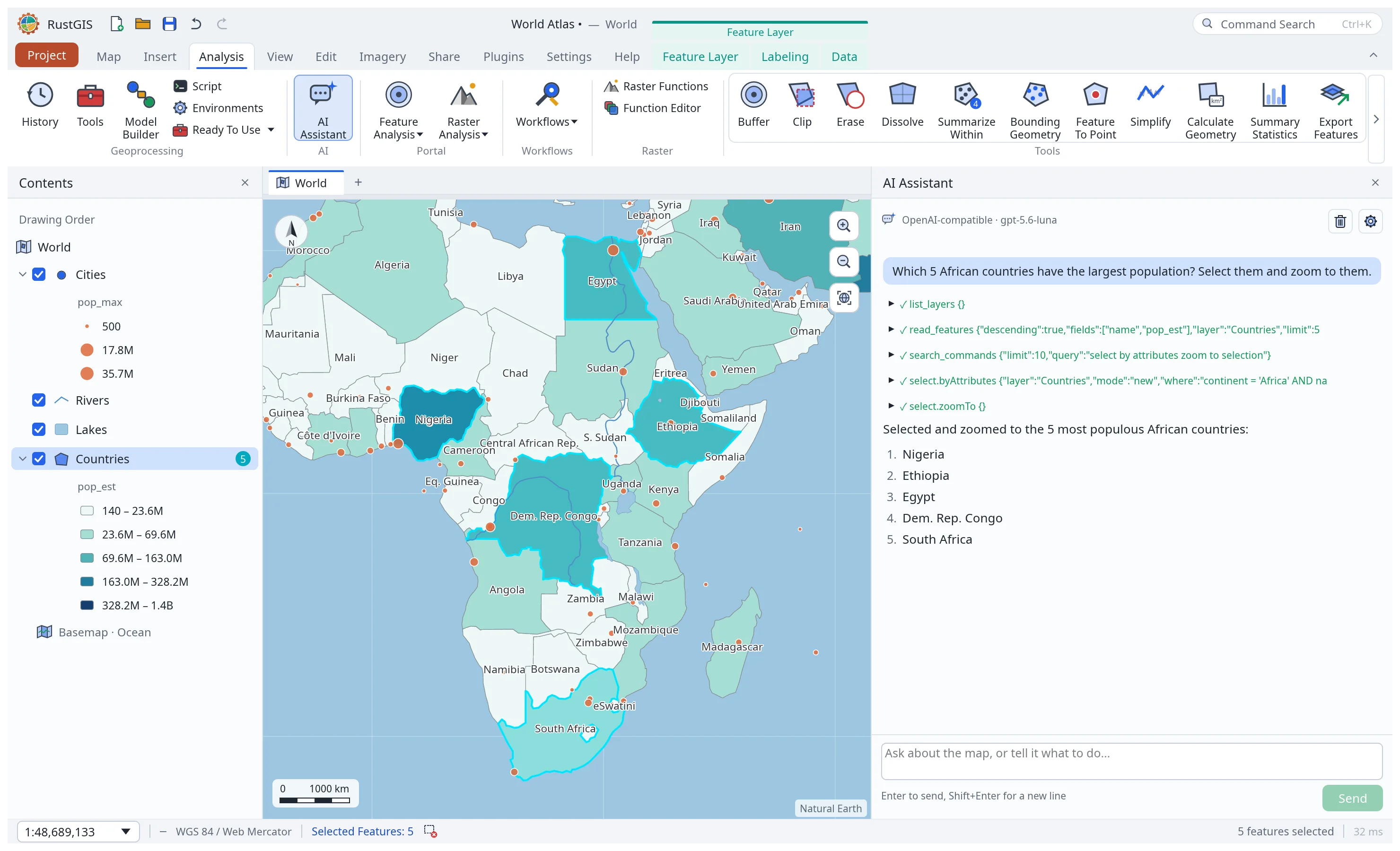
Analyze › AI Assistant (also View › Windows, or Command Search) opens a chat pane. Ask a question about your data or say what to do with the map, and the assistant answers by running RustGIS commands and geoprocessing tools for you:
- "Which 5 countries have the largest GDP?" reads the Countries table and answers.
- "Label the cities with their names, and zoom to Tokyo."
- "Buffer the cities by 200 km and colour the result by population."
- "Switch to a dark basemap and hide the rivers."
Each step it takes shows in the conversation (click one to see its parameters and result), and each change is one undo step, so Ctrl+Z takes back anything you don't want. It never says it changed the map unless a command succeeded. Commands that would read or write files, connect to an address on the internet, run a plugin, script or task, or replace the project wait for you: Allow or Decline. File and network access can be allowed for the rest of the conversation, for that exact command and file or address only. Enter sends, Shift+Enter starts a new line, Up and Down recall earlier messages, and Stop ends a run.
From the command line, rustgis-cli ask sends one request (see
Command Line).
Choosing a model
Click the model name or the gear to open the settings. The assistant works with:
| Provider | Default model | Key |
|---|---|---|
| Anthropic | claude-opus-5-5 |
console.anthropic.com, or ANTHROPIC_API_KEY |
| OpenAI | gpt-5.5 |
platform.openai.com, or OPENAI_API_KEY |
| ChatGPT (sign in) | the first model in your account’s current catalog | none: Continue with ChatGPT to use your ChatGPT plan (desktop app and command line) |
| Google Gemini | gemini-3.8-flash |
aistudio.google.com, or GEMINI_API_KEY / GOOGLE_API_KEY |
| OpenRouter | openrouter/auto |
openrouter.ai, or OPENROUTER_API_KEY |
| Ollama (local) | qwen3 |
none; the server from OLLAMA_BASE_URL (default http://localhost:11434) |
| OpenAI-compatible | — | LM Studio, vLLM, llama.cpp…: the address from OPENAI_COMPATIBLE_BASE_URL, an optional OPENAI_COMPATIBLE_API_KEY |
The ↻ button lists the provider's models. The provider and model you last chose in the settings
are used at start. Until you choose one, RUSTGIS_ASSISTANT_PROVIDER and
RUSTGIS_ASSISTANT_MODEL pick them, and otherwise the desktop uses the first provider with a key
in the environment. Saved settings win over the environment. Models that call tools well give the best results; small local models may stop early or
skip steps.
Signing in with ChatGPT
With a ChatGPT plan you can use the assistant without an API key, through OpenAI's Sign in with ChatGPT for open-source apps. Choose ChatGPT (sign in) and click Continue with ChatGPT: your browser opens OpenAI's sign-in page, where you approve RustGIS using your plan (the first time, OpenAI registers RustGIS as an app of your account; you can rename it there). Afterwards the settings show the account's email, Using ChatGPT plan, and a Weekly usage link to your ChatGPT usage settings, where you can see and limit what RustGIS uses or disconnect it. Sign out clears local tokens and attempts to revoke the remote session. If OpenAI does not confirm revocation, RustGIS says so; disconnect RustGIS in ChatGPT settings to ensure that remote access ends. The registration remains for signing in again. The account picker retains separate registrations, even when their emails match. Use another account adds a registration; choose an existing one to reuse its issued client ID. From the command line:
rustgis-cli ask --login                 # continue with ChatGPT in the browser
rustgis-cli ask --login --another-account  # or register RustGIS for another account
rustgis-cli ask --sample --provider chatgpt "Zoom to Tokyo"
rustgis-cli ask --accounts              # list saved registrations
rustgis-cli ask --account oaiapp_...      # select one by its issued client id
rustgis-cli ask --login --account oaiapp_... # reauthorize that registration
rustgis-cli ask --logout
The model catalog loads after sign-in, on startup when signed in, and when switching to this
provider or another account. The first model is chosen when the current one is not offered.
The ↻ button reloads the catalog. The CLI uses the catalog's first model unless --model or
RUSTGIS_ASSISTANT_MODEL is set. While waiting for sign-in, Open browser again and
Copy sign-in link let you recover a closed tab or failed browser launch. Requests go to the OpenAI API (https://api.openai.com/v1/responses) and use
your plan's usage; when a limit is reached, the assistant says so and points to the usage settings.
Signing in needs the desktop app or the command line (it runs a short-lived server on
127.0.0.1, port 1455 when it's free, for the browser to return to); the web app doesn't offer it.
Live testing of this integration was limited to a ChatGPT Pro account on Windows 11. Plus, Team/Business, Enterprise and Edu accounts, macOS and Linux have not been live-verified. Plus has a five-hour usage limit shared across apps using the plan. Team/Business, Enterprise and Edu workspace policy may block plan usage. Eligibility and model catalogs depend on the selected account and workspace.
Weekly usage opens ChatGPT's settings page. RustGIS does not show a live percentage: there is no documented usage endpoint, and the tested live responses supplied no rate-limit headers.
Tool output limits
The assistant can search_docs and read_doc to look up RustGIS features and commands.
Each tool result defaults to an estimated 10,000 tokens, following
Codex's default output budget.
A result is capped at an absolute 24,000 tokens. Like
Codex's truncation utilities,
the budget uses a byte-based estimate (four UTF-8 bytes per token), rather than an exact tokenizer.
It includes JSON escaping and truncation metadata. This bounds individual results, not the
entire conversation or all results from a batch.
RUSTGIS_ASSISTANT_TOOL_OUTPUT_TOKEN_LIMIT changes the requested per-tool budget; it cannot
bypass the 24,000-token ceiling. Embedding callers can set Config::tool_output_token_limit.
MCP uses the 10,000-token default.
Oversized successful results return an explicit, bounded text preview inside valid JSON, preserving the
beginning and end; ask for fewer rows or a narrower search to get complete structured data.
Documentation reads preserve complete lines and return next_offset when more remain: call
read_doc again with the same page/section and that offset. limit defaults to 2000 lines,
following Pi's line-oriented read convention.
Invalid offsets (including zero, negative numbers, fractions and strings) return an error.
Tiny output budgets use minimal truncation metadata or a diagnostic string prefix rather than
returning bare null; extremely small budgets can only retain an abbreviated marker.
Reading a section avoids loading an entire page. A single line that cannot fit produces an
explicit error rather than silently skipping text.
Skills
Skills are instructions for a kind of task. The assistant sees only each skill's name and a line on when to use it, and reads its instructions on demand, so skills cost little until used. Loaded instructions share the configured tool-output budget; oversized results are explicitly marked as truncated. Split long skills or raise that limit (up to its existing ceiling) when complete instructions do not fit. RustGIS comes with these:
| Skill | For |
|---|---|
thematic-map |
Styling a layer by its data (graduated colours, categories, proportional symbols), labelling it and exporting the map |
explore-data |
What's in a layer: fields, value ranges, top records, counts, filters and summary statistics |
print-layout |
A page layout with a map frame, title, legend, north arrow and scale bar, exported to PDF or PNG |
geoprocessing |
Running and chaining tools: buffer, clip, erase, dissolve, select by location, summarize within |
add-data |
Adding files, web addresses, DuckDB SQL queries, STAC catalogs and Overture Maps |
share-web-map |
Sharing the map or a layer as files that work without a server: a web map, a web layer, a style, an image |
The settings' Skills list shows every skill and where it comes from, with a switch to turn each one on or off:
- Built in: the skills above.
- Plugins: skills a plugin carries, named
<plugin>:<skill>, while the plugin is enabled (see Plugins). - Yours: on the desktop, Add skill… adds a
SKILL.md, a skill's folder, a folder of skills or a.zipof them. They are kept in theskillsfolder of the app's settings folder (Open folder), and Remove deletes one'sSKILL.md(files you keep beside it stay). A skill of yours replaces a built-in one of the same name. - Shared: skills in
~/.agents/skills, where other AI agents keep theirs. They are listed but off until you turn them on, since they were written for other tools.
A skill's description and instructions reach the model as instructions you trust, like a message of your own, so turn on only skills you trust. Whatever a skill says, the commands that need your approval (files, the network, plugins) still ask.
A skill is a folder holding SKILL.md in the Agent Skills format: front
matter giving its name (lower-case letters, digits and hyphens) and a description that says
when to use it, then the instructions in Markdown. The assistant reads only SKILL.md.
Descriptions can be single-line values or indented blocks introduced by > or |.
For a description spanning several lines, use a block; plain multiline YAML values are not supported.
---
name: flood-map
description: Map flood depth and extent from a depth raster and the river network.
---

# Flood map

1. ...
From the command line:
rustgis-cli skills                      # every skill, where it comes from, and whether it's on
rustgis-cli skills add ./flood-map      # a SKILL.md, a folder or a .zip
rustgis-cli skills disable explore-data # enable / disable / remove <name>
Skill folders and ZIP names
Skill folders may be symbolic links, including shared ~/.agents/skills folders. Enabling a
shared skill trusts the instructions at that linked location; shared skills are off by default.
The SKILL.md file itself must be a regular file, not a symbolic link. Removing one of your
skills removes its SKILL.md, including from a linked folder's target; it does not remove the
folder link or other files.
ZIP imports recognize SKILL.md regardless of letter case and accept slash or backslash path
separators. Paths that collide after separator/case normalization are refused. Nested skills
remain part of their containing skill. Entries are read in memory, never extracted as paths.
The ZIP dependency is native-only; browser builds do not include the installer.
Skill front matter supports top-level name and description fields, plain or single/double-
quoted one-line values, and indented >/| description blocks (joined into one line). This
reader implements those forms rather than full YAML: trailing inline comments, multiline
quoted scalars, escapes, anchors and advanced block modifiers are not interpreted. Keep
comments on their own lines and put literal # text inside the intended value. Descriptions
are collapsed to one whitespace-separated line before catalog insertion. On Windows, reserved
device names such as con, nul, com1 and lpt1 cannot be installed; rename the skill.
Unknown-name errors show up to 20 names; Settings shows the full available list.
An archive with SKILL.md at its root represents that one outermost skill: nested SKILL.md
files belong to its examples/references and are not installed separately. To import several
skills, put each in a sibling folder and omit a root SKILL.md. A failure during the final
rename phase can leave earlier skills installed; the error names those completed installs.
Agents on this computer
On the desktop, the assistant can hand a task to a coding agent you already have, such as Claude Code, Codex, Gemini CLI, GitHub Copilot CLI, Cursor, OpenCode or goose. RustGIS talks to it through the Agent Client Protocol (ACP), as code editors do. The agent works on the map open here through RustGIS's tools, and with its own: calling a web API RustGIS doesn't have, running a script, writing files. It suits tasks RustGIS's own tools can't do.
It is off until you turn it on: in the settings, tick Let the assistant hand tasks to agents on this computer. The settings list the agents found. Starting a task or sending a follow-up waits for your approval in the assistant, unless automatic approval is enabled. Then ask, for example: "Have Claude Code fetch the USGS stream gauges in Texas and add them to the map."
- It works in the background. The assistant hands over the task and carries on talking with
you. A small window shows what the agent says and does until it finishes; its report then
comes back into the conversation, and the assistant tells you what came of it. Several agents
can work at once, each in a thread of its own (
codex-1,claude-code-2…), listed above the message box with Show, Hide and × to close one. - Threads take follow-ups. A thread that has finished waits for more, with what it did in its context: "Now colour the gauges by flow" goes to the same agent. Threads end with New conversation, when you close them, or after half an hour of waiting.
- You approve what it does. Each action the agent asks to take (a command, a web request, a file it writes) waits for Allow, Always allow (when the agent offers it) or Decline in its window. Allow never becomes a persistent approval: if no once-only option exists, use the explicitly labelled Always allow or decline. Approve agents' actions without asking lets them through instead. Turn it on only if you trust the agent with your computer.
- RustGIS checks its own tools. File, network, plugin-command and project-replacement
requests from a local agent wait for a separate Allow or Decline in its window.
Approval applies only to that exact MCP message and that agent's run; a batch is approved or
declined as a whole. The agent's
--yesand the general relay checkbox cannot bypass this queue. Requests that expire, or whose agent ends, never run. Plugin management, scripts and other user-only commands remain unavailable through MCP. Approve agents' actions without asking explicitly bypasses this queue for these local agents and allows subsequent delegations without confirmation; turn it on only if you trust the agent and its inputs. It also selects the agent's own full-access mode where available. - Its work is kept. Each task gets a folder in
Documents/RustGIS/Agent work, and what the agent adds to the map comes from there. The assistant's reply names the folder. - On the map, it has its thread's permission only. It reaches the map through the MCP relay with a token of its own, which RustGIS revokes when the thread ends. Stop in its window, or × in the list, revokes its token immediately and terminates its live process tree on a background thread. A reaped leader's old process ID is never signalled.
- No console windows. On Windows, agents start without a terminal window; their window in RustGIS shows what they do.
- Signing in is the agent's. The agent uses its own account and sign-in. If it isn't
signed in, sign in with it once (for example,
codex login). - Claude Code and Codex need Node.js. They speak ACP through an adapter
(
@agentclientprotocol/claude-agent-acp,@agentclientprotocol/codex-acp), whichnpxdownloads from npm the first time, at the version RustGIS names. Agents with ACP built in need nothing more. The web app doesn't offer agents.
Privacy
Requests go from RustGIS straight to the provider you chose, with your key. They carry your
messages, the map's layer names, fields and extent, and any rows the assistant reads to answer
you; nothing goes anywhere else. A key typed in the settings is used for the session only unless
you tick Remember the key on this computer, which saves it unencrypted in the app's
preferences (in the browser's storage on the web); keys from the environment are never saved.
A ChatGPT sign-in is kept in chatgpt-auth.json in the app's settings folder (owner-only on
macOS and Linux; on Windows, protected like the rest of your user profile), never in the
preferences or a project file, and its tokens are never logged; RustGIS renews them as they expire.
The ChatGPT provider's address is fixed, so only the OpenAI API receives them. Renewals are
serialized across RustGIS processes (a refresh token can be used only once).
Plain HTTP is only used for servers on your computer or local network.
In the web app, the browser calls the provider directly. Anthropic, OpenAI, Gemini and
OpenRouter accept that; a local Ollama server must allow the page's origin
(OLLAMA_ORIGINS=https://web.rustgis.app ollama serve).
Retries and long conversations
Live streaming text is available on the desktop. The browser currently buffers the complete response (up to the response limit, 64 MiB for SSE) before displaying it; it has no live streaming preview. Cross-origin retry timing headers are available only when the provider exposes them through CORS; otherwise ordinary backoff applies.
A failed compaction shows an error and keeps the original conversation, then stops. It does not retry continuously in the background. Sending another message or pressing Compact explicitly tries again; if the history still cannot fit, use New conversation or choose another model.
Connection failures and explicit provider overload/rate-limit failures are retried at most three times, including errors reported inside an HTTP-200 stream. The failed reply and its preview are discarded before retrying; no tool calls from it run. Usage limits, authentication failures, browser fetch failures (which can be permanent CORS refusals), timeouts and interrupted streams without an explicit retryable provider error stop without replay. Stop cancels a pending retry.
Summary requests have a total input bound, retaining the newest history if older text must be omitted. If the provider rejects a summary as too long, RustGIS halves that bound and tries again, down to 1,024 bytes; further failure stops and preserves the original conversation. This learned bound lasts for the conversation. A cut, refused or failed summary never replaces history. The summariser treats retrieved text as data, not instructions. Internal summary markers in user messages are escaped in model input; the visible transcript keeps the user's exact text.
Background agent reports are quoted as untrusted data, with markup escaped and the report payload constrained by the configured tool-output budget. The main assistant uses observations relevant to your task, rather than treating a report as a new user instruction.
ACP input uses a bounded background writer queue, so a stalled agent cannot block permission buttons or follow-up submission. Queue overflow reports an error instead of blocking. On Linux and macOS, an exited leader is observed without reaping until cleanup; its reserved identity lets Stop terminate surviving process-group descendants before finally reaping the leader.