Data
Formats
Every format, with how to add it and its limits, is listed on Supported Data Formats.
| Format | Read | Write |
|---|---|---|
GeoJSON (.geojson, .json) |
Yes | Yes |
Delimited text (.csv, .tsv, .txt) with x/y columns in a supported coordinate system, or WKT geometry |
Yes | Yes |
Shapefile (.shp + .dbf, or zipped in a .zip) |
Yes (the web app also accepts sidecar files picked or dropped together) | Yes (share.exportLayer) |
GeoPackage (.gpkg, feature tables) |
Yes | Yes (desktop) |
GeoParquet (.parquet, .geoparquet, WKB geometry) |
Yes | Yes |
FlatGeobuf (.fgb) |
Yes | Yes (share.exportLayer) |
| KML/KMZ (with their styles), GPX | Yes | Yes |
Spreadsheets (.xlsx, .xls, .ods), GeoRSS feeds, LandXML, encoded polylines |
Yes | No |
| GML, MapInfo MIF/MID, OpenStreetMap PBF, TopoJSON, AutoCAD DXF (ASCII) | Yes | No |
| LiDAR point clouds: LAS, LAZ, COPC (an evenly spread sample) | Yes | No |
| Geotagged photos (JPEG with EXIF GPS): points with their thumbnails | Yes | No |
Esri File Geodatabase (.gdb folder; 3D multipatches as footprints) |
Yes (desktop) | No |
| Through GDAL: AutoCAD DWG, MapInfo TAB, OpenStreetMap XML, File Geodatabases RustGIS can't read itself… | Yes (desktop, when GDAL is installed) | No |
| PostgreSQL/PostGIS databases, read live (large tables a view at a time) | Yes (desktop) | No |
| MySQL and MariaDB databases, read live (large tables a view at a time) | Yes (desktop) | No |
| SQL Server and Azure SQL databases, read live (large tables a view at a time) | Yes (desktop) | No |
DuckDB databases (.duckdb, .ddb) and SQL queries |
Yes (desktop, when DuckDB is installed) | No |
GeoTIFF and cloud-optimised GeoTIFF (.tif, .tiff) |
Yes | Yes |
ASCII grid (.asc, with an optional .prj) |
Yes | No |
Unreferenced TIFF and PNG scans; JPEG with "as": "scan" |
Yes | GeoTIFF after georeferencing |
| Through GDAL: JPEG 2000, ERDAS Imagine, SRTM HGT, DTED, NetCDF, HDF, ENVI, SAGA… | Yes (desktop, when GDAL is installed) | No |
| Web tiles: XYZ/TMS/WMS rasters, Mapbox Vector Tiles, MapLibre styles, PMTiles and MBTiles archives | Yes | Yes (Analyze › Create Hosted Imagery) |
RustGIS project (.rgis; older .rgisx files open too) |
Yes | Yes |
Add data with Home › Add Data (From URL… adds a file by its web address, reading a
cloud-optimised GeoTIFF, GeoParquet or FlatGeobuf in place, a view at a time, and downloading
others; see Files on the web), by dropping files on the window, or by
passing them on the command line (rustgis places.geojson). Home › Add Data › Delimited
Text… asks for a CSV or a spreadsheet first, then lists its columns to pick the x and y (or WKT)
ones from, with the coordinate system (such as EPSG:2263) and the separator (changing it reads
the columns again); info.fileColumns lists them for scripts. Add Data finds them itself
(columns named like longitude/latitude, easting/northing or geometry, and EWKT's SRID=) and
says when coordinates aren't longitude/latitude. A CSV without coordinate columns, or a layer without geometry, opens as a
standalone table, listed under the map in Layers; right-click it to open or remove it. Tables
can share a name: commands and tools take a table's id (info.project lists them) as well as its
name, which stands for the first table of that name. An id given as a number is never taken for
a name. The Tools pane and Geocode Addresses send the id of the table picked; a tool's run keeps
the table's name beside it (input_name). The XY Table To Point tool
(Geoprocessing, and a table's right-click menu) makes points of a table already in
the project, from two fields of coordinates and their coordinate system. In a text field a single comma is the decimal separator
(1,234 is 1.234); thousands separators are not read.
Home › Add Data › Graphics Layer adds a layer for drawn graphics,
and Data › Layer Templates adds empty layers with ready-made schemas to draw into.
Vector geometry is stored as WGS 84 longitude/latitude. Data in another supported coordinate
system is converted as it is read; Shapefiles use their .prj, and formats such as GeoPackage,
GeoParquet and FlatGeobuf carry their coordinate system in the file. Rasters keep their own
coordinate system and are reprojected as they draw. The map uses Web Mercator by default, but
View › Projection can change it; see Maps.
Shapefile text uses a supported .cpg encoding, otherwise the .dbf code page, with UTF-8 as
the fallback. Keep the sidecar files together.
Attribute tables and fields
Open a feature layer's table with Ctrl+T (Cmd+T on macOS), Home › Selection › Attributes
or Attribute Table on a feature layer's Data tab (table.open). Rows and map selections stay in sync.
Standalone tables open from their right-click menu; their cells are read only. See The attribute table for
sorting, filtering, selection and the SQL WHERE clause syntax used by Select By Attributes
and Definition Query. These clauses filter a layer; they are not DuckDB queries.
For an editable feature layer, double-click a cell to change it. The table's toolbar also adds
fields, calculates field expressions and opens Calculate Geometry (edit.calculateGeometry).
The geometry calculator fills a new double field or an existing numeric field with area,
perimeter, length or point X/Y, for all or selected features. Point coordinates can be WGS 84
degrees or a supported projected EPSG system's units. See Editing for field
calculations and data-design rules. Streamed layers must first be loaded with Load All
Features.
Formats through GDAL
When GDAL is installed (its ogr2ogr and ogrinfo programs on the PATH,
or the folder holding them in RUSTGIS_GDAL_BIN; GDAL 3.7 or later), the desktop app also opens
the vector formats GDAL reads: DWG, MapInfo TAB, OpenStreetMap XML, File Geodatabases RustGIS
can't read itself (compressed ones, or ones with raster fields)
and more. RustGIS doesn't link to GDAL: each layer is converted once, by ogr2ogr, into a
FlatGeobuf with a spatial index in WGS 84 (GDAL reprojects it), kept in the cache folder
(~/.cache/rustgis/gdal on Linux, ~/Library/Caches/RustGIS/gdal on macOS,
%LOCALAPPDATA%\RustGIS\cache\gdal on Windows, or RUSTGIS_GDAL_CACHE). Adding the file again
reuses the conversion until the file changes, and large layers stream like any large FlatGeobuf
(below). Every layer of the file is added; a layer mixing geometry types is
added as one layer per type. Curves become straight segments, and 3D surfaces (an Esri
multipatch, such as the buildings of swissBUILDINGS3D, is read as a TIN) become flat
polygons, one part per face, without their heights. Projects remember the original file and
convert it again if the cached copy is gone.
SQL queries and DuckDB databases
When DuckDB is installed (the duckdb program on the PATH, or the folder
holding it in RUSTGIS_DUCKDB_BIN; DuckDB 1.5 or later), the desktop app adds the result of an SQL
query as a layer, with the layer.addSql command (Add Data From SQL in command search):
{"sql": "SELECT name, geometry FROM read_parquet('places.parquet') WHERE country = 'FR'", "name": "French places"}
Analyze › SQL opens the SQL pane, a workspace for these queries: an editor (Ctrl+Enter runs
the query) that completes table and column names of the database named above it and DuckDB
Spatial's common functions, the result's first 200 rows as a table, Add to Map for a result
with a geometry column, and a history of the queries run (kept by the app with its preferences,
without the database's password; a query that seems to hold a credential, such as user:password@
in an address, a signed URL or a secret, isn't kept). Queries run in the background, so the app keeps drawing while DuckDB works. The
commands behind it are sql.query (a query's first rows, up to 1,000, without adding a layer) and
sql.schema (a database's tables and their columns); both take "database" as layer.addSql
does. The web app has no DuckDB, so the pane says to open the project in the desktop app.
The query is one DuckDB SELECT (or FROM …, WITH …), with DuckDB
Spatial's ST_ functions: it can
read Parquet, CSV, JSON and GeoParquet files, anything ST_Read reads, and web addresses (https://,
s3://), so a bounding box of Overture Maps is one query:
SELECT id, names.primary AS name, geometry
FROM read_parquet('s3://overturemaps-us-west-2/release/2026-09-23.1/theme=places/type=place/*', hive_partitioning = 1)
WHERE bbox.xmin BETWEEN -83.95 AND -83.89 AND bbox.ymin BETWEEN 35.94 AND 35.98
The first geometry column becomes the layer's geometry; other columns become its attributes (types
RustGIS doesn't read, such as dates and lists, as text). A geometry that says its coordinate system
is converted to longitude/latitude; give "crs" (such as EPSG:2263) for one that doesn't. A
result mixing geometry types becomes a layer per type, and rows without a geometry are left out.
"database" opens a DuckDB database (read only) so the query names its tables plainly; the
database is trusted like the query, since its views run as part of it.
Home › Add Data opens a DuckDB database file (.duckdb, .ddb): every table with a geometry
column becomes a layer ("layer" picks one).
PostgreSQL and PostGIS
Home › Add Data › Database… (layer.addDatabase, desktop) connects to a PostgreSQL database with
PostGIS and reads its tables live. The dialog takes a saved connection or a typed one, a password,
a table (List Tables, or all tables with geometry) and a coordinate system for geometry that
doesn't say its own. RustGIS talks to the server itself (nothing else to install;
TLS as libpq does it). sslmode=prefer (the default) uses TLS only when the server offers it, and otherwise connects
without encryption, so a server in the middle can force a plaintext connection. require always
uses TLS but doesn't check the server's certificate. On networks you don't trust, use
verify-full or verify-ca; both check the host name here. The certificate is checked against sslrootcert (a private authority's PEM file) or the
web's roots. disable turns TLS off. The connection is a libpq connection string
(host=localhost port=5432 dbname=gis user=postgres) or a postgresql://user@host/dbname
address; what it leaves out comes from PGHOST, PGPORT, PGUSER and PGDATABASE, as with
libpq. List Tables (info.databaseTables) shows the tables and views with a geometry or
geography column, and every one of them becomes a layer unless one is chosen (table,
schema.table, or table:column for one of several geometry columns). The connection is read
only.
A table of more than 100,000 rows (or any, with "stream": true) is read in place a view at a
time, like a large GeoParquet: the view's box is matched against the column's spatial index, and
when more rows match than a view draws, an evenly spread sample of them is numbered on the server,
so only those cross the network. Smaller tables are loaded whole, so they can be edited. The
server converts geometry to longitude/latitude (ST_Transform, so every coordinate system in its
spatial_ref_sys works) and curves to lines; give "crs" (such as EPSG:2263) for a column whose
geometry doesn't say its coordinate system. A column of mixed geometry types becomes a layer per
type, and empty tables (such as the TIGER geocoder's) are left out. Features keep their ids between
views: the table's integer primary key, else the row's place in the table (the rows of a view or
a partitioned table without a key are numbered as read, so theirs can change between views).
Passwords are never written to the project. By default, an entered password lasts until
RustGIS closes. For a named desktop connection, Remember on this computer is an unchecked
opt-in to the operating system's password store; see Named connections
for reconnect, selection and forgetting rules. Opening a project can use a remembered password
only for a unique, exact saved-address match, or an explicit session selection. Otherwise a
waiting layer offers Log In…, or a chooser when several remembered connections match.
Without a matching connection, connect again with Add Data › Database….
PGPASSWORD or libpq's password file (~/.pgpass, or
%APPDATA%\postgresql\pgpass.conf) can serve when you explicitly add a table without a password;
opening a project never newly authorizes these ambient credentials. A small table's features
are kept in the project as they were when added.
layer.addSql takes a connection as its "database" too, through DuckDB's postgres extension
(installed the first time, like DuckDB Spatial), so a query names its tables plainly; the password
reaches DuckDB in its environment (PGPASSWORD), never on its command line:
rustgis-cli run --cmd 'layer.addSql={"sql":"SELECT name, geom FROM roads WHERE lanes > 2","database":"postgres:host=localhost dbname=gis user=postgres","password":"…"}'
RustGIS doesn't link to DuckDB: it runs duckdb, which writes the result as GeoParquet in the
cache folder (~/.cache/rustgis/duckdb on Linux, ~/Library/Caches/RustGIS/duckdb on macOS,
%LOCALAPPDATA%\RustGIS\cache\duckdb on Windows, or RUSTGIS_DUCKDB_CACHE), sorted along a
Hilbert curve with a bounding-box covering, so large results stream like any large GeoParquet
(below). DuckDB Spatial is installed the first time (a download from DuckDB's extension
repository). A database table is converted once and reused until the file changes; a query runs
afresh each time. Projects convert a table again if the cached result is gone, but never run a
query when they open: run it again. A database is read on its own, shut out of other files and web
addresses, so a view in it that reaches elsewhere fails rather than reading them.
A query can read any file the app can and fetch any web address, and a database is a file or a server, so the AI Assistant asks before it runs a query or reads a database, and plugins need both the files and network permissions.
MySQL and MariaDB
Home › Add Data › Database… (layer.addDatabase) also connects to a MySQL (8 or later) or
MariaDB (10.2 or later) database and reads its spatial columns live, as it does PostGIS tables:
RustGIS talks to the server itself, with nothing else to install. The connection is an address,
mysql://user@host:3306/database (or mariadb://…); what it leaves out is, as with the
mysql client, localhost, port 3306 and your login name. List Tables
(info.databaseTables) shows the database's tables and views with a geometry column, and every
one becomes a layer unless one is chosen (table, or table:column for one of several geometry
columns). An address without a database lists the tables of every database but the server's own,
as database.table. The session is read only, and a server asking for a local file (LOAD DATA
LOCAL INFILE) is sent none.
ssl-mode in the address's query sets the encryption, as the mysql client names it:
PREFERRED (the default) encrypts, connecting unencrypted only when the server offers no
encryption (the layer then says so), and REQUIRED always encrypts; neither checks the server's
certificate, so neither protects the password from a server in the middle. On networks you
don't trust, use VERIFY_IDENTITY, which checks the certificate and the host name (against
ssl-ca, a private authority's PEM file, or the web's roots); VERIFY_CA checks the
certificate only. DISABLED turns encryption off:
rustgis-cli run --cmd 'layer.addDatabase={"database":"mysql://gis@db.example:3306/city?ssl-mode=VERIFY_IDENTITY","password":"…"}' \
  --cmd 'share.exportMap={"path":"city.png"}'
Large tables are read a view at a time through the column's spatial index (MBRIntersects), and
a capped view is an evenly spread sample numbered on the server; smaller ones are loaded whole.
RustGIS converts the geometry to longitude/latitude itself (MariaDB has no ST_Transform), from
the column's SRID (MySQL's per-column SRID, MariaDB's REF_SYSTEM_ID) or else its rows'; give
"crs" (such as EPSG:2263) for a column whose SRID is 0. A GEOMETRY column of mixed types
becomes a layer per type. Features keep their ids between views from the table's integer primary
key; a table without one has its rows numbered as read, so theirs can change between views.
Passwords are never written to the project and last for the session unless you opt in with
Remember on this computer for a named desktop connection. The same exact-address reconnect,
chooser and Forget rules in Named connections apply. MYSQL_PWD can serve when you explicitly
add a table without a password, but opening a project never newly authorizes it.
SQL queries (layer.addSql, the SQL pane) don't run on MySQL or MariaDB databases.
SQL Server and Azure SQL
Home › Add Data › Database… (layer.addDatabase) reads the geometry and geography
columns of SQL Server 2012 or later and Azure SQL tables and views directly, on the desktop.
Use mssql://user@host:1433/database; an empty host means localhost, and omitting the database
uses the login's default database. List Tables (info.databaseTables) lists spatial columns.
Choose a table as table, schema.table or table:column, or leave the choice empty to add all.
For a named instance, use ?instance=SQLEXPRESS without a port so SQL Browser can discover it.
The connection is encrypted and its certificate checked against the platform's trust store by
default (encrypt=mandatory, also required, true or yes). encrypt=strict selects TDS 8.0
strict encryption on servers that support it. A private authority can be supplied as
?ca=/path/to/ca.pem, and hostname-in-certificate overrides the expected certificate name.
For a self-signed server, ?trust-server-certificate=true disables certificate checking; the
layer reports that it is unchecked. ?encrypt=false (also optional or no) requests encryption
for login only, not subsequent traffic; certificate validation still applies during login unless
explicitly disabled with trust-server-certificate=true. connect-timeout sets a positive
connection deadline in seconds (default: 10, maximum: 300).
rustgis-cli run --cmd 'layer.addDatabase={"database":"mssql://gis@db.example:1433/city","password":"…"}' \
  --cmd 'share.exportMap={"path":"city.png"}'
SQL Server logins work on every desktop platform. On Windows, DOMAIN%5Cuser with a password
uses a Windows login: %5C is the URL encoding of \, and a literal DOMAIN\user is also accepted
in the address (escape it as DOMAIN\\user inside JSON). Leaving the user out signs in as the
current Windows user. These Windows logins are not supported on macOS or Linux: give a SQL Server
login instead. Passwords can be supplied in user-info or the password, pass, pwd, or passwd
query parameters; the separate password field overrides an address's password.
Large tables read a view at a time using their spatial index, with a server-numbered sample when
more rows match than a view draws; small tables are loaded whole. Curves are linearized and
coordinates converted to longitude/latitude. Only rows with the first non-null geometry's SRID
are read; give "crs" for SRID 0. Mixed geometry families become separate layers. An integer
primary key provides stable feature ids; without one (including views), ids are numbered as read.
At database compatibility level 100 or lower, streamed geography layers filter their whole-table
read or sample locally instead of sending a viewport polygon to the server. A small view can
therefore miss features in a large sampled table. geometry layers and higher compatibility
levels retain server-side viewport filtering.
The provider only reads data; edits are not written back to SQL Server. Passwords are never
written to the project and last for the session unless Remember on this computer is
checked for a named desktop connection. The named-connection rules govern
remembered reconnects and explicit selection. Secret-named query values such as pwd and
access_token are removed from saved connection addresses. SQLCMDPASSWORD serves only when
explicitly adding a database, not when opening a project. Windows integrated sign-in still
requires that same address to have been added this session: opening a project does not
authorize Windows identity. Reconnect with Add Data › Database… when needed. SQL queries
(layer.addSql, the SQL pane) do not run on SQL Server connections.
Web Data
Home › Web Data gathers public web services and catalogs: STAC imagery catalogs, Overture Maps, OpenStreetMap, NASA Earthdata, open-data portals, satellite embeddings and more. They have a page of their own: Web Data.
Geocoding addresses
Home › Add Data › Geocode Addresses… (layer.geocode) turns a standalone table's or a
layer's addresses into points: a CSV of addresses without coordinates is added as a standalone table, then each row's address
fields ("address": a field, or several such as street, city and country, joined with commas)
are looked up, each distinct address once. The result is a new point layer holding every field
plus geocoded, what the geocoder called the place; rows that weren't found stay in its table
without a point.
The geocoder is OpenStreetMap's public Nominatim by default, or
Photon ("provider": "photon"). Their usage policies allow light
use, so RustGIS sends them at most one request a second and 100 addresses a run; give "url" of
a Nominatim or Photon server of your own for more (up to 10,000, with no wait between requests).
In the app the requests go out in the background, one at a time, and the layer is added when the
last answer lands; layer.geocode on the command line waits for them.
rustgis-cli run --cmd 'layer.addData={"path":"stores.csv"}' --cmd 'layer.geocode={"table":"stores","address":["street","city","country"]}'
The addresses are sent to the geocoder's server, so the AI Assistant asks before it geocodes, and plugins need the network permission.
S3 buckets
An s3://bucket/key address works wherever data is added by its address: Add Data › From
URL… and layer.addUrl (a cloud-optimised GeoTIFF is read in place by range, other files are
downloaded), PMTiles archives, ?data= links, and STAC assets whose address is an s3:// one.
A public bucket needs nothing more: it is read anonymously from AWS.
Home › Add Data › S3… (s3.connect) connects to a private bucket, or to an S3-compatible
service (MinIO, Cloudflare R2, Wasabi, source.coop…) by its endpoint, and browses a bucket a
folder at a time (s3.list), adding an object with Add. A connection names its endpoint (AWS
when empty), its region and the buckets it serves: the ones it is given ("buckets") and the ones
browsed through it this session. An s3:// address of one of them is read through that
connection, signed (AWS Signature Version 4) with its keys; an address of any other bucket (a
project's, a link's) is read anonymously from AWS, never with your keys or from your endpoint.
Keys are typed, or, on the desktop and only when chosen, read from an AWS profile
("profile": ~/.aws/credentials and ~/.aws/config) or from the environment
("environment": true: AWS_ACCESS_KEY_ID, AWS_SECRET_ACCESS_KEY, AWS_SESSION_TOKEN,
AWS_REGION); without any, the connection is anonymous. AWS, anonymous in the dialog browses
with no keys at all.
rustgis-cli run --cmd 's3.connect={"name":"minio","endpoint":"https://minio.example.org","buckets":["my-bucket"],"accessKeyId":"…","secretAccessKey":"…"}' \
  --cmd 's3.list={"url":"s3://my-bucket/rasters/"}' --cmd 'layer.addUrl={"url":"s3://my-bucket/rasters/dem.tif"}'
Keys are kept until RustGIS closes unless you ask otherwise: never in a project (which keeps the address), a command's result, a notice or the log. After Connect, Save as Connection keeps its name, endpoint, region and credential source under Data Sources › Connections, never its keys. Use Saved connection to pick it again.
On the desktop, a saved connection that uses typed keys can also keep them in your computer's
credential store (the macOS Keychain, the Windows Credential Manager, or the Secret Service):
tick Remember on this computer in the S3 dialog or the connection's form when you log in
(it is off every time; connection.login takes "remember": true). Both keys go to the store,
with the endpoint they are for, and the connection only gets a Saved keys mark; the
connection's definition, the preferences and projects never contain a key. Displaying that mark
does not read the store or guarantee it is available. In the next session, choosing, browsing,
testing or logging in to the connection can read its keys from the store with nothing typed
(the system may ask you to unlock it). Typed keys win over saved ones for that login.
Temporary credentials (with a session token) are never kept: they work for the session,
and keys saved earlier stay as they were. If the store is missing or refuses (the web app and the
command line have none), the login still works for this session and says the keys weren't
remembered; without keys typed, a connection with nothing available says so, and is not logged in.
Forget Saved Keys (connection.forgetSavedKeys; the connection's right-click menu or its
form) deletes them from the store and keeps the session's login. Removing a connection deletes
its saved keys first, and changing its endpoint or switching away from typed keys does too.
With a credential store available, these actions check it even when the Saved keys indication
is absent: the indication may be stale. If the store refuses deletion, the forget, removal or
edit doesn't happen. Without a store, a connection marked as holding saved keys cannot be
removed or have its endpoint changed. Renaming, grouping, buckets and region keep the keys,
and a copy of a connection has none. A profile, the environment or anonymous access never
read saved keys.
A saved connection's login reads only what is added through it: its listings, and the objects
Add takes from them, are kept as addresses that name that connection (and its endpoint), so a
project reads a bucket through the connection it was added with, never with another connection's
keys because the endpoint or bucket is the same. Opening a project (or importing a map or layer)
finds each bucket its S3 sources read. A single matching connection whose bucket list explicitly
includes that bucket logs in and opens the sources when its credentials are available.
Connections with an empty bucket list require an explicit choice, even when only one matches.
When only one such connection matches, the notice names it and asks you to confirm it in
Choose S3 connection…; it is not automatically authorized to read an unlisted bucket.
Missing or unavailable keys leave the sources blocked until you log in.
If several connections fit, Choose S3 connection… (connection.resolveS3) asks which one,
with no connection selected initially; nothing is read until you choose, and Cancel leaves
the sources blocked. If none fits, sources carrying saved-connection provenance stay unread
(an older project's bare s3:// address is read as before). Addresses of plain s3.connect
sessions keep reading as they did.
A saved login belonging to another open session is not reused merely because its name matches:
each session logs in through its selected saved connection.
Resolving a bucket retries only that bucket's deferred sources, keeping layer styles and ordering.
An older source with an unknown endpoint stays separate from an explicitly AWS-backed source,
even when both name the same bucket and object. Saving and reopening while a choice is pending
preserves that distinction; choosing a connection for one resource does not choose for the other.
Raster reloads use the same authorized address and load their pixels in the background.
Keys go only to the endpoint they're for: a signed request that is redirected isn't followed, and
keys from a profile or the environment are used only with AWS or the profile's own
endpoint_url. In the web app, the bucket's CORS rules must allow the page's origin (and, for a
private bucket, the Authorization and x-amz-* headers). The AI Assistant asks
before it connects or lists; plugins can't connect, and need the network permission to list.
Data Sources
The Data Sources pane (View › Windows › Data Sources, ui.pane.sources; Home › Add
Data › Connections… also opens it) gathers the places data comes from:
- Favourites: any source, right-clicked and added.
- Recent: the last 20 sources added (files, web addresses, tile layers, services, database tables, Zarr variables, STAC assets, sample data), newest first. A dataset added from a connection in the tree is listed under that connection's name rather than one made from its address. Only the name changes: the entry keeps the kind, address and options of the dataset as it was added, and the layer keeps its own name. Clicking it opens it as any Recent entry of that kind opens (a service entry reopens the service's layer list). A source is one entry per kind and address, so every dataset added through one service shares an entry, as do two connections with one address. The name is the connection's when the dataset was added: renaming a connection changes it only when something is added from it again. An add that fails, or is cancelled before it lands, isn't listed.
- Folders: the folders connected to the Browser (Add Folder…; desktop).
- Connections: named services, databases, STAC APIs and S3 endpoints, organised by optional groups. New Connection ▾ opens a kind-specific form. Click a connection to open it: its datasets are listed under it, a level at a time as you open its folders, with Refresh (a connection's or a folder's right-click menu; ⟳ refreshes every connection) and an error with Retry (and Log In… for databases and keyed S3) when it can't be read. Click a dataset to select it (click again to clear it); double-click, or right-click › Add, adds one, and right-click › Add Selected (N) adds them all (Clear Selection empties the selection). Each dataset is added by one command, so each is one undo step. On a table, a service layer or a STAC collection, Add With Options… opens the database, service or STAC add dialog on it; on a connection, it opens the kind's add dialog. Right-click a connection to edit, test, duplicate, copy its address or remove it.
- Library: well-known public sources: OpenStreetMap tiles, EOX Sentinel-2 cloudless and NASA GIBS (WMTS), USGS imagery, topographic and hydrography maps (ArcGIS), GEBCO bathymetry (WMS), swisstopo's maps and imagery (geo.admin.ch, WMTS), Earth Search and Planetary Computer (STAC), and the Natural Earth sample layers.
A click on a file, a web address, a tile layer or a sample adds it at once. The lists are kept
with the app's preferences, never in a project. They hold no secrets: a web address loses its
password and any key, token or signature in its query (token=, sig=, X-Amz-*…), and a
database is kept without its password. The commands sources.list, sources.save,
sources.favourite and sources.remove read and change the lists, for the command line and the
AI Assistant. On the command line they last for the run.
Named connections
In the pane, New Connection ▾ and Edit… let you set the name, group and address; Home › Add Data › New Connection opens the same form for a chosen kind. Leave a new connection's name blank to derive it from the address. Test checks the form without saving it: web-service, catalogue, STAC and S3 requests run in the background on both desktop and web; database tests run synchronously on desktop. The web app doesn't offer database kinds for new connections; saved database rows remain visible but cannot be opened or tested there. Earth Search and Planetary Computer remain available under Library.
From Service… (including Catalogue search (CSW)), Database…, STAC Search… and S3… can use saved connections directly. Service, database and S3 dialogs offer a Saved connection picker; STAC includes saved connections in its existing API/catalog list. Picking one keeps its identity, not just its address: two connections can point to the same server with different names or users.
To keep an endpoint entered by hand, click Save as Connection after it connects: after List Tables for a database, Collections or Browse for STAC, a catalogue search with results, or Connect for a service or S3. Nothing is saved automatically. The new connection is selected and the button disappears. An endpoint typed by hand can be saved even when another connection has the same address; its default name is made unique. S3 uses the session name, so choose a different name and connect again if that name is already saved. DuckDB files aren't saved database connections. Within an ArcGIS directory, the button keeps the root directory.
Changing a form field clears pending or completed Test feedback; a late response from the
previous inputs is ignored. PostgreSQL accepts a bare host=… dbname=… user=… connection
string, but a blank address cannot be saved or tested.
The connection.* commands keep named, reusable endpoints independently of the project.
Each has a stable id (c1, c2, …), a case-insensitively unique name and an optional group.
Different names may use the same address. connection.new, connection.edit,
connection.duplicate and connection.remove manage them; commands that take id accept
either the id or the name. connection.list can filter by kind or group, and reports
availability, session login state and the commands to use to add data.
Names cannot match a stored id or the reserved c + digits id pattern (case-insensitive).
Loaded names that conflict get a numeric suffix; ids and endpoints stay unchanged. Clearing
a name with connection.edit chooses a unique default from the address.
rustgis-cli run \
  --cmd 'connection.new={"kind":"wms","address":"https://ows.terrestris.de/osm/service","name":"OSM WMS","group":"Public"}' \
  --cmd 'connection.test={"id":"OSM WMS"}' \
  --cmd 'connection.list={"group":"public"}'
Kinds are postgres, mysql (including MariaDB), sqlserver, service (detected on
connect), wms, wmts, wfs, wcs, ogcapi, arcgis, csw, stac and s3.
Database connections are used on the desktop only. S3 options are region, buckets
(comma-separated), credentials (keys, profile, environment or none) and profile.
connection.test lists the endpoint's tables, layers, records, collections or buckets.
It also accepts an unsaved definition (kind, address, name, group, options) instead
of id. With probe: true, it returns the secret-free address to fetch (fetch: null for
databases). For non-database kinds, pass that response text as answer with the same definition
to parse it without a network request. Database kinds ignore answer and test through their
driver. An anonymous S3 test needs at least one named bucket.
connection.browse lists what a connection offers, a level at a time: the tables of a database
(under their schemas), the layers of a service, the records of a catalogue with the services and
files they link to, the collections of a STAC API and the items and assets of a collection (for a
static STAC catalog, its catalogs, collections and items, each item opened for its assets), or
the buckets, folders and files of an S3 connection. Each child has a key, a name and what it
is (what); a child with a node is browsed by asking again with that node; one with add
names the command and parameters that add it (service.add, layer.addDatabase,
stac.addAsset, layer.addUrl). A level lists at most 500 children and says truncated when
it left some out. Like connection.test, it reads the address itself on the desktop and the
command line; with probe: true it returns the address to fetch, and the app passes what it
fetched back as answer (and further documents when a service asks for them, as next).
Browsing never changes the project. When a saved database password turns out to be missing, or
to have been saved for another address, the connection loses its Saved password marker; the
stored entry itself is left for Forget Saved Password, an address edit or a removal to delete.
Addresses are saved without passwords or tokens. Database passwords entered through
connection.login are kept separately by connection ID for this session.
On desktop, Remember on this computer in the new, edit and login forms is always unchecked
initially. Checking it opts that submitted password into the operating system's password store;
Test never saves it. The command equivalent is
connection.login {"id":"c1","password":"…","remember":true}; remember defaults to false.
If the store is missing, unavailable or denies access, the login remains usable for the
session and a visible warning says it was not remembered (passwordSaved:false in the result).
The browser and command line have no OS-store hook and remain session-only.
The stored database password envelope is bound to the connection's ID, kind and cleaned address,
including its username. Renaming or regrouping preserves it. Changing the address or username,
or removing the connection, deletes the old stored password before committing the change; if
deletion fails, the definition remains unchanged. Invalid edits do not delete a password.
Duplicating a connection copies neither its stored password nor its session login.
Saved password marks a remembered database connection without reading the store just to
display it; it is separate from an S3 connection's Saved keys marker.
Forget Saved Password (connection.forgetPassword {"id":"c1"}) deletes the stored value,
but leaves an explicitly entered session password and already-open layers alone. Forgetting an
inactive connection never selects it or replaces another connection's active password.
Database layer origins remain address-only: projects contain neither database passwords nor saved
database connection IDs. On opening a project, one exact matching remembered database connection
may reconnect automatically.
Matching strips passwords and outer wrappers/whitespace, but does not infer that URI and
libpq forms, reordered parameters, host aliases or different usernames mean the same server.
Several eligible remembered matches open a chooser with no default; cancel leaves the layers
unavailable. Choose a connection explicitly, or use connection.login {"id":"c2"} to select
its existing session or remembered password without exposing it. Selection lasts for this
session, not in the project. connection.list reports secret-free loginRequests with the
reason, database label, candidate IDs and affected-layer count; ambiguous layers are not
attributed to the first saved row. loggedIn means this ID has a session password or an already
loaded remembered password available; it does not certify successful server authentication.
Explicit session input or selection takes precedence over a saved password; a saved password takes precedence over existing ambient fallbacks on explicitly initiated connections. Opening a project never newly authorizes environment/password-file credentials or Windows identity. A positively refused saved password is not retried for the rest of the session, and no other saved password is tried automatically. Its old OS-store value is retained. The fresh login form has an empty password and Remember unchecked: an unchecked replacement is session-only and does not overwrite or delete the old value; checking Remember and successfully saving replaces it. A password the server refuses is not kept as this session's, and is not sent to the database's other layers. A refused typed login restores the previous active password, selection and activation; with no previous password, the attempted value is removed. If a password reused from this ID's session cache is refused, that cached value, its owned driver entry and activation are cleared, and a password is requested. An identical saved value is also suppressed for this session; a different saved value is not marked refused by this attempt. The OS-store entry is retained in either case. A transport error or missing table is not a wrong-password prompt. Use Forget to delete a previously saved password.
A database login reopens waiting layers at the same password-free address;
connection.list reports them as waiting, and connection.login returns reopened and
failed counts. Adding, editing or removing a saved connection, or adding a layer, resolves
only the databases that change: an unrelated database that is down is not connected to again.
connection.test never persists a password. For a named connection, if the
server positively refuses a password typed for that Test, the previous per-ID session credential,
selection and active address password are restored (or the attempted credential is removed if
none existed).
A failure after authentication, such as a table-listing error, keeps the new session login.
S3 accessKeyId and secretAccessKey likewise stay session-only unless a typed-key login opts
into remembering them; a nonblank sessionToken always keeps the complete temporary credential
set session-only, leaving previously saved keys unchanged (see S3 buckets).
With login parameters, an S3 connection.test logs in first, never remembers keys, and a failed
listing does not undo that session login.
S3 profiles and environment credentials remain subject to the existing endpoint restrictions;
editing an S3 name, endpoint or options disconnects its session login. S3 shares the name-based
session registry used by the S3 dialog and s3.connect, so editing or removing a saved
connection also affects a session entry of the same name created there.
Renaming clears runtime entries under both the old and new names, so the renamed
connection cannot inherit an unrelated login at its destination name.
Web-service logins are not supported. Plugins may list connections but cannot manage, log in
to, forget passwords or S3 keys for, choose an S3 connection for, test or browse them. The in-app
assistant asks for fresh approval each time for those operations, including Forget, S3 source
selection and scripted calls; external assistants using MCP cannot run them. Even probe: true
needs approval: connection operations cannot be approved for the whole conversation.
Desktop and web apps save connections with their preferences (connections in desktop
prefs.json, rustgis.connections in web localStorage). The first load imports saved services,
databases other than DuckDB files, STAC APIs and remembered S3 connections once, without
changing the old lists. Legacy saved endpoint lists are no longer shown in the pane or the
S3 dialog; use the imported named connections instead. Testing S3 can register or replace the
session endpoint and credentials under the form's connection name, including a same-name
session created in the S3 dialog. Cancel does not disconnect that login or restore the
previous one. CLI and Python connections last only for the run.
Large files
GeoPackage, GeoParquet, FlatGeobuf and (on the desktop) Shapefile files with more than 100,000
features are read in place rather than loaded whole, avoiding an in-memory copy of the entire
dataset. The layer reads features in view in the background as the map moves, using spatial
indexes: the GeoPackage R-tree, the FlatGeobuf packed R-tree, GeoParquet row-group bounding
boxes, or a cached Shapefile R-tree built from the shapes' bounding boxes. When a
local file's view holds more than 250,000 features (100,000 in the web app), the layer draws an
evenly spread sample of them and its tooltip in Layers says so: zoom in to see them all. Remote files have lower limits (see
Data formats). Smaller files load
whole; layer.addData with "stream": true or false overrides the choice.
On the desktop, opening a large Shapefile for the first time scans its record headers to build
a disposable SQLite index outside the dataset directory. Reopening an unchanged file reuses
that index; its canonical path, size and modification time identify the cached generation.
The record directory and R-tree stay on disk, with an 8 MiB SQLite page-cache target per open
index and memory mapping disabled. Query results retain file order and the same sampling
rules. Attributes and the .prj are still read from the source files.
Set RUSTGIS_SHP_CACHE to choose the cache directory and RUSTGIS_SHP_CACHE_MIB to choose
the retained index budget (2048 MiB by default, clamped to 64–65536 MiB). Idle indexes are
evicted in least-recently-used order. Open readers and builders hold operating-system leases,
so another instance cannot evict their indexes; active files can temporarily exceed the
budget. An index larger than the budget is session-only. Cache checkout and release reclaim
abandoned builds and temporary indexes. A corrupt cache is rebuilt, and an unavailable cache
directory falls back to the system temporary directory (a per-user directory on Unix).
New Unix cache directories are created with mode 0700. Existing roots must belong to
the effective user, forbid group/other writes, and have trusted parents; symlink roots
are rejected. These checks also apply to configured locations. Unsafe locations fall
back rather than changing their permissions. If neither location works, the
Shapefile remains readable by scanning record headers without retaining a full in-memory
index. Deleting idle cache files does not modify the dataset.
On the desktop, a GeoJSON FeatureCollection larger than 32 MB is read the same way, with no size limit: opening reads the file once, keeping each feature's place in it and its bounding box (a file over 256 MB through a buffer, so it is never held whole), and each view parses just the features it shows. A single feature, a bare geometry or TopoJSON is loaded whole.
A streamed layer works like any other for symbology, labels, pop-ups, selection and the
attribute table (which lists the features read for the view). Geoprocessing tools, exports and
Load All Features read the whole source, up to 2 million features (500,000 in the web app);
a larger source is refused rather than processed as a sample. A tool given a streamed layer with
a selection uses the selected features read for the view. Edits are refused, since the features are read again as the view moves: right-click the
layer in Layers and choose Load All Features (layer.loadAll) to load it into memory and
edit it. Projects save the layer's file path, not its features, and read the file again when they
open; a browser upload is kept in the project.
| File | Features | A view read |
|---|---|---|
| GeoParquet, 0.1° grid (50 MB) | 1.6 million polygons | 183,000 in 0.15 s |
| FlatGeobuf, the same grid (335 MB) | 1.6 million polygons | 183,000 in 0.11 s |
| GeoPackage, the same grid (344 MB) | 1.6 million polygons | 183,000 in 0.18 s |
| GeoParquet, global grid (190 MB) | 6.5 million polygons | a sample of 136,000 in 0.27 s |
Streamed view memory
Interaction windows share a retained-memory budget across all source layers in a map, including hidden layers: 128 MiB on the desktop and 48 MiB in the browser. The budget counts allocated row capacity, attribute strings, nested geometry buffers, projected geometry, extent arrays and optional display geometry. Complex records can therefore reduce the interaction sample even below the existing feature-count limit. Source ids, attributes and file order are retained; the sample is marked as incomplete. An individual feature that cannot fit produces a layer error instead of silently disappearing.
Projection is prepared with the window on the source worker. Optional thinned geometry uses the remaining budget, up to 64 MiB per layer; when it cannot fit, drawing uses the original projected geometry. Explicitly loaded layers retain their full source data and limit only their optional display caches.
This is a budget for installed interaction caches, not a process-RSS or GPU-memory cap. Provider decoding scratch, in-flight reads, shared snapshots and explicit full reads are outside it. The generic provider adapter probes a small sample and trims the returned window; it does not bound the provider's transient decoding allocations. Blocking map exports retain their original row limits and reread instead of reusing a budget-reduced interaction window. Full-source loading, analysis, editing, data exports and project serialization continue to use the original source data and existing read limits.
Rasters
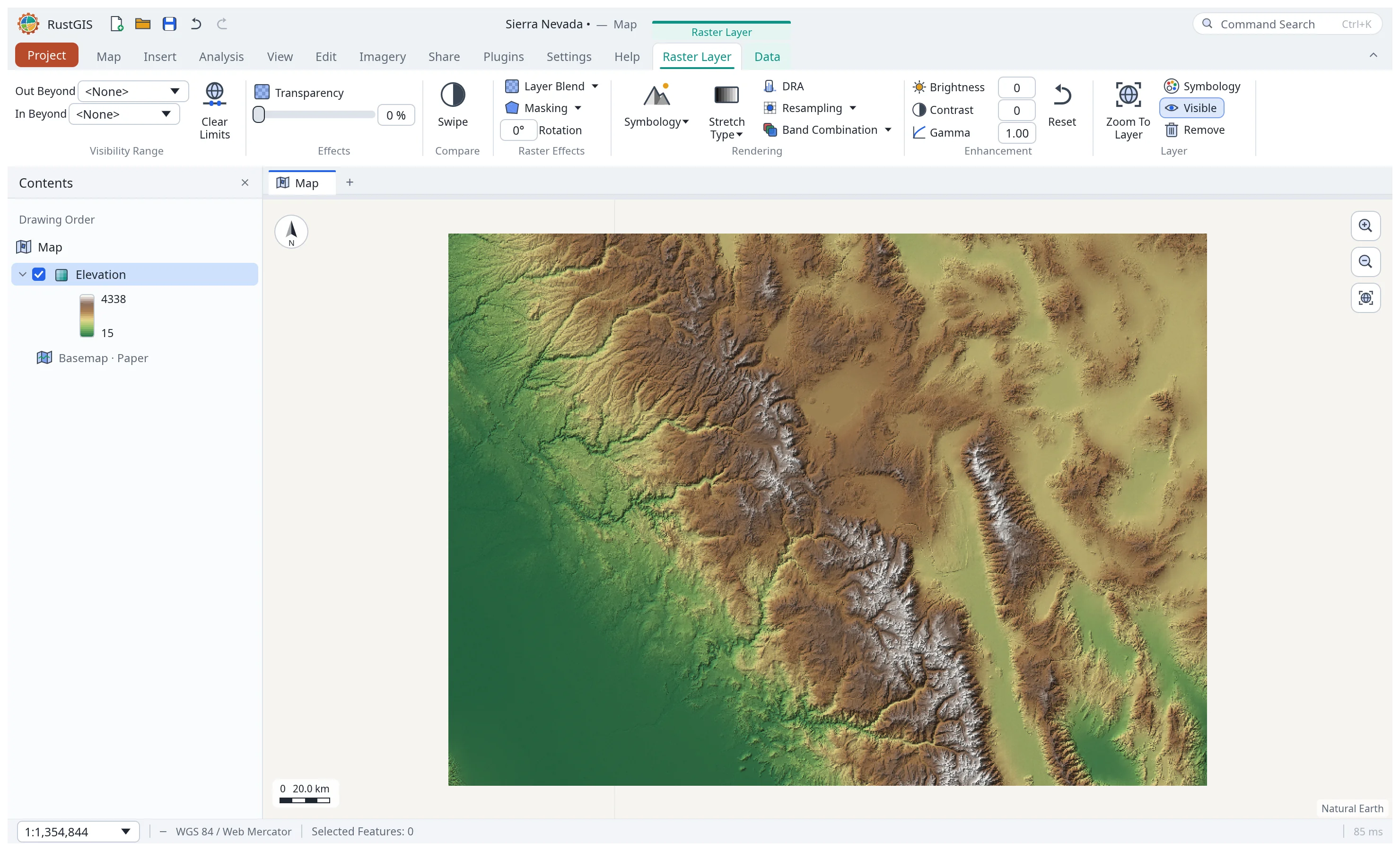
Add a GeoTIFF or an ASCII grid with Add Data, by dropping it on the window, or in the web app
by picking it. Local ASCII grids can be up to 1 GiB; ASCII-grid uploads are limited to 256 MiB in the web app.
A TIFF or PNG without coordinates opens as a scan to place with Georeference; see
Supported Data Formats. An ASCII grid takes its coordinate system from a .prj
file next to it (as a Shapefile does); otherwise, and always for uploads, it must be in
longitude/latitude degrees. On the desktop, a GDAL .aux.xml file next to a raster (dem.tif.aux.xml
or dem.aux.xml) names its bands from their descriptions, gives the no-data value when the file
has none, and supplies the band statistics when only an overview of the raster is read.
Exporting a raster opened from an overview writes that overview; the results of adding and of
exporting it (layer.addData, share.exportRaster) give the full size as overviewOf, so scripts
and the MCP server see it too.
share.exportRaster writes an untiled GeoTIFF; with "cog": true it writes a cloud-optimised one:
512-pixel tiles compressed with Deflate, overviews (each half the size of the last, down to one
tile), and every directory ahead of the tiles, so a reader fetches the header once and then only the
tiles it needs. Overviews are averaged, except for a palette raster or one with a few whole-number
classes, whose overviews take a pixel so that no class is invented; a palette keeps its colour
table, though not the table's transparency, which a TIFF colour table can't hold (GDAL drops it
too). The file is classic TIFF when it would fit in 4 GiB even uncompressed and BigTIFF when it
might not. Exported to a file it is written tile by tile, never held whole in memory (the browser
builds it in memory to download it).
GeoTIFFs may be regular or cloud-optimised: grey, RGB(A), palette (coloured by the file's colour
table, as land cover such as the NLCD is) or multiband, of any pixel type, tiled or striped, and
compressed with Deflate, LZW, PackBits, JPEG or Zstandard. JPEG-compressed YCbCr images are shown
as RGB; other YCbCr and CMYK images aren't read. A rotated or skewed image is resampled to a
north-up grid as it is read. The coordinate system is an EPSG code,
or the file's own projection described in its GeoKeys (Albers, Lambert conformal conic, transverse
Mercator, Mercator, Lambert azimuthal, stereographic, equirectangular, sinusoidal and others), which an
exported GeoTIFF keeps. A raster too large to hold in memory (more than 120 million samples, 32
million in the web app) opens from its largest overview that fits; one without overviews opens as
an overview made as it is read, a strip or tile at a time (every second, fourth… pixel each way),
so reading it takes as long as decoding the whole file once. A cloud-optimised GeoTIFF added by its
web address is read in place instead, a tile at a time (see Files on the
web).
The web app opens a picked or dropped file of up to 256 MB whole. A larger GeoTIFF is read a part at a time instead: its header, then only the tiles of the overview it opens from. A cloud-optimised file opens however large it is, as long as those parts fit in 256 MB (a 436 MB EnMAP hyperspectral scene reads about 20 MB, the 1.6 GB NLCD land cover about 14 MB). The parts read are what a saved project keeps. A file that isn't cloud-optimised (in strips, or without overviews) needs most of itself, and past 256 MB the web app says to open it in the desktop app.
With a raster layer selected in Layers, the Style and Data tabs show its groups:
| Tab › Group | Controls |
|---|---|
| Style › Visibility Range, Effects | Scale range, transparency |
| Style › Rendering | Symbology: Stretch, RGB, Classify, Unique Values, Colormap, Shaded Relief; Stretch Type: None, Minimum Maximum, Custom Min/Max (your own bounds, one pair per colour channel on an RGB layer), Percent Clip, Standard Deviation, Histogram Equalize; DRA (stretch the pixels in view); Resampling (nearest or bilinear); Band Combination (natural colour, colour infrared, or any bands) |
| Style › Enhancement | Brightness, contrast, gamma |
| Data | Raster information (size, bands, statistics, coordinate system) and Export Raster (GeoTIFF) |
Masking, at the foot of the Symbology pane (raster.mask), hides pixel values from view without
changing the data: values to draw as no data (a background of 0 or −9999 the file doesn't flag, QA
flags, land cover classes such as 0, 254, 255), and values outside, or inside, a range. The
stretch, class breaks and legend then use only the values shown. Clear mask shows every value
again; the mask is saved with the project.
A single-band raster of continuous values (an elevation model, a temperature grid, an index such
as NDVI) is first drawn as an inverted grey stretch clipping 0.5 % at each end. To draw such rasters
your own way, style one with the Stretch symbology, then click Save as Default under
Resampling: rasters added from then on, opened files and analysis results (a slope, an NDVI)
alike, take its color scheme, inversion, stretch type and
resampling (a Custom Min/Max stretch is in one raster's own units, so it can't be saved). Reset
Default goes back to the grey stretch. The app keeps the setting with its preferences, for every
project; colour images, rasters with their own color table and rasters of a few categories keep
their own look. Scripts use raster.setDefaultStyle, e.g.
{"ramp": "Viridis", "invert": false, "stretch": "standardDeviation", "n": 2, "resampling": "bilinear"},
{"fromLayer": true} or {"reset": true}; with no parameters it returns the current setting.
Tiles of one dataset drawn as separate layers each stretch over their own values, which shows as
steps where they meet. raster.stretch with {"like": "<layer>"} gives a layer the value range
of another layer's stretch as fixed bounds, so the tiles match; {"type": "custom", "min": …,
"max": …} sets the bounds yourself.
Clicking a raster with the Explore tool shows its pixel values. Projects remember a raster's file path and reopen it; rasters added in the browser are stored inside the project.
Zarr stores
Home › Add Data › Zarr… (layer.addZarr) adds a variable of a Zarr store
(format 2 or 3), the multidimensional arrays climate and Earth-observation data are kept in: give
the store's web address, or (on the desktop) its folder, and Connect lists its variables
(raster.zarrInfo). A variable's map is its latitude/longitude (or y/x) dimensions; its other
dimensions, such as time or pressure level, are picked a step at a time with a slider, labelled by
their coordinates (CF time units as dates, the noleap and 360_day model calendars included).
Add to Map adds that step as a raster layer named after the variable and step (tas
2014-07-15), and the dialog stays open to add others. Only the chunks the step needs are fetched,
a few at a time, in the background.
Stores are read in pure Rust, in the web app as well as on the desktop: Zarr 2 with consolidated
metadata (.zmetadata, as xarray writes) and Zarr 3 (zarr.json, sharded arrays too), chunks
compressed with blosc (LZ4, zlib or zstd, byte- or bit-shuffled), zlib, gzip, zstd or LZ4, of
integer or float values, in C or Fortran order. A sharded array's shards are fetched whole.
_FillValue, missing_value and a Zarr 2 array's fill value are no data; a Zarr 3 array's fill
value isn't: chunks never written are left empty, but chunks missing from inside a shard show the
fill value. scale_factor and add_offset are applied. The coordinates must be evenly spaced (a curvilinear grid isn't read);
longitude/latitude grids of 0–360° are turned to -180–180°, and projected ones take their
coordinate system from the variable's grid mapping (crs_wkt, spatial_ref, an EPSG code) or
"crs". Blosclz-compressed and transposed chunks and shards inside shards aren't read yet, and
say so. A store by web address must allow the browser to fetch it (CORS) for the web app;
Google Cloud's CMIP6 bucket does, ARCO-ERA5's doesn't (the desktop reads both).
rustgis-cli run --cmd 'layer.addZarr={"url":"https://storage.googleapis.com/gcp-public-data-arco-era5/ar/1959-2022-full_37-1h-0p25deg-chunk-1.zarr-v2","variable":"2m_temperature","index":{"time":539100}}'
Follow the time slider (desktop; layer.addZarr with "time": true) adds the variable as one
layer whose step is the time slider's. The slider turns on over the variable's dates when it is
off, and the layer shows the last of its steps in the slider's window, or nothing when none falls
in it. Moving or playing the slider reads that step's slice (only its chunks), keeping the last
eight read. A web store's next two steps are read ahead in the background. The stretch is fixed at
the first slice's range, so a colour means the same value at every step, and Export writes an
animation of it. An axis longer than the slider's 20,000 steps (hourly ERA5) takes a period with "start" and
"end"; given neither (as the dialog adds it), the layer takes 20,000 steps from the one picked. The project keeps such a layer by its store (a folder or a web address)
and selection, not as a slice, and reads the slider's step again when it opens.
rustgis-cli run --cmd 'layer.addZarr={"path":"air.zarr","variable":"t","time":true}' --cmd 'time.export={"path":"t.gif"}'
View › Time Series (desktop; zarr.series) reads a Zarr variable's values through time at a
point. Pick a Zarr layer, then Pick a Point on the map. A layer that follows the time slider
gives its period, a slice the whole axis, and "start"/"end" any other. Only the chunks holding
that point's cell are read. A store chunked one step at a time, such as ARCO-ERA5's map-oriented
copy, reads a chunk per step: about 4,000 steps at most, so a long axis needs a shorter period.
The chart draws up to six points as lines and marks the time slider's step, and a click on it
takes the slider to that date. Export CSV… writes the date and value of each point.
rustgis-cli run --cmd 'zarr.series={"path":"air.zarr","variable":"t","lon":-55.7,"lat":-12.5}'
Summarise over time (in the Time Series pane; zarr.reduce) makes a raster of one statistic of
a Zarr variable's steps: mean, min, max, sum, std (the population standard
deviation), count of values, or countAbove a threshold (days above 30 °C, say). It reads a
layer's period by default, else the "start"/"end" given, and "months" keeps one season across
years ([12, 1, 2]). Slices are read one at a time and folded into running totals (12 to 20 bytes a
cell, for grids of up to 32 million cells), so memory depends on the grid, not on the period: at most
20,000 steps, with progress and Cancel in the app. A cell keeps no value when it had fewer values
than "minValid" (a share, 0 by default) of the steps read; with the default, count and
countAbove give 0 where a cell never had a value (land in an ocean variable, say), and a
"minValid" above 0 leaves such cells empty. The layer is named after what it holds (tas mean 1991-01-01–2020-12-31) and kept in the
project as a GeoTIFF.
rustgis-cli run --cmd 'zarr.reduce={"path":"air.zarr","variable":"t","stat":"mean","months":[12,1,2]}'
A single step (a layer that doesn't follow the slider) from a store in a folder is saved in the
project by its folder and slice (2m_temperature[time=539100]) and read again when the project
opens, as Add Data on the folder does (its first variable); a single step from a store by web
address is kept in the project as the slice read. ?zarr=<address> in a web app link
opens the dialog on a store.
Project items
RustGIS saves pieces of a project as files you can share and reuse:
| Item | Extension | Made with | Opened with |
|---|---|---|---|
| Map file (a map with its data) | .rgismap |
Publish › Save As › Map File | Home › Import |
| Layer file (a layer with its symbology) | .rgislyr |
Publish › Save As › Layer File | Add Data |
| Styles (saved symbology) | .rgisstyle |
Style › Styles › New Style, then Publish › Save As › Style Items | Style › Styles › Add Style File |
| Color ramps | .rgisramp (also reads QGIS .xml/.qml, GDAL color .txt and GMT .cpt) |
Publish › Save As › Color Ramps, or by hand | Style › Styles › Add Color Ramp File |
| Project template (the setup without features) | .rgistemplate |
Home › Templates, or Publish › Save As | Home › Templates › Open Custom Template |
| Project package (the project, with linked raster files embedded while they fit) | .rgispkg |
Publish › Package › Project | Project › Open, or drop it on the window |
| Map package / mobile map package | .rgismpk |
Publish › Package › Map or Mobile Map | Home › Import |
| Results package (geoprocessing history and outputs) | .rgisgpk |
Publish › Package › Results | any zip tool |
| Task (guided command steps) | .rgistask |
Analyze › Task, Publish › Save As › Task Item | Analyze › Task › Import Task |
| Bookmarks (as longitude, latitude and scale) | .rgisbookmarks |
Home › Navigate › Bookmarks › Export Bookmarks | Home › Navigate › Bookmarks › Import Bookmarks |
| Layout | .rgislayout |
Publish › Save Layout File | Home › New Layout › Import Layout |
Packages are zip files. Project and map packages can newly embed a combined 512 MiB of linked raster files on the desktop (128 MiB in the web app); a raster that doesn't fit stays linked. Already embedded uploads are retained. Local streamed vector files, databases and web layers stay linked to their sources. A mobile map package keeps only the visible layers and simplifies their geometry, for phones and tablets. Styles can also be imported from the layers of a layer file, map file or project. Data › Layer Templates adds empty layers with ready-made schemas (places, routes, areas, observations…) to draw into. Add Folder connects a folder to the Browser, which also lists the project's layouts, styles and tasks. A task's steps each run a command; New Task From History turns the geoprocessing history into a task you can replay.
Saved projects, map and layer files, and packages keep no password, key, token or signature in
layer web addresses. The open project keeps them for this session. RustGIS remembers the 32 most
recent distinct saved snapshots whose addresses needed stripping. Opening a plain .rgis file
whose bytes exactly match one of those snapshots restores its secrets; saving more distinct
snapshots evicts the oldest. Changed files, packages, imports and files saved by another process
never restore secrets. After a snapshot is evicted or RustGIS closes, add those layers again with
their credentials.
Complete streamed Shapefile rendering
The CPU renderer traverses a streamed Shapefile in source order instead of painting only its interaction sample. Shapes and attributes arrive in chunks targeting 8 MiB of owned feature storage; projection and display geometry are temporary copies of one chunk. Whole-file imports, loading for editing and other providers retain their existing read APIs. An indivisible row exceeding the chunk target is emitted alone, preserving its full geometry. A zero budget reports an error.
Styles, definition queries, display filters and label classes use the same painter as an in-memory layer. The renderer chooses geometry simplification from statistics over the whole layer, accumulates point bins across chunks, applies transparency and blend once per layer, and draws selection highlights after the whole layer. Labels share the existing global priority, stable tie ordering, collision rules and 20,000-candidate placement limit. Screen rendering and PNG/layout exports share this traversal. Live redraws of a streamed Shapefile therefore also read the complete source; line/polygon layers currently make an additional statistics pass. Interaction windows remain byte-budgeted, but they are not a shortcut for this complete painter, so redraws can be I/O intensive on large files.
Native flat extrusions use a private disposable SQLite ordering workspace (2 MiB page-cache target, memory mapping disabled, 4 GiB database ceiling), with a global shadow pass followed by globally sorted solids. It is removed when rendering finishes. Failure or incomplete traversal does not publish a partial successful frame. This workspace is not a reusable index.
This is not a fixed bound on total renderer memory: raster targets, label candidates and the existing combined polygon-mask path have separate costs. Upright perspective point markers and polygon extrusions retain the complete upstream depth renderer through an isolated full-source snapshot. Upright points require a known source total of at most 50,000 rows; larger or unknown totals use complete ground-marker traversal, independent of the current interaction-window size. Plain fills, lines and mask sources continue complete chunk traversal per band, including terrain bands; they do not consume that snapshot's feature budget. Retained complete-source feature storage across the snapshot has a separate budget (512 MiB natively, 192 MiB in the browser). Exceeding it fails the whole frame with a source diagnostic, without sampling or truncating features; raster targets, derived geometry caches and decoding scratch are outside that budget. Flat line/polygon rendering makes a statistics pass before painting and currently reads the entire source, so it trades additional I/O for complete rendering and predictable chunk storage. Geometry preprocessing and GPU preparation are separate optimizations.