Workspace
Tools for working across maps and views, and for setting up the app the way you like it.
Projects
Project › New, Open, Save and Save As manage .rgis project files; older
.rgisx projects still open. A project keeps its maps, layers, styles, layouts, tables, tasks,
models and other project items together. In-memory feature data is saved in the project;
streamed layers reopen their sources, and file-backed rasters reopen their files. Keep those
sources accessible when moving a project. See Project items for
templates, packages and files for individual items.
Open also accepts a project package (.rgispkg), as do drag-and-drop and the desktop
command line. A package opens as a new, unsaved project; Save writes a plain .rgis file.
Opening or creating a project clears undo history; saving does not.
Saved layer addresses omit passwords, access keys, tokens and signatures. The open session keeps them, but after restarting RustGIS a protected source may need you to sign in to its connection again or add it again with credentials.
Autosave and recovery
The desktop app keeps a recovery copy of unsaved work. While the project has changes that aren't
saved, it writes a copy every few minutes (5 by default), and only when something changed since
the last one. Choose how often, or turn it off, in Settings › Autosave
(ui.autosave={"minutes": 10}; 0 is off). The copy is written in the background, so a large
project doesn't hold up the app. It leaves out layer passwords, keys and tokens, as a saved project
does. It is kept in the recovery folder of the app's
data folder, not beside your project.
Saving, opening or starting another project, and quitting RustGIS remove it.
If RustGIS crashes, is closed by the system or loses power, the next launch asks Recover unsaved work? and says how old the copy is.
- Recover opens the work unsaved, under its file's name, so Save writes it back to that file. RustGIS warns you if the file was changed after the copy was made. A project that was never saved stays untitled, and Save asks where to write it.
- Discard deletes the copy.
- Later keeps the copy for the next launch.
If RustGIS crashes again before you decide, neither copy replaces the other. Up to five are kept and offered newest first, one per launch once you recover one. Recovering never replaces a project that has unsaved changes of its own: save it first.
The same choices are commands: ui.recover opens the copy, and ui.recover={"discard": true}
deletes it. ui.autosave reports the interval and any copy waiting.
Quitting doesn't ask about unsaved changes, and their copy is removed: save before you quit. A second copy of RustGIS running alongside the first doesn't autosave, so it can't replace the first one's copy; it says so as it starts. Nor does RustGIS autosave when its settings folder can't lock files (some network or synced folders), where it can't tell a second copy apart. The browser app doesn't autosave yet; it warns before you leave a page with unsaved changes.
QGIS projects and styles
A QGIS project (.qgs, or a .qgz archive) opens as a new map of the current project: Open
on the desktop, or Project › New › QGIS Project… (project.importQgis={"path": "…/towns.qgs"}).
Its layers come in the layer tree's order, each from its file (GeoPackage, Shapefile, GeoJSON,
GeoTIFF and the other formats RustGIS reads, relative paths from the project's folder), a CSV of
points, XYZ tiles or a WMS layer, unchecked layers and groups hidden. The map takes the project's
coordinate system and its saved view (or its layers' extent, when that view shows none of them),
with no basemap and no graticule, as QGIS draws it. A project in degrees (EPSG:4326 and other supported
longitude/latitude systems) opens in the Equirectangular projection, the plate carrée QGIS draws
it in. The import is one undo step.
Each layer keeps its look:
- Renderers: single symbol, categorized (as Unique Values, a category's merged values each a class, its "all other values" category the rest), graduated (as Graduated Colors), and rule-based where every rule picks values of one field (an else rule the rest); point cluster, displacement and other renderers that wrap one are drawn by the one inside.
- Symbols: simple fills, lines and markers with their colours, widths in any unit, offsets, caps, joins, dashes and the symbol's opacity; a line's simple lines as stacked strokes, its rendering passes as their levels when the renderer draws in symbol levels; marker and hashed lines as strokes of markers or hash marks, at their places (intervals, vertices, the ends, the middle), turned with the line, their markers' offsets and angles kept (font characters along lines are left out for now: drawn as dots, they would blot the line where QGIS draws a tick).
- Layer settings: opacity, blending, visibility range, filter (subset string), and the reference scale.
- Rasters: singleband grey as a stretch from black to white, singleband pseudocolour as a stretch along its colour map (interpolated), as Classify (discrete) or as Unique Values (exact), paletted as Unique Values, multiband colour as RGB and hillshade as Shaded Relief; with the contrast enhancement's bounds as the stretch (following the view when QGIS works them out from the canvas), brightness, contrast and gamma, bilinear resampling, and the values its transparency, clipping and no-data settings hide as the raster's mask.
- Labels: simple and rule-based, each rule a label class whose SQL clause is its filter and its parents' (an else rule's: none of its siblings'), with the text's field, size, colour, bold and italic, its font family (drawn in it where it is installed, else in RustGIS's label font), its buffer as a halo, its placement (Parallel and Curved along lines, around and over points) and its scale range.
Projects and styles from QGIS 1 and 2 read too: their legend gives the layers' order, and the older names of the same settings are read.
QGIS expressions carry over where they are SQL: fields compared with values, LIKE, IN,
IS NULL, joined by AND, OR and NOT. What RustGIS doesn't draw as QGIS does is drawn as
near as it can, or left out, and said: the import's notes list, layer by layer, what was
approximated (pattern fills drawn as a tint of their colour, font and SVG markers as circles,
dashed polygon outlines solid, label halos in RustGIS's own colour and width, label offsets and
wrapping, values outside a graduated renderer's ranges in its first or last class, file options
such as layerid that RustGIS doesn't read) and what was skipped (arrow lines, font markers
along lines, data-defined
settings, draw effects, label callouts, labels from expressions, contours and other raster
renderers RustGIS has no match for, PostGIS, WFS
and other sources RustGIS doesn't read, diagrams, joins, virtual fields, a layer's other styles,
and the project's print layouts, annotations, bookmarks, map themes and relations). A database
password in a project never reaches the notes.
A QGIS layer style (.qml) styles the selected layer the same way, a feature layer or a raster:
Import QGIS Style… in the Symbology pane (style.importQgis={"layer": "Roads", "path":
"…/roads.qml"}). A raster style that reads a band the raster hasn't is noted and leaves the
raster as it was. On a raster still loading (a remote file), the bands can't be checked yet: the
style is applied, noted as unchecked, and a band the file hasn't is drawn from its last band.
RustGIS works out a map's scale with the OGC's 0.28 mm screen pixel, QGIS at 96 pixels to the inch, so the same view is a larger scale in QGIS; scales from QGIS (reference scales, visibility ranges) are multiplied by 0.945 on the way in, so a layer shows at the same zoom in both.
Panes and command search
The left pane has tabs for Layers, Browser and Data Sources. Right-hand panes such as Tools, Symbology, Labeling, Format and AI Assistant remain open as tabs: select a tab to bring it forward, or its × to close it. Right-click a tab to close it, the other panes or all panes; an overflow menu lists tabs that do not fit.
Right-click a map or layout tab (or its entry in Browser) to Rename, Duplicate or Delete it. Deletion asks for confirmation; a project must keep at least one map.
Click Command Search at the right of the title bar or on the Help tab, or press Ctrl+K (Cmd+K on macOS). Search by command name, ID or ribbon location; analysis tools, workflow names, plugin commands and plugin panels are searchable too. Click a result, or press Enter to choose the first available one. Commands that need inputs open their dialog, pane or workflow when one is available; unavailable commands stay visible but disabled, with the reason on hover. Use scripts or the assistant for parameterized commands without an interactive entry point.
Keyboard shortcuts
See the keyboard shortcut reference for project, map and editing shortcuts, macOS bindings and text-field undo behavior. Help › Shortcuts lists the active bindings in the app. Feature editing is described in Editing; layout deletion, duplication and nudging have their own layout shortcuts.
Views and tools
- Side by Side shows a second project map beside the active one (add another map first); Link Views keeps maps at the same place and scale, and Link Cursors marks the pointer's place on the other map.
- Browser View shows the project's maps, layouts, tables, styles, tasks, models, folders and offline areas as cards (double-click to open); Item Pop-ups add hover details.
- Pane Sets (View › Workspace) save the left pane, open right-hand pane tabs, active pane and ribbon tab and bring them back. The Workflow Manager tracks jobs (new, in progress, on hold, done) with the area each covers.
- Connections (Home › Add Data › Connections…) opens the Data Sources pane on its saved connections; it only ever opens the pane, so it is safe to choose when the pane is already open (View › Windows › Data Sources still shows or hides it). Add Data › New Connection lists each kind of connection (PostgreSQL/PostGIS, MySQL/MariaDB and SQL Server are left out in the web app) and opens its form. Saved connections are listed in the pane, not in the menu. Command Search finds Connections… by name.
- Tasks (Analyze › Tasks, or View › Tasks) steps through a task's instructions: read the current step and do it
yourself, with Show Me to find where, or click Run to have it done.
- Show Me points at the step's command:
- a ribbon button gets its tab opened and is outlined for a few seconds;
- a tool is outlined in the Analyze gallery, or opened, empty, in the Tools pane;
- a symbology step opens the Symbology pane on its layer;
- a command no button runs opens Command Search on its name.
- Record Task (in the pane, or Analyze › Task) turns an exercise into a task: do it once, and
each command that changes the project becomes a step. Panes, dialogs and moving the view
aren't recorded, and a colour adjusted several times stays one step. Stop Recording makes
the task, named as typed beside it, and opens it for editing. Opening or creating another
project ends a recording without making a task.
- Undo doesn't remove a recorded step; delete it with Edit Steps.
- A task holds at most 200 steps, and a step's parameters at most 4 MB: add large data to the project before recording.
- Steps keep their parameters as they ran, file paths included (a file you added, say), so
check them before sharing a task. A command run on the selected layer names it, so the
step replays on that layer whichever is selected then; where two layers share a name it
replays on the first, so rename one first (the recording says so). A command holding a password, key or token (a database
connection, a signed address) isn't recorded, nor is data added from a download, which is
kept for the session only. A plain
keyparameter that doesn't read as an access key (a field or a lookup key, say) is recorded, and the recording warns that it might be one: delete that step before sharing the task if it is.
- Edit Steps gives each step ▲ ▼ to reorder it, Edit for its title and instructions, and Delete. A recorded tool's step is named after the tool.
- In the Browser pane, a click on a task opens its steps; Run All Steps is in its context menu.
- A task from a file (
.rgistask, or inside a project or a package) can't read or write files or run scripts. Its built-in analysis tools may still name their output layers with a plain name: one with/,\,.or:(a folder, an extension or a drive) makes the task count as writing files, so writeBuffer 1500 mrather thanBuffer 1.5 km. GeoLibre and plugin tools' outputs are refused.
- Show Me points at the step's command:
- Thumbnails for the project and for each map, from the view or an image.
- Animation: add keyframes (views), play them, and export the moves as a zip of PNG frames on desktop.
-
Time Slider (View › Time) shows data through time, in a timeline docked under the map.
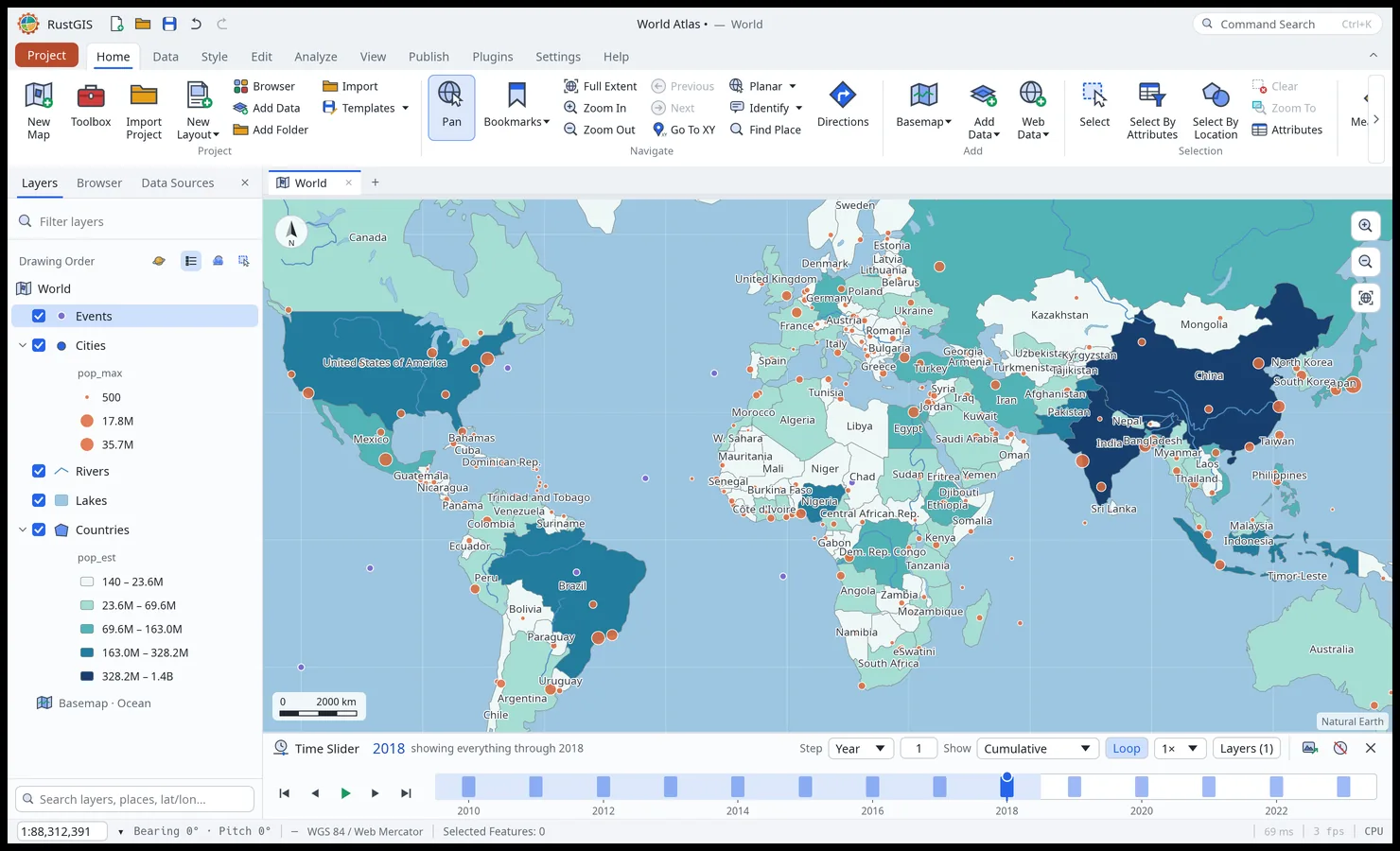
The Time Slider in cumulative mode: every event up to 2018 is drawn. - Bind To Time Slider (a layer's context menu, or the bar's Layers menu) picks the
layer's date field: the one most of whose values read as dates. Text dates (
2015-03-01,2015-03-01T12:00:00Z,2015/3/1), epoch milliseconds or seconds, and years (1958) all read; times are UTC. Only the features whose date falls in the slider's window draw (and show in the legend). The bar's bars count each step's features. - Step is an hour, a day, a month or a year, times a number; the slider starts in steps that suit the data's span. Show sets the window: This step, Wide (a step either side), Wider (three either side), or Cumulative (everything up to the step).
- Play, pause, step, or click and drag the timeline; Loop starts over at the end, and the speed runs from 0.5× to 4× (0.8 s a step at 1×).
- Imagery by date: a tile address with date placeholders (
{date:YYYY-MM-DD},{YYYY},{MM},{DD},{YYYYMMDD}) follows the slider. Add it withmap.addTiles, or a cloud-optimised GeoTIFF a file per date withlayer.addUrl, giving itsstartandend. For example NASA GIBS daily MODIS imagery:https://gibs.earthdata.nasa.gov/wmts/epsg3857/best/MODIS_Terra_CorrectedReflectance_TrueColor/default/{date:YYYY-MM-DD}/GoogleMapsCompatible_Level9/{z}/{y}/{x}.jpg. - A Zarr variable added with Follow the time slider (Add Data › Zarr…) shows the step the slider is at; see Zarr stores.
- From scripts:
time.bind("layer","field","start","end","unit","interval","show"),time.set(the window:"start","end","unit","interval","show","speed","loop","format"…),time.goTo("date", or"step"from 0),time.step("by", negative goes back),time.fields(a layer's date fields) andtime.unbind:rustgis-cli run --cmd 'layer.addData={"path":"quakes.csv"}' --cmd 'time.bind={"layer":"quakes","unit":"year","show":"cumulative"}' --cmd 'time.goTo={"date":"2018"}'. - Export on desktop writes the steps as an animated GIF (
time.exportalso writes a zip of PNG frames). The slider, its window and the bindings are saved with the project; the off button turns it off and every feature shows again. - Time Series: a Zarr variable's values through time at points clicked on the map, as lines on one chart; see Zarr stores.
- Profile: elevation profiles along clicked points or selected lines, auto-completed to the raster's edge, or across a line (a cross section), with gain, loss and a chart.
- Infographics (Home tab) summarise what's in view: counts, totals and top categories.
- Offline: Download Map takes the data in view into an offline area; open it to edit, then Sync sends changed, new and deleted features back and refreshes it. Feature Cache prepares every layer's geometry for the current projection (Fill, Empty, Cancel, Auto Cache).
- Settings › Customize chooses the ribbon's tabs and the Quick Access Toolbar's extra buttons. Settings and Help always remain visible. Help opens the user guide and the Diagnostic Monitor (frame rate, draw time, data size).
- Plugins: Plugins › Plugin Manager installs, updates and removes plugins from the registry at plugins.rustgis.app or from a file.
- Language: Settings › Language switches the interface among 19 languages and chooses the worldview of the built-in borders.
- Autosave: Settings › Autosave sets how often the desktop app keeps a recovery copy of unsaved work, or turns it off.
- Start-up: Settings › Start-up sets what RustGIS opens with: Start With the World Atlas
sample or a blank map, or, in the desktop app, Last Project (the
.rgisproject last opened or saved) or Choose Project… (one you pick once), the Projection the map opens in (a preset or a supported projected EPSG or ESRI code, such as3010orESRI:102033), and the Extent it opens on (the full extent, or Use Current View to keep the view you are looking at). A project opened at start keeps its own projection and view; the Projection and Extent settings apply to the sample and a blank map. If the project no longer opens (moved or deleted), RustGIS starts with the sample and says why. After a crash it starts with the sample too, in case the project is what crashed, and offers back the recovery copy autosave kept of unsaved work, if any; startingrustgis --samplealso skips the start-up project. The choices are remembered on this computer, or in this browser for the web app. Opening files from the command line starts a blank map.
- Bind To Time Slider (a layer's context menu, or the bar's Layers menu) picks the
layer's date field: the one most of whose values read as dates. Text dates (