Cartography
Symbology
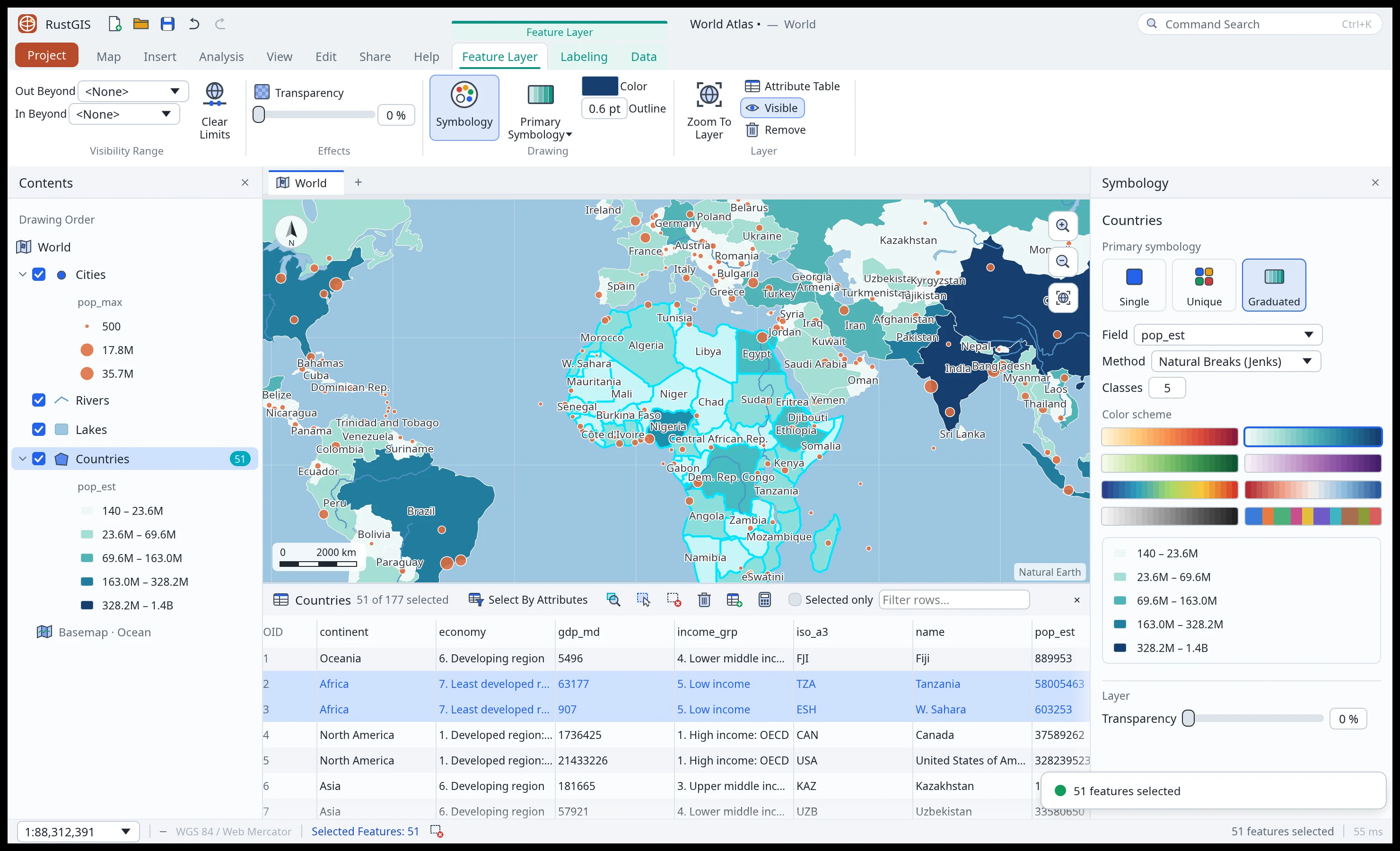
Select a layer in Layers and open Style › Symbology (or the Symbology pane):
- Single Symbol: one fill, outline and marker for every feature.
- Unique Values: one colour per distinct value of a field. The Layers pane and layout legends
list only the classes that drawn features use (after the definition query and display filters);
<all other values>appears only when a drawn feature falls outside the classes and its symbol is not fully transparent. A layout legend can leave it out with Hide other values (see Layouts). - Graduated Colors: 1 to 12 classes of a numeric field by natural breaks (Jenks), equal interval or quantile.
- Proportional Symbols: point size grows with a numeric field.
Pick a colour scheme from the pane's swatches, listed in groups: Perceptually Uniform (Viridis, Plasma, Inferno, Magma, Cividis, Batlow and Aurora: even steps in lightness, so they read in greyscale and for colour-blind viewers), Sequential, Diverging (Red–Blue, Vik, Roma, Balance), Topographic and Bathymetric (Terrain, Oleron, Topo and Deep; Oleron and Topo change colour sharply at the middle of the range, sea level for data centred on 0), Qualitative and the project's own Custom ramps. Click a group's name to show or hide it. The Style tab sets the fill Color, the Outline width, Transparency and a Visibility Range (the scales between which the layer draws; a large file read in place is not read at all outside them); points can be circles, squares, triangles, diamonds or stars. Data › Definition Query draws only the features matching a SQL clause; Unique Values, Graduated Colors and Proportional Symbols take their values, classes and sizes from those features when you apply them (apply the symbology again after changing the query), and Full Extent zooms to them. A layer with subtypes can be symbolized by them. Style › Styles saves symbology as styles to reuse on other layers and in other projects.
Edit a class
With Unique Values or Graduated Colors, each class in the Symbology pane's list has a colour button
and a legend label. Pick a colour and opacity to give that class its own. Type a label to show in the Layers
pane and in layout legends instead of the value or range (for example High income for
1. High income: OECD); clear it to show the value again. <all other values> can be edited the
same way. Applying the symbology again on the same field keeps the colours, outlines and labels
you set by hand on the classes that are still there (the others take the scheme's colours again);
picking another colour scheme recolours every class but keeps the labels. A Graduated Colors
class keeps its colour and label while its range stays the same. By command:
layer.classStyle={"layer":"Countries","value":"1. High income: OECD","color":"#2E6B4F","label":"High income"}
layer.classStyle={"layer":"Countries","index":0,"label":"Under 1 million"}
layer.classStyle={"layer":"Countries","index":0,"color":"#2E6B4FFF"}
layer.classStyle={"layer":"Countries","other":true,"label":"No data"}
value names a Unique Values class, index a Graduated Colors class (0 is the lowest) and
other the <all other values> class; outline sets a class's outline colour.
#RRGGBBAA sets the fill opacity exactly for every geometry type: FF is fully opaque for
print choropleths, 00 fully transparent, and intermediate values partly transparent. The class
colour picker includes opacity and sends all eight digits, including FF. Changing opacity
keeps the class's RGB colour, even when making a fully transparent class visible again.
For fully transparent fills, the numeric controls temporarily use linear 0–1 values so you can
edit the hidden RGB colour without losing it. Other colour pickers keep their numeric settings.
For polygons, six-digit #RRGGBB retains the existing translucency, with the legacy minimum
alpha of 150; new polygon layers still default to 170. Colour schemes preserve a polygon's
fill opacity when classes are first created or recoloured with layer.ramp. Reapplying the
same field, ranges and scheme also preserves opacity, including edits that change only alpha.
As with other class colour edits, changing the field or graduated ranges starts fresh; choosing
a different scheme through layer.symbology resets polygon opacity to its default.
Layer/group transparency still applies on top of the symbol's opacity in maps and exports.
Line strokes
A line layer draws one stroke by default. The Strokes section of the Symbology pane stacks several in one symbol, for road casings, parallel lines and offsets: Add Stroke puts one on top, and each stroke has its own Color, Width, Offset, Cap (round, flat or square) and Join (round, miter or bevel), with buttons to move it up or down or remove it. The list shows the top stroke first, and the preview above it shows the symbol along a line drawn left to right. A colour or width set to From symbol follows the renderer, so the strokes take each Unique Values or Graduated Colors class's colour. Use a Single Stroke goes back to one.
Widths and offsets are in points: they keep their size on screen at every scale, and the features
keep their coordinates. A positive offset shifts the stroke to the right of the line's direction
(the order of its vertices) and a negative one to the left, so two copies of an edge drawn in
opposite directions land on opposite sides of it. Strokes are saved with the project and drawn in
exports. By command, bottom stroke first ([] goes back to the single stroke):
layer.lineStrokes={"layer":"Rivers","strokes":[{"color":"#000000","width":11.5,"offset":8.5},{"color":"#FF8C00","width":7,"offset":8.5,"cap":"round","join":"round"}]}
A stroke without color or width takes the renderer's.
Custom color ramps
Besides the built-in color schemes, a project can hold your own color ramps: an organization's palette, a published scheme such as a ColorBrewer or cmocean ramp not built in, or one designed in a tool like Phosphor. Add them from a color ramp file with Style › Styles › Add Color Ramp File (or Add Color Ramp File under the swatches in the Symbology pane). They appear under Custom in the Symbology pane, for feature layers and rasters (Stretch, Classify, Unique Values and Shaded Relief) alike, and under Color Ramps in the Browser, where right-click deletes one. Publish › Save As › Color Ramps saves the project's custom ramps to a file.
A color ramp file (.rgisramp) is JSON: a list of ramps (or one ramp on its own), each with a
name, a kind (sequential, the default, diverging or qualitative) and its stops:
[{
  "name": "Phosphor Frostfire",
  "kind": "diverging",
  "stops": ["#eff6ff", "#abc5e8", "#87a0d7", "#7b5ca6", "#ca7482", "#f5b88e", "#fff5da"]
}]
Stops are #RRGGBB or #RRGGBBAA colors, evenly spaced from the first to the last. For uneven
spacing, give a stop as {"pos": 0.25, "color": "#87a0d7"}, with pos from 0 to 1; plain
stops between two positioned ones are spaced evenly between them. A ramp has 2 to 256 stops (a
qualitative one can have 1), and can't take the name of a built-in scheme; adding a ramp with
the name of one already in the project replaces it. Scripts, the CLI and the AI Assistant add
ramps with the ramp.add command ({"path": "ramps.rgisramp"}, or the JSON itself as
{"text": …}), and then name them like built-in schemes, for example
layer.ramp={"ramp":"Phosphor Frostfire"}.
Color ramps from other tools
Add Color Ramp File also reads the color ramp files other tools write, so a palette from QGIS, GDAL, GMT or a tool like Phosphor can be added without converting it first:
| Format | Extension | What RustGIS reads |
|---|---|---|
| QGIS style | .xml |
Every gradient ramp (discrete ones as steps) and preset ramp (as a qualitative ramp) in a Style Manager export, with its name. ColorBrewer, cpt-city and random ramps hold no colors and are skipped. |
| QGIS layer style | .qml |
The layer's color ramp, or a raster's color map. |
| GDAL color-relief text | .txt |
value R G B [A] lines (as gdaldem color-relief takes them), separated by spaces, tabs, commas or colons; values may be percentages and colors may be names; nv lines are skipped. A QGIS color map export reads the same way. |
| GMT palette | .cpt |
z0 color0 z1 color1 lines, with colors as r/g/b, r g b, #RRGGBB, grey levels, names or HSV; B, F and N lines are skipped. |
These formats tie colors to data values; the ramp keeps their spacing, from the lowest value
to the highest, and a sharp change between two colors stays sharp. A ramp from a GDAL or GMT
file is named after the file and is sequential; the ramp.add command takes a name and a
kind to change that ({"path": "relief.cpt", "kind": "diverging"}), and a format
(rgisramp, qgis, gdal or cpt) for text without a file name. A file with more than 256
colors is resampled to 256 evenly spaced stops.
Sequential and diverging ramps blend between their stops; when there are as many classes as stops, each class takes a stop's color exactly, so a stepped palette keeps its colors. A qualitative ramp gives each class the next stop, starting again after the last. A layer keeps its own copy of the ramp it uses, so layer files, map files and packages keep their colors in projects that don't have the ramp, and deleting a ramp from the project leaves layers that use it unchanged.
Labeling
The Labeling pane has every setting below in one place, for the selected layer: right-click a feature layer in the Layers pane › Labeling Properties…, or View › Windows › Labeling, or Style › Labels › Properties. It runs the same commands as the ribbon, so each change undoes on its own (a dragged size or a colour pick is one step).
Turn labels on per layer (View › Labeling › Label, or the Style tab), then:
- Label field and text: the field the labels show
(
labels.field={"layer": "Cities", "field": "name"}), and the text symbol's size, colour, halo and bold (labels.style={"layer": "Cities", "size": 12, "color": "#5A1E0A", "halo": true}). - SQL: label only the features that match a SQL clause (the language of definition
queries), such as
pop_max > 5000000. In the Labeling pane, Class › SQL › New expression: write the clause (the field and operator buttons add to it), Check says whether it reads and how many of the features the layer draws at the map's scale match (after its definition query, display filters and time window), and Apply sets it in one undo step; Clear labels every remaining feature again (labels.class.update={"layer": "Cities", "where": "pop_max > 5000000"}). - Visibility Range: draw labels only between two scales (Out Beyond / In Beyond), or between two viewing distances (Closest / Farthest). Clear Limits removes all four.
- Placement: automatic (above points, centred on lines and polygons), centred, or one of
eight positions around the feature (
labels.placement={"layer": "Cities", "position":
  "aboveRight"}
). - Lock keeps the labelled features fixed while you pan and zoom; Pause stops drawing labels for faster navigation; View Unplaced draws the labels that didn't fit in red.
- Convert turns a layer's labels into an annotation layer: one point per label, carrying its
text in a
TEXTfield, which you can then edit, move or delete like any other features. - Label classes label different features differently, such as capitals larger than other
cities. Each class has a SQL clause (the language of definition queries) choosing its
features, and its own field, text symbol, placement and visibility range. A feature is
labelled by the first class whose clause it matches; the Default class, checked last,
labels the rest (or, given a clause of its own, those of the rest it matches). A class that
is hidden, or out of its visibility range, leaves its features unlabelled: they don't go on
to the next class. For now, classes are made with commands:
labels.class.add={"layer":
  "Cities", "name": "Capitals", "where": "pop_max > 5000000"}
, thenlabels.class.rename,labels.class.update(itswhereorvisible),labels.class.move,labels.class.removeandlabels.class.clear(every class but Default; no error when there are none, so a script can start with it). The other label commands take aclass(labels.style={"layer": "Cities", "class": "Capitals", "size": 14}), and change Default without one (a renamed Default is named by its new name, or left out). Convert keeps the classes, with aCLASSfield saying which labelled each point; a web style (Share › Web Style) labels with Default only, and has no labels when Default is hidden.
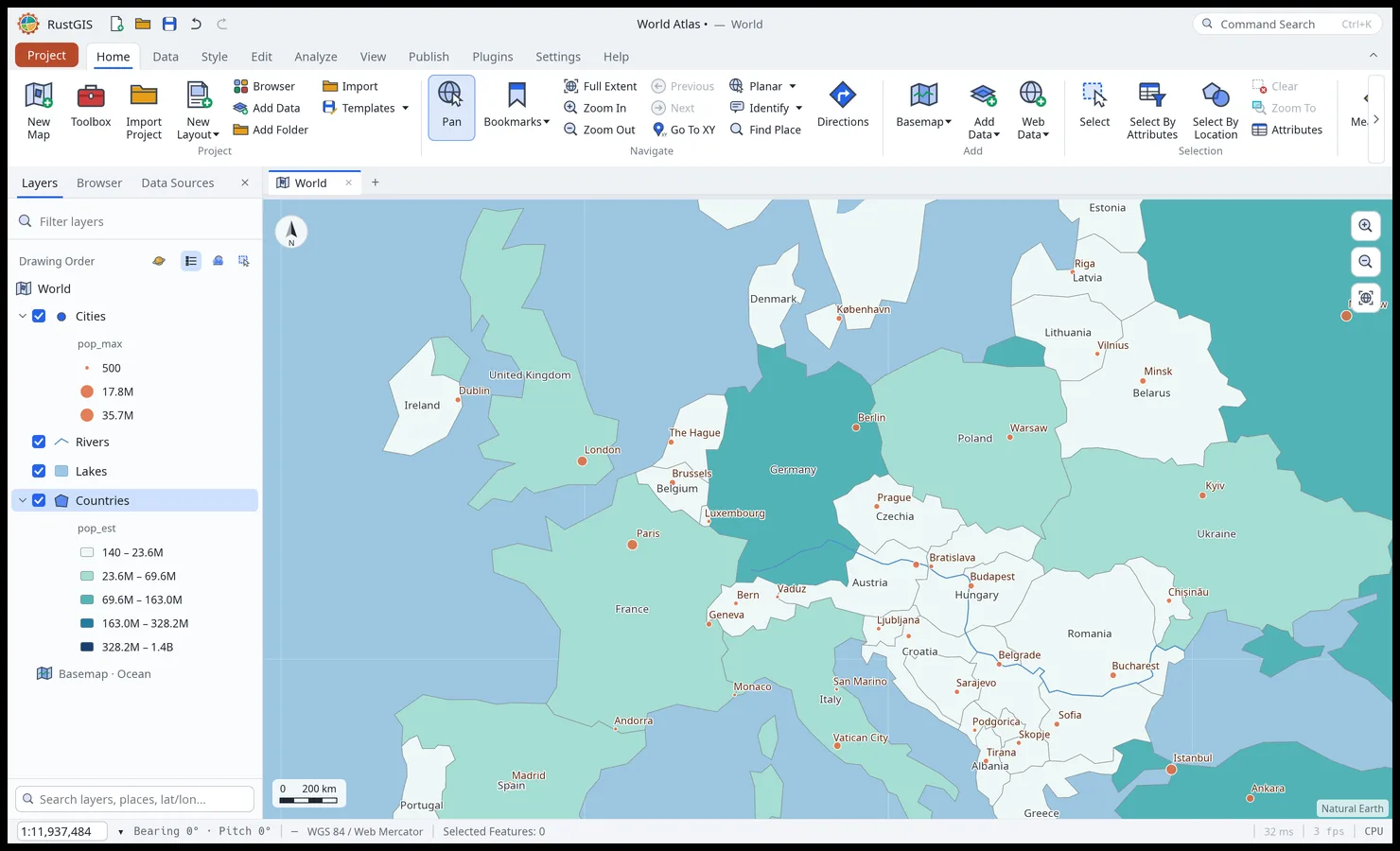
Layer effects
These draw on top of the symbology. On the Style tab: Masking shows a layer only inside another layer's polygons; Display Filters show different features at different scales (a SQL condition per scale range); Aggregation draws points as hexagon or square bins coloured by count; Extrusion raises polygons by a height or a numeric field in an oblique 2.5D view, with Face Culling, Lighting (walls shaded by the way they face the light) and Cast Shadow. On the Raster Layer tab: Layer Blend (multiply, screen, overlay, darken, lighten, difference), Swipe (the layer shows only left of a divider you slide, to compare it with what's beneath), Masking and Rotation.
Graphics
Edit › Graphics draws shapes in a graphics layer (Home › Add Data › Graphics Layer, or one is
made with the first graphic). Point, Line, Curve and Polygon are clicked vertex by vertex
(double-click to finish); Freehand, Lasso, Rectangle, Circle and Ellipse are dragged. Text places
a text where you click, as a layout's text is placed: it says "Text", is selected, and opens in
the Format pane (beside the other right-hand panes) with its text selected, so you type over
it. Shift+Enter starts a new line, and Enter ends the text. Dynamic Text is a menu of values that
update as the map changes (map name, scale, date, time, coordinate system, number of layers, map
centre): pick one, then click the map, and the text starts with its token ({map}, {scale},
{date}, {time}, {crs}, {layers} or {center}); the pane's Insert Dynamic Text menu adds
more. Picture: drag a rectangle, then pick a PNG or JPEG image to stretch over it. Tools return
to Explore after each graphic unless Keep Tool is on. Each graphic keeps its own fill, outline,
width, text size, bold, italic, alignment and letter spacing in the layer's attributes, so you can
edit them in the attribute table or with graphics.style. To change a text later, click anywhere
on it (with Explore or Select): selected alone, it opens in the Format pane, with the same form a
layout's text has there: text, size, colour, bold, Italic (slanted), Alignment (how the
lines of a text of several lines line up; the text stays centred on its point) and Letter
spacing in points (spaced-out names such as O C E A N O, or a negative value to tighten). A text
looks the same on the map and in an exported map. Each change is one undo step on that text only
(graphics.edit does the same by layer and row, with text, fontSize, fill for the colour,
bold, italic, align and letterSpacing). Once a text is selected, drag it by
its text to move it, as one undo step (points on graphics.edit); a drag anywhere else, or on a
text that isn't selected, pans the map as usual. A graphics layer that isn't Selectable keeps
its texts from being picked, moved or edited. Closing the
pane keeps the text selected; double-clicking it or right-clicking it › Edit Text… opens the
pane again. Text sizes go from 2 to 400 points, on the map as on a layout page.