Maps and Basemaps
A project holds one or more maps (Home › New Map), each with its own layers, basemap, projection, bookmarks and view settings. Maps open as tabs above the map view.
Navigating
Drag to pan and scroll to zoom; Home (or Full Extent) shows all the data. Home ›
Navigate has fixed zoom steps, Previous and Next extents, Bookmarks (the World Atlas
has World, Europe, Africa, Americas and East Asia) and Go To XY, which pans to a longitude and
latitude. New Bookmark… saves the current view under a name, with an optional description of
the place. The Bookmarks menu removes a bookmark with the button beside it, and exports or imports
them as a .rgisbookmarks file. Imported bookmarks show the same place on a map in another
projection; places that projection can't show are skipped. Type a scale in the status bar to jump
to it. More navigation tools are under View
effects below.
Zoom To Layer in a layer's right-click menu shows that layer's extent instead of the whole map. It works for feature and raster data, PMTiles archives, cloud-optimised GeoTIFFs, and service tile layers whose capabilities advertise geographic bounds, including WMS. WMS 1.3 geographic bounds and WMS 1.1 latitude/longitude bounds are inherited from parent layers when needed and saved with the project. Re-add a service layer saved by an older version to retain its bounds. Tile layers without known bounds (such as plain XYZ/TMS or MVT templates, styles and MBTiles archives) have no Zoom To Layer action unless bounds were supplied when adding them.
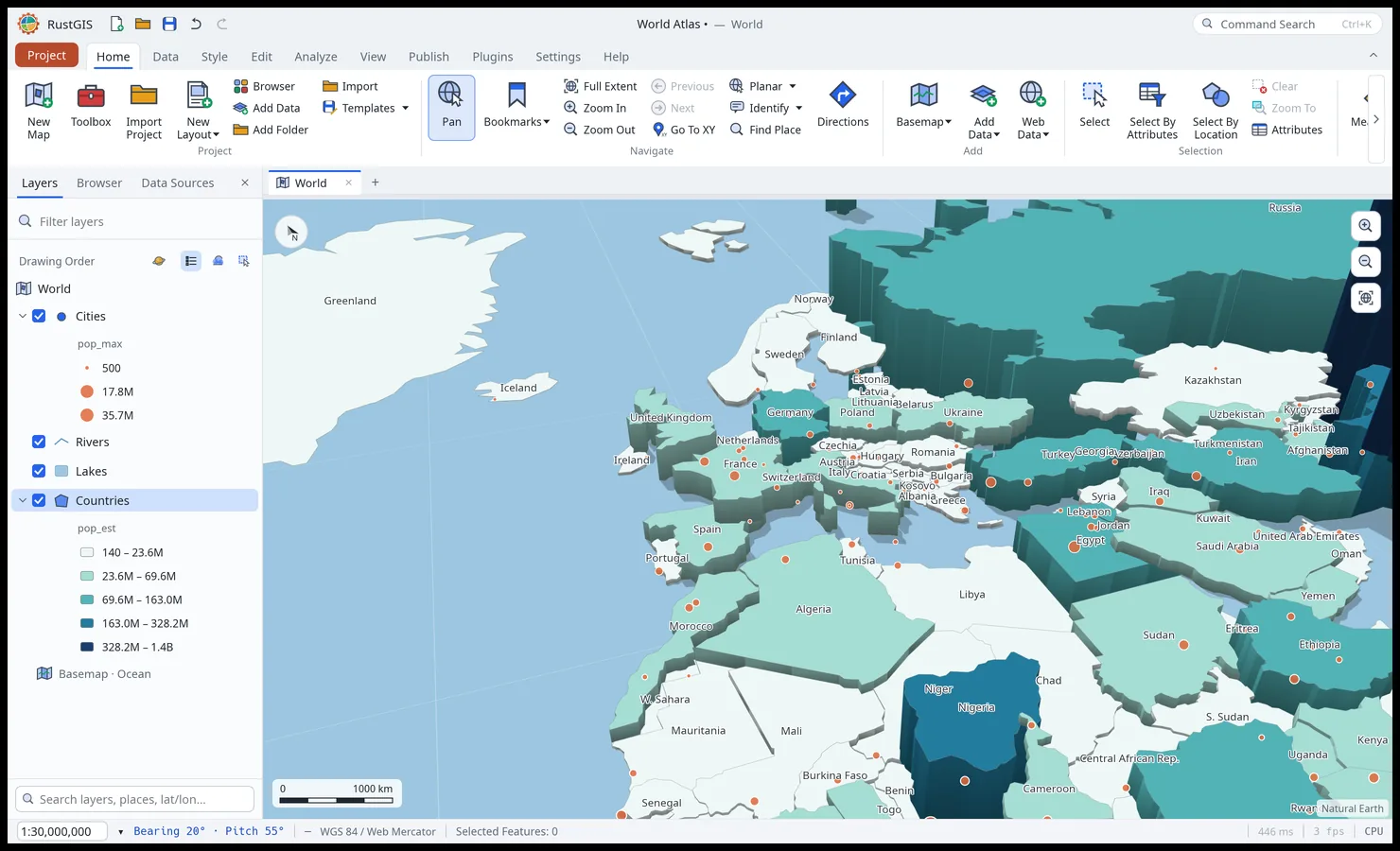
Rotating and tilting the map. Drag with the right mouse button, or hold Ctrl and drag
with the Pan tool, to turn the map about the centre of the view (to the right turns it clockwise)
and to tilt it (up tilts it further), as in MapLibre; or hold Shift and press Left or Right to turn it, Up or Down
to tilt it. The north arrow turns with the map to point north and leans back as it tilts; click
it to face north and look straight down again. The bearing (the compass direction the top of the
view faces, in degrees clockwise from north) and the pitch (the tilt from looking straight down,
0 to 85 degrees) work as in MapLibre. They are saved with the project, its bookmarks and bookmark
files, and exported maps are drawn turned and tilted. A tilted map keeps the scale at the centre
of the view: nearer ground is larger, farther ground smaller and drawn coarser, fading into fog
and, past about 72 degrees, a sky above the horizon. Labels stay upright, and those too far away
to read are left out. Point markers stand upright, facing you, as MapLibre's circles do, smaller
with distance (aggregated, masked or blended point layers, and layers of more than 50,000 points,
keep their markers on the ground). Extruded layers (Style › Extrusion) stand up in perspective on a tilted
map, as in MapLibre: walls lit by the way they face and darker toward their foot, roofs at their
height, with the labels of extruded features on their roofs. While a tilted map moves, the
picture drawn last is laid over the ground and the extrusions and markers are moved with it, and the map is
drawn again once it settles. map.setBearing sets the bearing ({"bearing": 90}
puts east at the top; {"by": 15} turns it further), map.setPitch the pitch ({"pitch": 60},
or {"by": 10}), map.resetNorth faces north and looks straight down, and Go To XY takes a
bearing and a pitch too. Page layout map frames take their own bearing and pitch (see
Layouts), and the globe turns and tilts the same way: tilted, its camera swings
back about the centre of view, so the horizon comes into sight past the curve of the Earth.
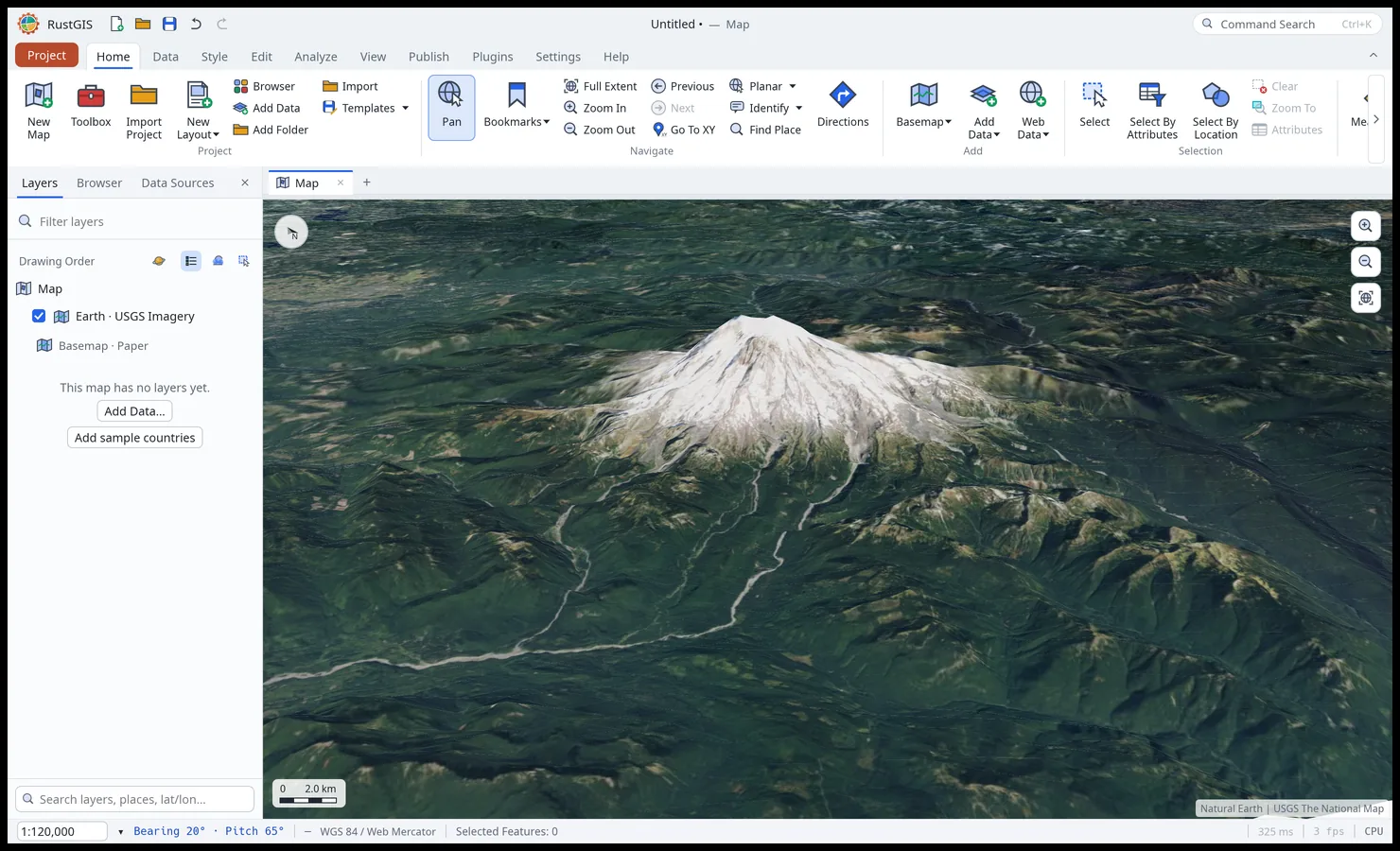
Terrain gives a tilted map relief, as MapLibre's terrain does: the map is draped over the
ground's heights, labels and point markers stand on it, and nearer slopes hide what lies behind
them. The heights come from a DEM raster layer of the project (heights in metres; the layer can
stay hidden) or from elevation tiles: Terrarium (terrarium, as the free
https://s3.amazonaws.com/elevation-tiles-prod/terrarium/{z}/{x}/{y}.png) or Mapbox
Terrain-RGB (mapbox, also MapTiler's). map.terrain sets it: {"layer": "DEM"} or
{"tiles": "https://…/{z}/{x}/{y}.png", "encoding": "terrarium"}, with "exaggeration"
(0 to 20, default 1) to stretch the heights; {"exaggeration": 2} alone changes only that, and
{"off": true} flattens the map again. Terrain is saved with the project and shows in exported
maps; a flat (untilted) view, the globe and other projections stay flat, extruded layers are
not lifted onto the relief yet, and identify and selection still pick on the flat ground.
MapLibre map links carry a view in their address, as
#zoom/latitude/longitude/bearing/pitch (https://…/#15.5/40.7484/-73.9857/30/60). Go To Map
Link (map.goToLink {"url": …}) takes such a link, or the part after its #, to that place,
zoom, bearing and pitch, and map.link gives the current view the same way. The web app reads
one from its own address (see Installation).
Manage Bookmarks (at the foot of the Bookmarks menu, or View › Windows › Bookmarks) opens
the Bookmarks pane: every map's bookmarks, grouped by map (the map in view in the accent colour),
with a box that filters them by name or description. On each bookmark, Zoom To shows its place
at its scale and Pan To centres it at the current scale; a bookmark of another map takes the map
in view to the same place. Update saves the current view into it (only on its own map, in
view), and Delete removes it. The chevron shows its description: click it to write or edit it.
Double-click a name to rename it, and right-click it to rename, describe, update, move it up or
down, or delete it. Everything the pane does is a bookmark.* command and undoes with Ctrl+Z.
Find Place (map.findPlace) looks up a place or an address by name with OpenStreetMap's
Nominatim (or a Photon server, or a
geocoder of your own given by its address) and zooms to the one picked. The search goes to that
server over the network; see Geocoding addresses for whole tables.
The search box at the foot of the left pane searches the map as you type: a latitude and
longitude (40.7, -74.0, 40.7N 74W or 40°42'46"N 74°0'21"W; latitude first unless the
letters or a number past ±90 say otherwise), the map's layers and bookmarks by name, and the
values in its layers' attribute tables (the best few per layer, by the feature's name where it has
one). Places come from Nominatim when you press Enter on Search places, since the public
servers don't allow searching as you type. The arrow keys move through the list and Enter
picks: a layer is zoomed to, a feature selected and zoomed to, and a coordinate or a place is
marked with a pin until the box is cleared (✕ or Esc). map.search runs the same search from
the command line or a script, and goes to a hit with "go":
rustgis-cli run --sample --cmd 'map.search={"query":"Tokyo","go":true}'
Right-click the map for a menu about that place. Its first row shows the latitude and
longitude; click it to copy them. Below it, Copy As GeoJSON copies the place as a point
feature, Center Map Here and Zoom In Here move the view, and Directions To Here and
Directions From Here open the Directions pane. Quick Analysis runs a tool
at the place: a buffer of 500 m, 1 km or 5 km (¼, 1 or 5 miles when the Directions pane is set
to miles; gp.bufferPoint), a viewshed of 2, 5 or 15 km or a line of sight on an elevation
raster in the map, and Open In Geoprocessing… opens the Buffer tool. View In Google Maps
and View In Google Earth open the place in your browser at about the same zoom.
Directions
Directions (Home › Navigate) plans a route between places and follows it turn by turn, with the public Valhalla server run by FOSSGIS on OpenStreetMap data. Pick Drive, Bike or Walk, then set the start and the destination: type an address (Enter looks it up with Nominatim) or a latitude and longitude, press the ⌖ button and click the map, or right-click the map and choose Directions From Here or Directions To Here. + Add Stop adds places on the way (up to 20 in all), Swap reverses the trip, and a drive can avoid tolls, highways or ferries; Miles gives distances in miles and feet.
Routes are drawn as soon as every place is set. Between two places the server offers up to two other ways, drawn grey: pick one in the list or click it on the map. The steps list each maneuver with its arrow, instruction and distance; click one to zoom to it. Simulate replays the route as a drive the map follows, with the next maneuver and its distance in a banner across the top of the map, at 1× to 16× speed (pause, drag the slider to jump along, End to stop). Save as Layer adds the route as a line layer, and its maneuvers as a point layer, to style, export (GPX, GeoJSON…) or keep with the project.
The first time, the pane asks before anything is sent: planning a route sends its places to the routing server, and looking a place up sends its name to Nominatim. Travel times don't include live traffic, and the public server is shared, so it answers light use only.
map.route plans a route from the command line, a script or the AI Assistant, with places given
as [lon, lat], "lat, lon" or a name to look up, and adds it and its steps as layers;
ui.pane.directions with from, to (and via, mode) opens the pane on a route. map.route
sends its places to the same public servers (names to Nominatim, at most five a call, a second
apart; coordinates to FOSSGIS's Valhalla), so the AI Assistant asks before running it:
rustgis-cli run --sample --cmd 'map.route={"from":"Brandenburg Gate, Berlin","to":"Alexanderplatz, Berlin","mode":"bike"}'
Basemaps
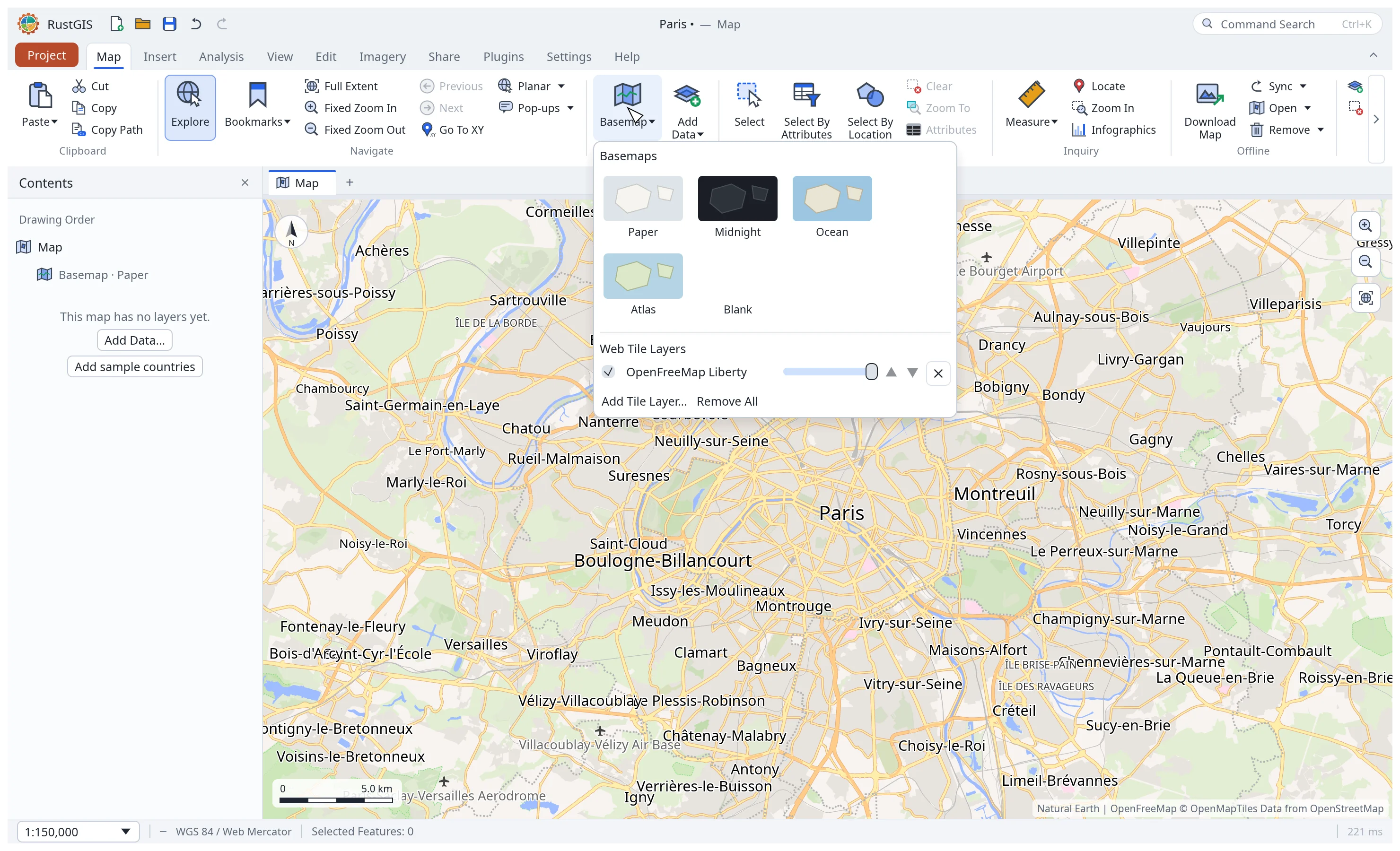
Home › Add › Basemap offers five built-in basemaps drawn from a world outline (Paper, Midnight, Ocean, Atlas, Blank), which need no network, and web tile layers over them:
- Raster tiles from an XYZ or TMS template (
https://…/{z}/{x}/{y}.png;{-y}for rows from the south,{s}for subdomains,{q}for Bing-style quadkeys) or a WMS through{bbox-epsg-3857}. PNG, JPEG and WebP. - Vector tiles (Mapbox Vector Tiles,
.pbf) from a template or a TileJSON address, drawn in a built-in style that knows the OpenMapTiles, Protomaps and Shortbread schemas. - PMTiles archives (
.pmtiles) of raster or vector tiles: a web address, read a tile at a time by byte ranges (the server must allow range requests, and CORS for the web app), or on the desktop a file (Tile Archive File…, Add Data, or drop it on the window). Uncompressed, gzip, Brotli and Zstandard archives are read. The map moves to what the archive covers once its header is read, unless it covers the whole world, and right-clicking its row in Contents gives Zoom To Layer. A vector archive that is a basemap is drawn in the built-in style; any other is drawn with each of its layers in a colour of its own. - MBTiles files (
.mbtiles) of raster or vector tiles, drawn as PMTiles archives are: on the desktop read in place a tile at a time (Tile Archive File…, Add Data, or drop it on the window); in the web app added with Add Data and held in memory for the session (a project keeps the layer, and asks for the file again). - Map styles: a MapLibre style document (
style.json), with its vector and raster sources. RustGIS draws background, fill, line, circle and raster layers, labels with their icons from the style's sprite (SDF icons in theiricon-color), and fill patterns; it evaluates the style's expressions and zoom functions. Labels are placed as MapLibre places them: at points, in the middle of areas, and along lines (street names everysymbol-spacing, turned to the street, where it bends less thantext-max-angle; shields and one-way arrows), wrapped totext-max-width, the style's later layers first and then bysymbol-sort-key, kept apart bytext-paddingand the*-optional,*-allow-overlapand*-ignore-placementrules. Text along a line is drawn straight rather than curved round its bends. Line patterns, hillshade and 3D extrusion are not drawn (extrusions draw flat). A label shows the lines of its text that the map's font can draw: a style's "Syria / سوريا" shows as "Syria". A style's rootcenter,zoom,bearingandpitchsay where it opens:map.addTileswith"view": truetakes the map there once the style has loaded.
The gallery's Web Basemaps need no API key: the OpenFreeMap vector maps (Liberty, Bright, Positron, Dark, Fiord) and USGS Imagery. Choosing one replaces the other web basemaps; tick Stack on the current basemaps above them to add it over the others instead (clicking one that already shows then takes it off). For many more (OpenStreetMap, Esri, NASA and others), follow Install the Basemaps plugin under them, which opens the Plugin Manager at the Basemaps plugin; it adds a tab of public basemaps. Add any other with Add Tile Layer… at the bottom of the Basemap gallery. The gallery lists the map's tile layers: show or hide them, change their opacity and order, or remove them. The Layers pane lists them too, under the map's layers and above the basemap: tick one to show or hide it, and right-click it for Zoom To Layer (when its bounds are known), opacity, Blend mode, order and Remove. A blend mode (Multiply, Screen, Overlay, Darken, Lighten, Difference) combines a tile layer with the tile layers and basemap beneath it: stack imagery over a hillshade and set it to Multiply to let the terrain show through. Overlays (labels, roads) stay on top of the basemaps; choosing a built-in basemap removes the web basemaps but keeps the overlays. Tile layers are saved with the project, and their credits are shown in the corner of the map and drawn on exports.
Tiles load in the background and the map fills in as they arrive, with coarser tiles standing in
meanwhile; exports and rustgis-cli wait for them. On the globe and in other projections the
tiles are reprojected. From scripts: map.addTiles, map.removeTiles, map.setTiles,
map.zoomToTiles and map.tiles. map.addTiles accepts optional "bounds": [west, south, east,
north] in longitude/latitude; service.add retains the bounds advertised by map and tile services.
Explicit bounds must form a finite, ordered geographic rectangle; an invalid value rejects the
command without adding or replacing a layer. Invalid or malformed bounds in a saved project
are instead discarded, leaving the project and tile layer usable without that coverage metadata.
Other worlds
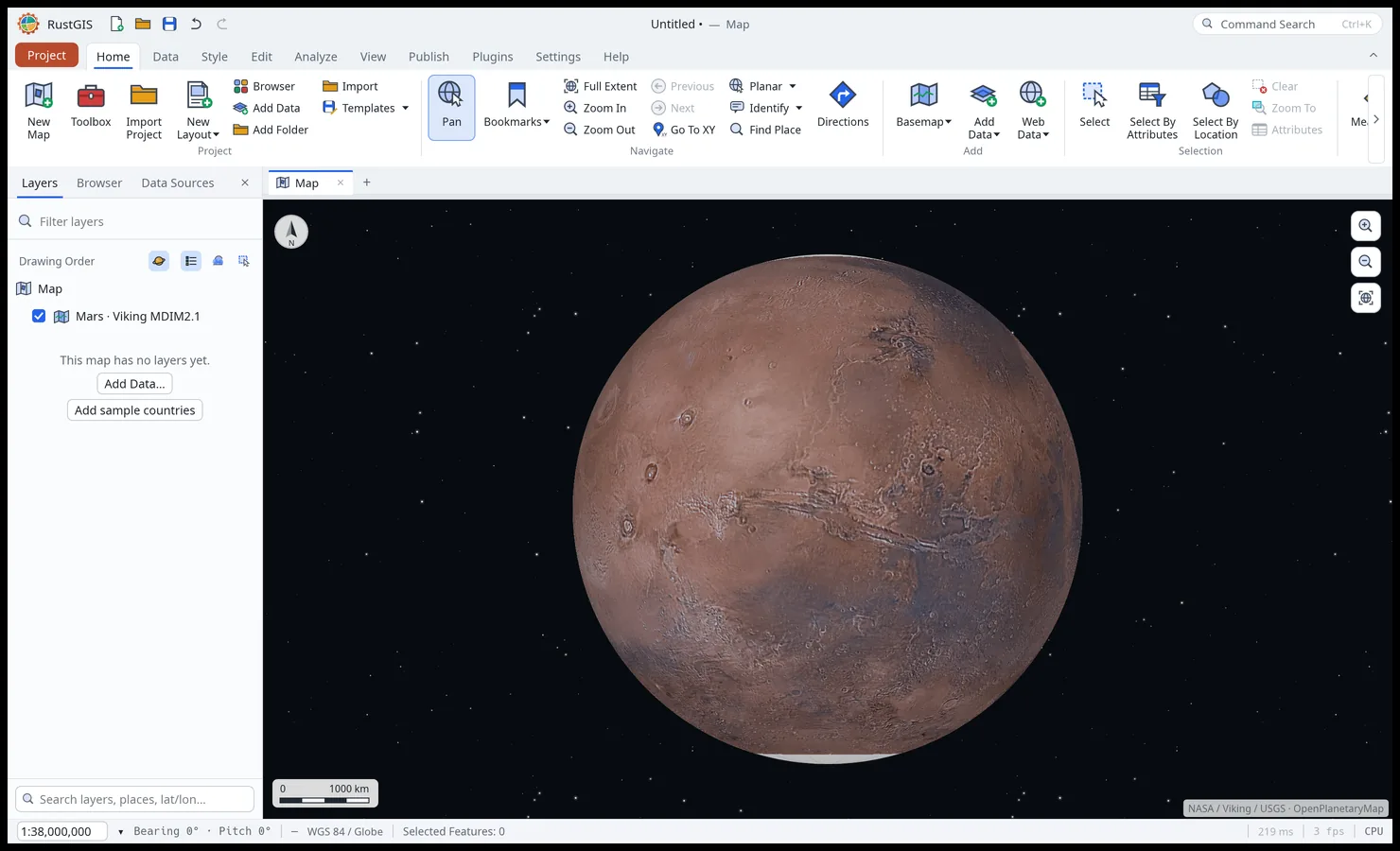
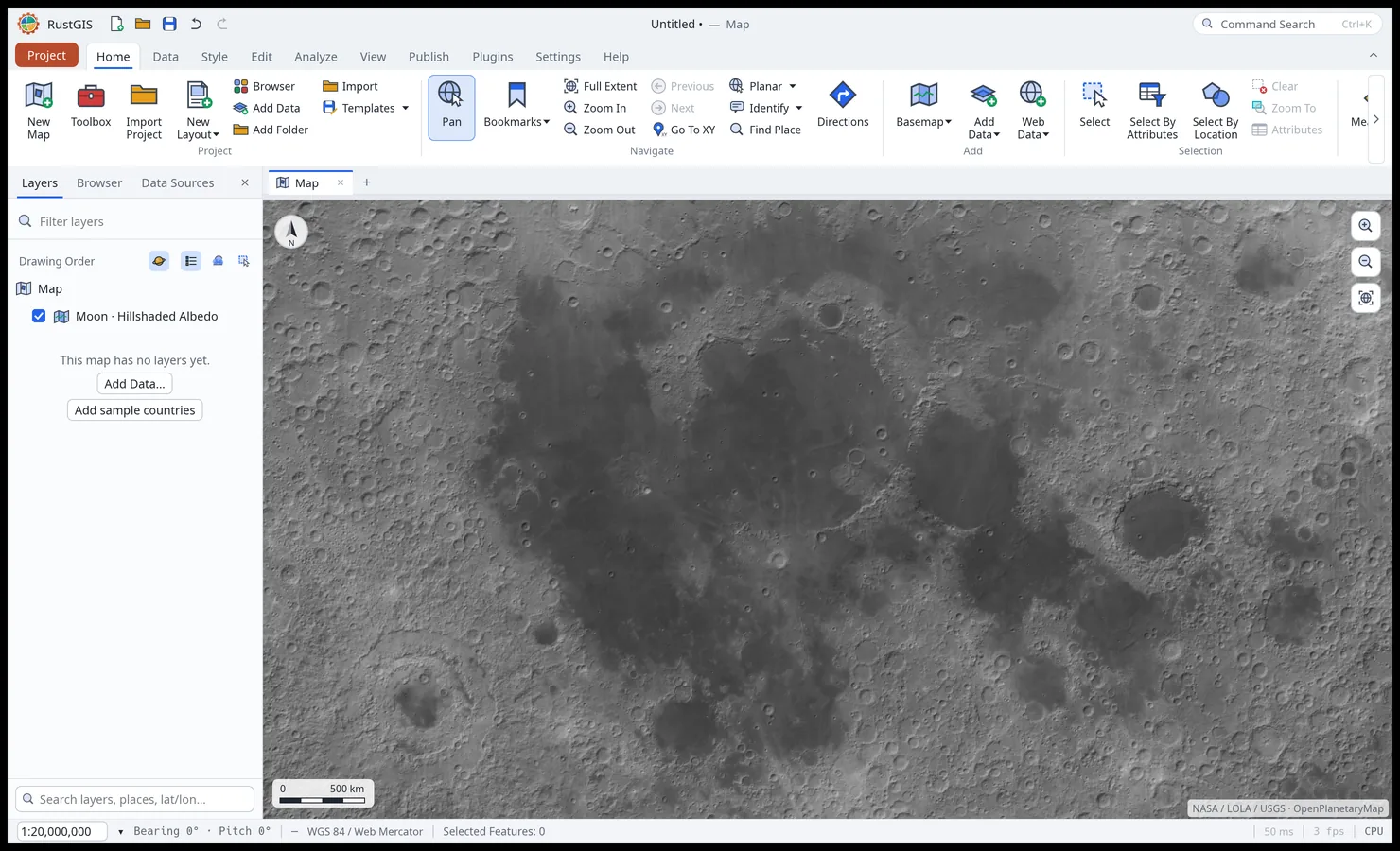
A map can be on the Moon, Mars or another body instead of the Earth. Pick the body from the planet button at the top of the Layers pane, or under Celestial Bodies in the Basemap gallery: Earth, Moon, Mars, Callisto, Charon, Europa, Ganymede, Io, Mercury, Pluto, Titan and Venus. Choosing one puts one of its basemaps under the map (the gallery lists the others: Viking, MOLA elevation and hillshade mosaics for Mars, LOLA albedo for the Moon, and the USGS Astrogeology mosaics of the rest) and measures on that body: the Measure tools, the scale bar, the map scale and layout scale bars use its radius. Coordinates stay longitude and latitude, and the map stays a Web Mercator sphere, the size of the body. Off the Earth there is no atmosphere: the globe has no glow around it, and a tilted view's sky is the black of space, with no haze toward the horizon. Choosing the Earth replaces all non-overlay web tile layers, including planetary and custom basemaps, with USGS Imagery, keeping overlay tile layers. The body is saved with the map.
The basemaps come from OpenPlanetaryMap and
USGS Astrogeology. OpenPlanetaryMap's mosaics sit in storage
that browsers can't read from another site, and USGS serves its mosaics in lon/lat only, so both
are read through the opengeos tile service (tiles.geolibre.app, shared with GeoLibre), which
adds what browsers need, reprojects the USGS mosaics and caches the tiles. From scripts:
map.body={"name": "mars"} ("basemap" picks another of its basemaps, or false adds none, still
taking other bodies' basemaps off) and map.bodies.
Worldview
The world outline and the World Atlas sample's countries come in two worldviews: Natural
Earth's default borders, and China's (Natural Earth's China point of view: Taiwan, Aksai Chin
and South Tibet are part of China). RustGIS picks China's when the system's time zone is
mainland China's (such as Asia/Shanghai) or its first locale is zh-CN; nothing is looked up
over the network. Choose one in Settings › Language › Worldview, set RUSTGIS_WORLDVIEW
(default or china), or pass --worldview to rustgis-cli. An untouched sample project
switches its countries at once; others keep the layer they have.
Projections
The flat map is drawn in Web Mercator by default. View › Projection switches it to another
projection, and clicking the coordinate system in the status bar opens the Coordinate
System dialog, which also takes a projected EPSG code (such as 3035, 32633 for UTM zone
33N or 2056 for Switzerland) or an ESRI code, the one .prj files and ArcGIS name (such as
ESRI:102033 for South America Albers Equal Area Conic, or ESRI:54030 for World Robinson). A
code whose projection method or datum grid RustGIS can't use (Polyconic such as 5880, Cassini,
oblique Mercator, or a NAD27 code that needs a grid) is refused with the reason, rather than drawn
in another projection. Of Esri's projected systems, RustGIS knows the 1,986 it draws within a
metre of PROJ; the rest, such as World Miller (ESRI:54003), are refused as unknown codes. The
presets:
| Preset | Kind |
|---|---|
| Equirectangular, Miller | World, cylindrical |
| Mollweide, Lambert Cylindrical Equal Area, Equal Earth, Eckert IV | World, equal-area |
| Robinson, Natural Earth, Winkel Tripel | World, compromise |
| North / South Polar Stereographic | Polar |
| Europe Equal Area (ETRS89 LAEA), USA Contiguous Albers Equal Area | Regional, equal-area |
| Albers Equal Area Conic, Lambert Conformal Conic | Conic, for a mid-latitude region |
The world and polar presets take a central meridian, and the two conics also their standard
parallels: pick the preset in the Coordinate System dialog and set Central meridian (and
First and Second standard parallel) beside it. A Pacific-centred Robinson is
map.projection {"type": "robinson", "lon_0": 150}, and an Albers for South America
{"type": "albers", "lon_0": -55, "lat_1": -5, "lat_2": -35}. Without type, the values go to the
map's current preset. The map saves them in its code (robinson +lon_0=150), which can also be
typed as it is. View › Projection picks a preset in its standard form, and marks the one in
use whatever its parameters. Meridians run from -180° to 180° and parallels from -89° to 89°.
Parallels that average within 0.5° of the equator (mirrored, such as -30° and 30°, or both next
to it) make no cone and are refused, as is a value a preset doesn't take. The two regional grids
keep their standard definitions. A conic's area of use runs 35° beyond its parallels and 90°
either side of its meridian.
Layers are projected on the fly. A feature that crosses the edge of a world projection (the
meridian opposite its central one, such as 90°E in Equal Earth Americas) is cut there and drawn on
both sides of the map. Each projection has an area of use: polar projections show
their hemisphere poleward of 30°, regional ones their region, transverse Mercator (UTM) zones
30° either side of their meridian, and data outside it isn't drawn. Switching keeps the centre
and scale, and the choice is saved with the map (map.projection from the command line). A
raster already in the map's coordinate system draws without being reprojected. To open every new
session in a projection, set it in Settings › Start-up › Projection. Robinson, Equal
Earth, Natural Earth, Winkel Tripel and Eckert IV are computed by RustGIS itself on a sphere,
so EPSG:8857 (Equal Earth) works too. So is the sinusoidal projection, on a sphere or an
ellipsoid: MODIS rasters, whose GeoTIFFs give it as their own projection, open and draw, and
World, Sphere and Africa Sinusoidal (ESRI:54008, 53008, 102011) can be the map's.
Globe
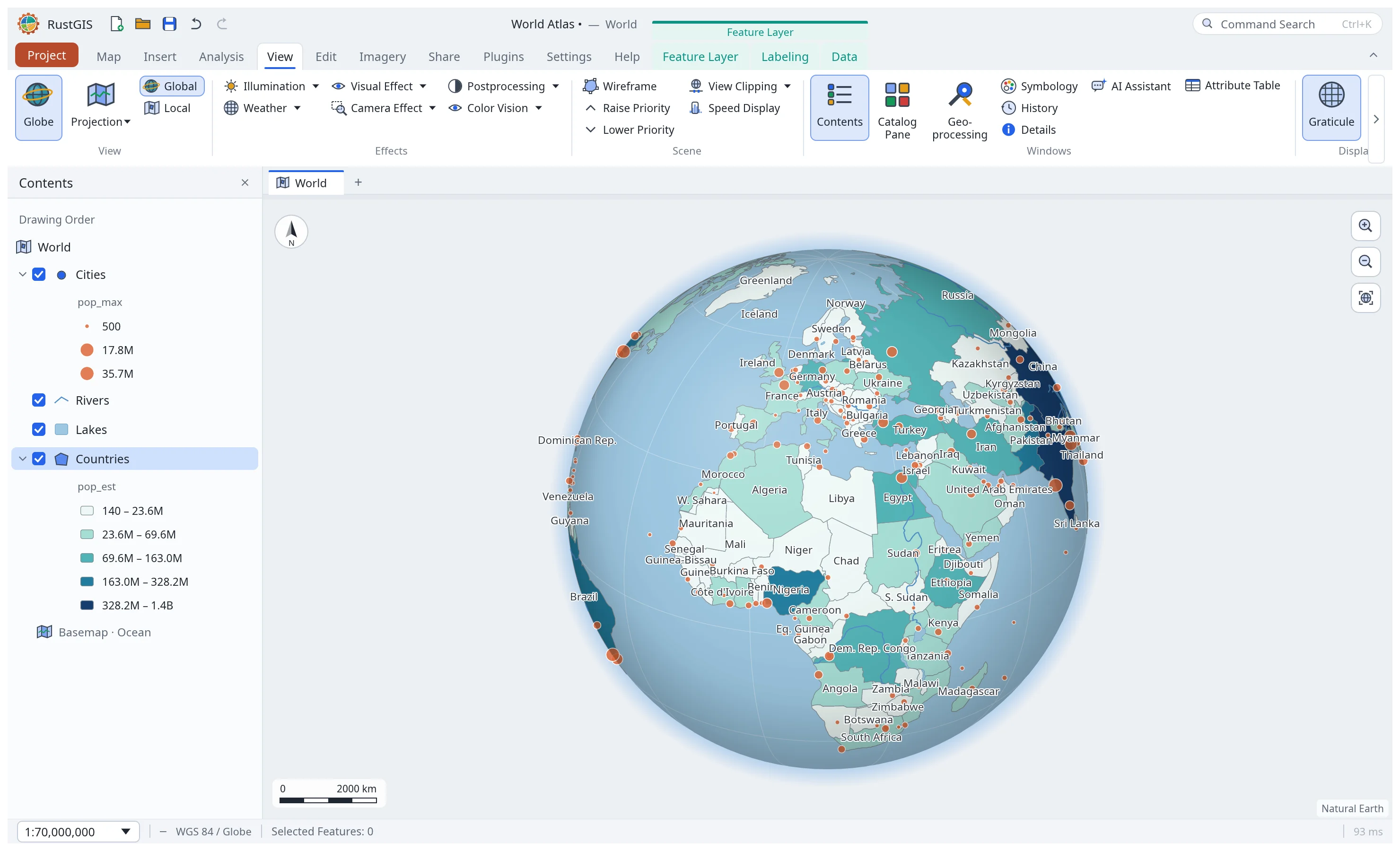
View › Globe shows the map as a 3D globe seen from space instead of the flat Web Mercator
map, and back again. Drag to spin the globe, right-drag or Ctrl+drag to turn and tilt it (as
on the flat map), scroll to zoom, and use Full Extent to see the
whole Earth. Every layer draws on the globe: vectors are clipped at the horizon and follow great
circles, rasters are draped onto the sphere, and labels, selection, identify, measuring and
editing work as on the flat map. The scale stays the same when you switch, and the choice is
saved with each map in the project (map.projection from the command line).
While the globe turns or zooms, the map is drawn flat once and laid over the sphere by the graphics card, so it moves smoothly whatever the basemap; labels come back, and the map is drawn exactly, as soon as it stops.
The globe hangs in dark space, in the light theme too, with stars around it and now and then a shooting star passing behind it. View › Visual Effect › Stars turns them off. Exported maps and layout map frames print the globe in a light space instead, without stars, so a globe inset suits a light page (on the Midnight basemap the space stays dark).
View effects
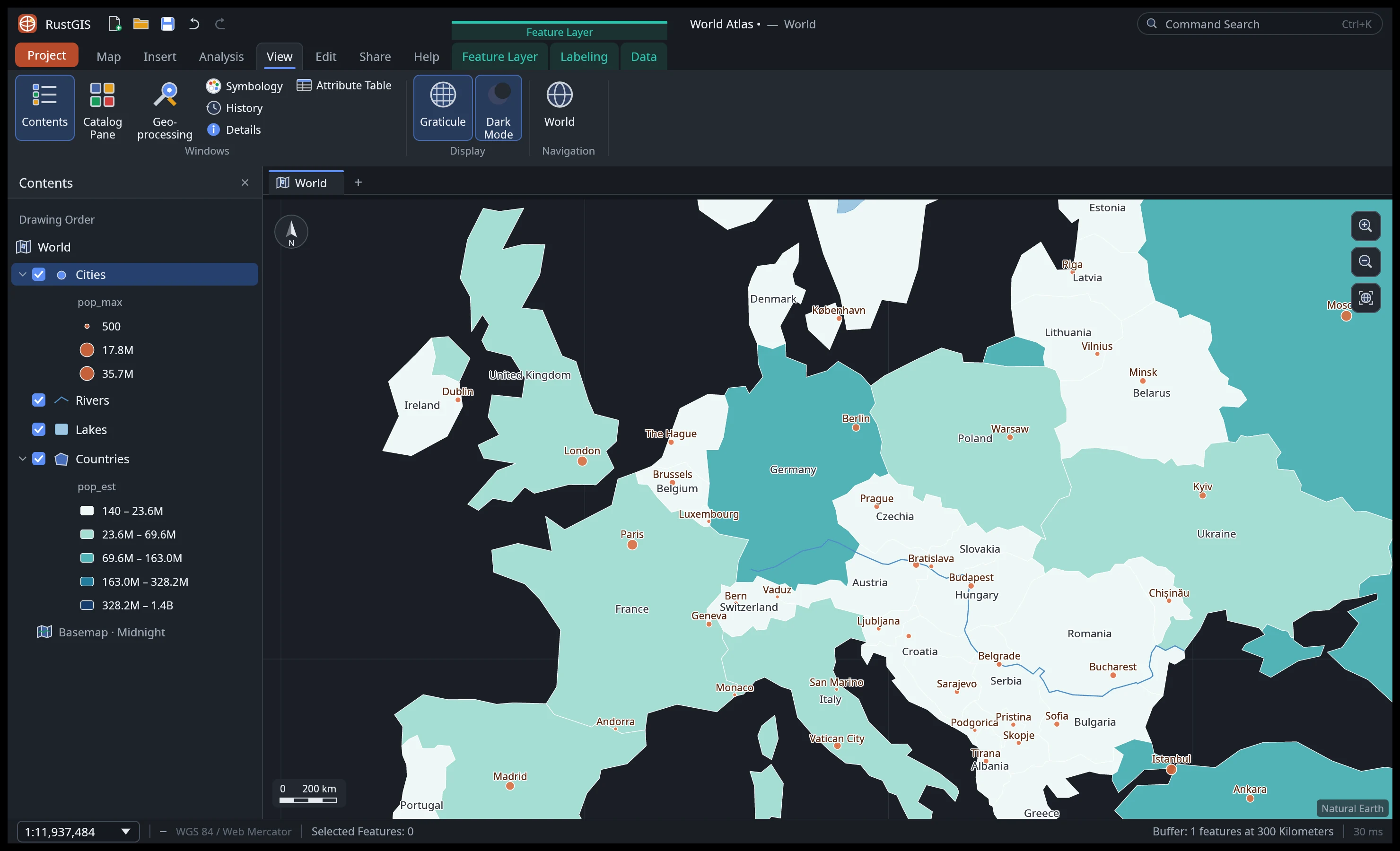
The View tab adds effects drawn over the map: Illumination (day and night shading for a time,
with twilight), Weather (haze, fog, rain, snow), Visual Effect (vignette, edges, the stars around the globe), Camera
Effect (tilt-shift blur, film grain) and Postprocessing (brightness, contrast, saturation,
sepia). The Color Vision simulator shows the map as people with protanopia, deuteranopia,
tritanopia or achromatopsia see it (on screen only; exports are untouched). View › Display ›
Graticule (map.graticule) draws latitude and longitude lines over the basemap.
Global shows a globe; Local a flat view centred where you are (azimuthal equidistant; not in the web app, which doesn't include that projection). Wireframe draws polygons as outlines, Depth Priority lifts a layer above others whatever its order, View Clipping hides features beyond a distance from the centre, and Speed Display draws without antialiasing. The Navigator adds a compass, zoom buttons and a pan pad; Camera shows and sets the position and scale; the Magnifier shows twice the map under the pointer. On the Home tab, First-Person navigation walks with W A S D and flies up and down with Q and E. The interface follows the system's light or dark setting; View › Display › Dark Mode switches it by hand.
View › Display › GPU Rendering (beta) draws the flat map on the GPU instead of the CPU: vector
layers are tessellated once and re-projected per frame, so panning and zooming stay smooth on
large datasets. Raster tile layers (XYZ, TMS and WMS tiles, and raster PMTiles, MBTiles and
styles) are placed again for every frame the map shows, from textures uploaded once and kept in
a fixed pool, as MapLibre draws its tiles: panning and zooming never redraw the map for them, the
tiles of each zoom are placed as the zoom passes, and parents and cached children stand in until
they arrive (the view's tiles a few levels up are fetched too, so a coarse picture is always at
hand). Vector tile styles and blended tile layers are still drawn as a picture of the
view, shifted and scaled while the map moves. GPU Rendering is off by default, and the setting is
remembered across sessions (ui.map.gpu is the command; RUSTGIS_GPU=1 forces it on for
development). The globe, view effects and the colour-vision simulator always render on the CPU,
and exports are unaffected — the choice only changes the on-screen flat map. A turned or tilted
map is drawn on the GPU too, in perspective with its fog and sky, when everything it shows is
drawn there: no tiles, rasters, see-through, masked, swiped or blended layers, aggregations,
graphics, stacked line strokes, labels with icons, view effects or colour-vision simulation, and
extrusions only on a tilted map; otherwise it stays on the CPU. Extruded layers stand up on a
tilted GPU map with a depth buffer, as MapLibre's fill extrusions do, so features that interlock
or overlap are drawn right.