User Guide
This guide walks through RustGIS by task. Each page covers one part of the app:
| Page | What it covers |
|---|---|
| Data | Adding files, databases, saved connections, Data Sources, large files, rasters, Zarr and project items |
| Web Data | Public web services and catalogs: STAC, Overture Maps, OpenStreetMap, NASA, open-data portals, satellite embeddings |
| Supported Data Formats | Every format RustGIS reads and writes, how to add it, and its limits |
| Maps and Basemaps | Basemaps and web tile layers, projections, the 3D globe, view effects and navigation |
| Cartography | Symbology, labeling, layer effects and graphics |
| Editing | Creating and modifying features, data design, the clipboard and pop-ups |
| Analysis | Selection and SQL queries, geoprocessing, the GeoLibre tools, guided workflows, imagery, data cubes and time series |
| Layouts and Reports | Page layouts, map series, reports, presentations and notebooks |
| Sharing | Exports, packages and open-format web maps, layers, styles and scenes |
| Workspace | Linked views, the Browser view, animation, profiles, offline areas, customizing the ribbon |
| AI Assistant | A chat pane that answers questions and acts on the map through commands |
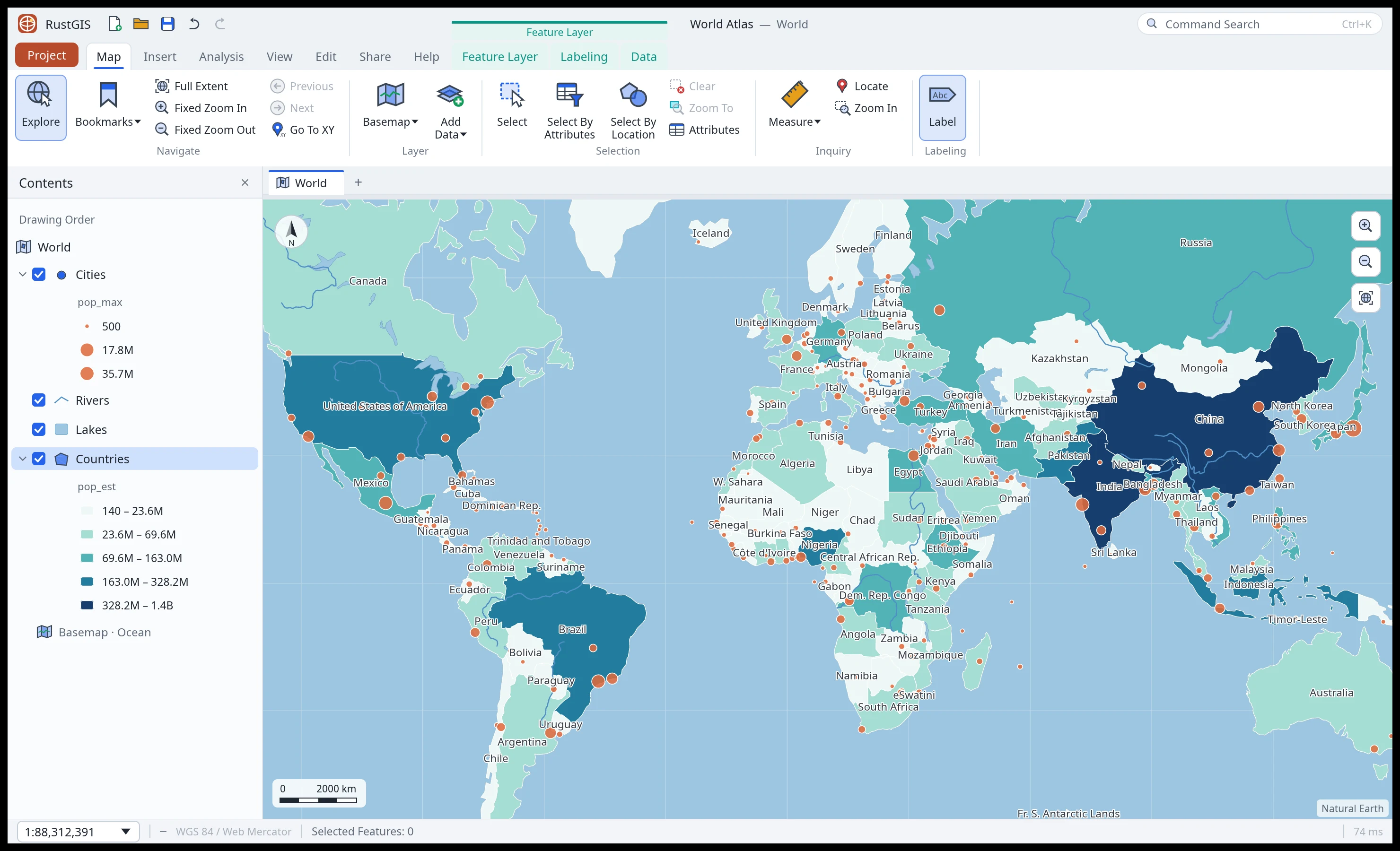
The window
- Ribbon: tabs of commands grouped by task. The Project button opens the backstage (Start, New, Open, Save, Save As and About).
- Quick Access Toolbar (top left): New, Open, Save, Undo and Redo, plus any commands you add under Settings › Customize › Quick Access.
- Layers pane (left): the map's layers in drawing order, with their legends. Tick a layer to
show or hide it; drag it up or down to change the drawing order; right-click it to zoom to it,
rename or remove it and more. Type in the box at the top to show only the layers and tables
whose names contain the text (Esc clears it); a selected layer it hides is no longer
selected, and layers can be reordered again once it is cleared. The buttons beside the list's
title list the layers by drawing order, by data source (grouped under the file, web
address or database each comes from) or by selection (selectable layers first, each with a
box to make it selectable or not and its count of selected features); only the drawing order
reorders layers. A layer that isn't selectable is skipped by the Select tool's clicks and boxes
on the map; Select By Attributes, Select Layer By Location and the attribute table still select
in it, since they name the layer.
Pick several layers with Ctrl (Cmd on a Mac) and click to add or drop one, or
Shift and click to take the rows from the last one clicked; the layer clicked last,
outlined, is the one the Style and Data tabs act on. Right-click one of them to zoom to them
all, show or hide them, allow or block selecting their features on the map, move them to the top
or bottom of the drawing order (one in a group, to the top or bottom of its group), put them in
a group or take them out of one, or remove them; a layer the filter hides is left out.
A new group made from the menu asks for its name. In scripts,
layer.selecttakes a list and amode(replace,toggleorextend), and the commands that remove, show, move, group or zoom to a layer take a list inlayer, or the picked layers when it is left out. Group layers to keep related ones together, such as one dataset drawn as several layers with their own visibility ranges: right-click a layer and pick Group › New Group, or move it into a group that already exists. A group folds open and closed with its arrow; its box shows or hides all its layers at once (each keeps its own box), and its menu renames it, sets a transparency over its layers' own, ungroups it (its layers stay) or removes it with its layers. Drag a layer onto a group's row, or between its layers, to put it in the group; drag it out of the group's rows to take it out. Drag the group's row to move all its layers in the drawing order. Scripts and the AI Assistant build groups withgroup.add,group.set,group.scaleRange(a visibility range on top of each layer's own),group.move,group.expand,group.ungroup,group.removeandlayer.group. Copy Layer (or Copy Group, with its layers) from its menu and Paste Layer (or Paste Group) it on a layer (above it), a group or the map's name above the list (at the top, also when the map has no layers yet), after switching to another map if you like, or on a map in the Browser (at the top). The copy keeps its source, symbology, labels, transparency, scale range, definition query, display filters and mask, but not its selection, and a name the map already has gets " copy". Pasting into the same map duplicates the layer. A mask whose layer the map lacks is cleared, and said. Groups don't nest: pasted into a group (on it, or on one of its layers), a copied group's layers join it at the top. Scripts uselayer.copyandlayer.paste. The Style and Data tabs act on the layer selected here. The tabs at the top of the left pane switch it between Layers, Browser and Data Sources (also in View › Windows). The planet button above the list switches the map between the Earth and other celestial bodies. - Map view: one tab per map and layout. The buttons at the top right zoom in, zoom out and go to the full extent; the north arrow and scale bar sit in the corners (on a rotated or tilted map, click the north arrow to face north and look straight down); tile credits at the bottom right.
- Panes (right): Tools (geoprocessing), Symbology, Labeling, History, Details, Bookmarks, Editing, Workflows, Script, SQL, the AI Assistant and more. Open them from View › Windows or the commands that use them. Each pane opened gets a tab at the top, in the order opened: click a tab to show its pane, and its ✕ to close it (the next tab shows; closing the last hides the side). Right-click a tab to close it, the others or all; the ✕ at the header's end closes every pane. Tabs that don't fit are listed under ». A ribbon button for a pane shows it when it is open but not in view, and closes it when it is. Pane Sets keep the tabs open.
- Status bar: the scale (type one, or pick from the list), the zoom level, bearing and pitch (click them to face north and look straight down again), the pointer's coordinates (click them to switch between decimal degrees and DMS), the coordinate system (click it to change the projection), the selection count (with a button to clear it), the latest notice, the last draw time, the frame rate and a GPU/CPU renderer switch. While agents control the desktop app, it also shows the MCP relay or file bridge.
Command Search (Ctrl+K, or the box at the top right) finds commands and geoprocessing
tools by name. Commands with an interactive entry point open their dialog, file picker or pane
to collect input: for example, Basemap, Add Tile Layer, Rename, Select By Attributes and exports.
Workflow tools such as Georeference and Classification Wizard open in the Workflows pane.
Workflows can also be found by their translated titles or section ids, such as deepLearning.
A command that needs input but has no interactive entry point stays listed greyed out, with
the reason on hover, instead of running without its required parameters.
Desktop-only database connections are also disabled in the browser.
To give the map more room, collapse the ribbon to its tab row with the chevron at its right end, by double-clicking a tab, or with Ctrl+F1 (Cmd+F1 on macOS, where F1 may need the Fn key). Click a tab to peek at its commands while collapsed. When the window is narrower than the ribbon, arrows at its ends scroll it.
The ribbon
| Tab | Groups |
|---|---|
| Home | Project (New Map, Toolbox, Import Project, New Layout, Browser, Add Data, Add Folder, Import, Templates), Navigate (Pan, Bookmarks, Full Extent, Zoom In/Out, Previous/Next, Go To XY, Planar/First-Person, Identify, Find Place, Directions), Add (Basemap, Add Data, Web Data), Selection (Select, Select By Attributes, Select By Location, Clear, Zoom To, Attributes), Inspect (Measure, Locate, Zoom Box, Infographics) |
| Data | Layer Templates; for a feature layer: Definition Query, Table, Selection, Data Design, Archiving, Relationship and Export; for a raster layer: Information and Export; then Offline and Feature Cache |
| Style | For the layer selected in Layers. A feature layer: Visibility Range, Effects, Drawing, Drawing Effects, Extrusion for polygons (with Faces and Light and Shadow once on), Layer, Labels, Label Range, Label Placement, Label Class and Text Symbol. A raster layer: Visibility Range, Effects, Compare, Raster Effects, Rendering, Enhancement and Layer. Both: Styles |
| Edit | Manage Edits (Edit, Save, Undo, Redo, Status, Settings, Templates, Topology), Snapping, Features (Create, Delete, Edit Vertices, Modify), Tools, Elevation, Corrections, Graphics, Graphics and Text, Clipboard |
| Analyze | Geoprocessing (History, Tools, Model Builder, Script, SQL, Environments), Tasks (the Tasks pane; Task: Record Task, New Task From History, Import Task, run a task), AI (AI Assistant), Portal (Feature Analysis, Raster Analysis), Workflows, Raster (Raster Functions, Function Editor), Tools (the tool gallery), Selection, Notebook, the imagery groups (Ortho Mapping, Reality Mapping, Alignment, Image Analysis, Image Classification, Imagery Sharing, Mensuration, Imagery Tools) |
| View | Display (Graticule, Dark Mode, GPU Rendering), View (Globe, Projection, Global; Local on the desktop), Effects, Scene, Windows, Labeling, Navigation, Link, Workspace, Animation, Time (Time Slider), Profile (Profile; Time Series on the desktop) |
| Publish | While a layout is open, its groups first (Page, Map Frames, Map Surrounds, Shapes, Text, Export); then Report, Presentation, Output (Export Map, Export Features, Print Map, Capture To Clipboard, Report, Presentation, Export To 3D), Package, Share As, Layout, Save As, Thumbnail |
| Plugins | Plugins (Plugin Manager, Install From File, Browse Plugins), plus a group for each enabled plugin with commands or tools; a plugin with its own tab adds that tab instead |
| Settings | Customize (Ribbon, Quick Access), Language (interface language and worldview), Start-up (Start With, Projection, Extent) |
| Help | Performance (Diagnostic Monitor), Learn (Learning Resources), Help (About, Check for Updates on the desktop, Command Search, Shortcuts) |
The tabs stay the same whatever is selected: Style and Data act on the layer selected in Layers.
Projects
A project (.rgis) holds maps, layouts, reports, presentations, notebooks, styles, tasks and
models. Vector data loaded whole is stored inside the project. On the desktop, large files read
in place, rasters and live databases are referenced by path or address; files uploaded in the
web app are embedded. Saved web addresses drop passwords, keys and tokens. A project package
(.rgispkg) also embeds linked rasters within a size limit, while large files read in place,
database and web layers stay linked; it opens as a new, unsaved project.
On the backstage's Start or New page, choose a blank Map, the World Atlas sample or Open…. Save and Save As write the project, named after its file; a project opened from a file is named after that file too. See Project items for the other files RustGIS reads and writes.
Changes to the project are commands, and each can be undone (Ctrl+Z) and redone (Ctrl+Y). Undo keeps the last 40 changes; starting or opening another project clears it. Exports and other files already written are not undone.
Keyboard shortcuts
| Keys | Action |
|---|---|
| Ctrl+K | Command search |
| Ctrl+N / Ctrl+O / Ctrl+S | New / Open / Save project |
| Ctrl+Shift+S | Save project as |
| Ctrl+Z | Undo |
| Ctrl+Y / Ctrl+Shift+Z | Redo |
| Ctrl+T | Attribute table |
| Ctrl+F1 | Collapse or expand the ribbon |
| Ctrl+= / Ctrl+- | Zoom in / out |
| Home | Full extent |
| Esc | Back to Explore; cancel a sketch |
| Del | Delete selected features; with Edit Vertices, the chosen vertex; in a layout, the selected element |
| Ctrl+D | Duplicate the selected layout element |
| Arrow keys / Shift + arrow keys | Nudge the selected layout element / nudge it further |
| Ctrl+C / Ctrl+X / Ctrl+V | Copy / Cut / Paste features |
On macOS, Cmd takes the place of Ctrl. Help › Shortcuts lists them all in the app, from the same table the app runs them from. While you type in a text field, undo and redo take back its typing, not the project's last change.