Analysis
Selection and queries
Home › Select picks features by clicking or dragging a box (Shift adds, Ctrl removes). It
takes only features that are drawn, in selectable layers: a definition query or a display filter
hiding a feature keeps it out, and a click picks the feature drawn on top among the selectable
layers. Select By Attributes takes a SQL clause and checks it as you type; Select By Location
picks features that touch another layer's features or lie within a search distance of them (or,
inverted, those that don't). Selected features draw in
cyan and are highlighted in the attribute table, and the selection is synced both ways. Switch,
clear or zoom to the selection, or make a new layer from it (Make Layer From Selected
Features, select.layerFromSelection).
The attribute table
Ctrl+T (or Home › Selection › Attributes) docks the active layer's table under the map. Click a column header to sort by it (a second click reverses the order, a third unsorts), click a row to select it (Ctrl or Shift toggles it without clearing the other rows), and double-click a cell to change its value. Selected only keeps to the selected rows and Filter rows… keeps rows where any value contains the text typed, ignoring letter case. The toolbar opens Select By Attributes and zooms to, switches, clears or deletes the selection, adds or calculates a field, and calculates geometry attributes.
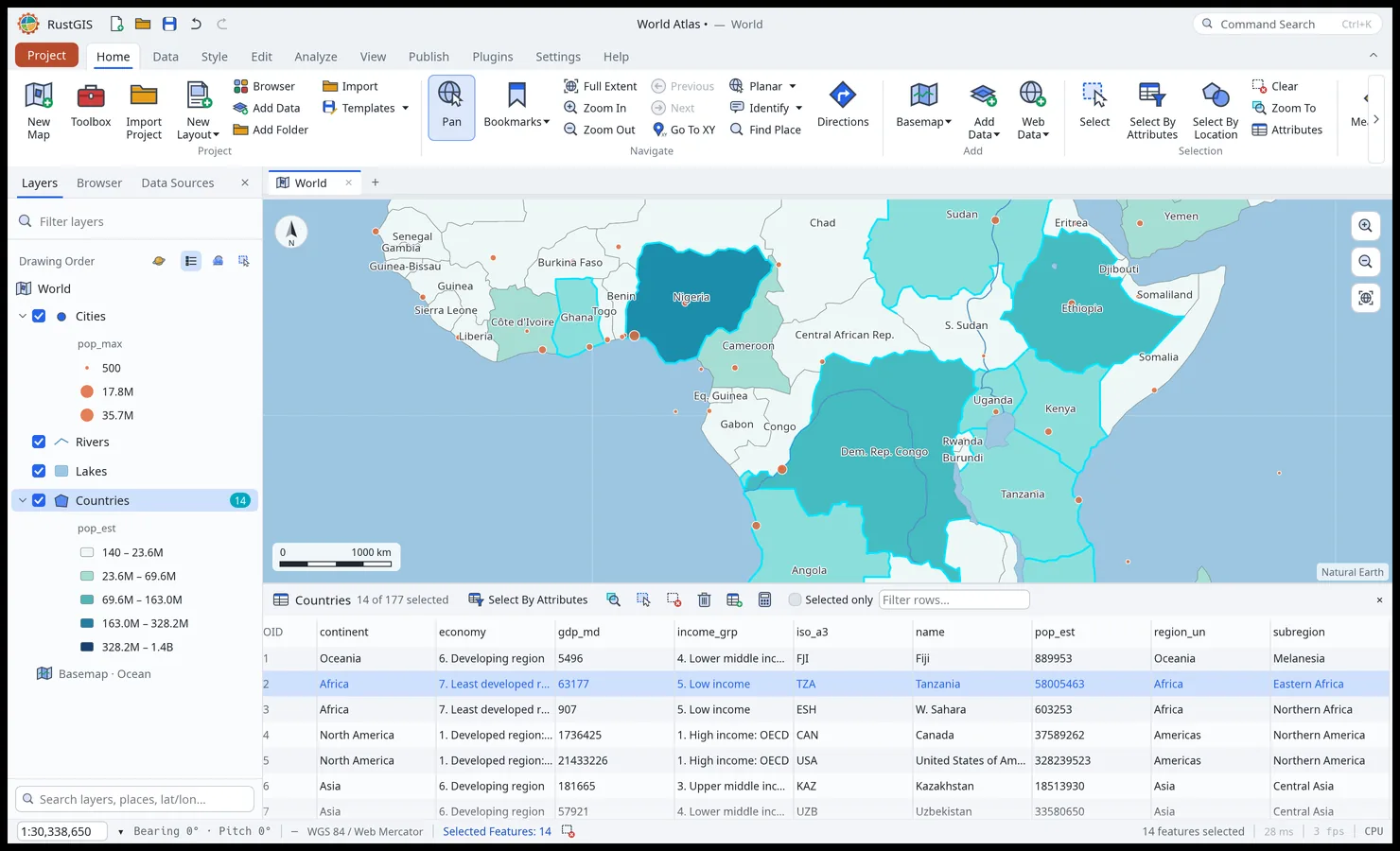
Select By Attributes and definition queries use SQL WHERE clauses:
pop_est > 100000000 AND continent = 'Asia'
name LIKE 'S%'
iso_a3 IN ('FRA', 'DEU', 'ITA')
gdp_md IS NULL
"OR" = 1          -- double quotes name a field, even a keyword
Geoprocessing tools
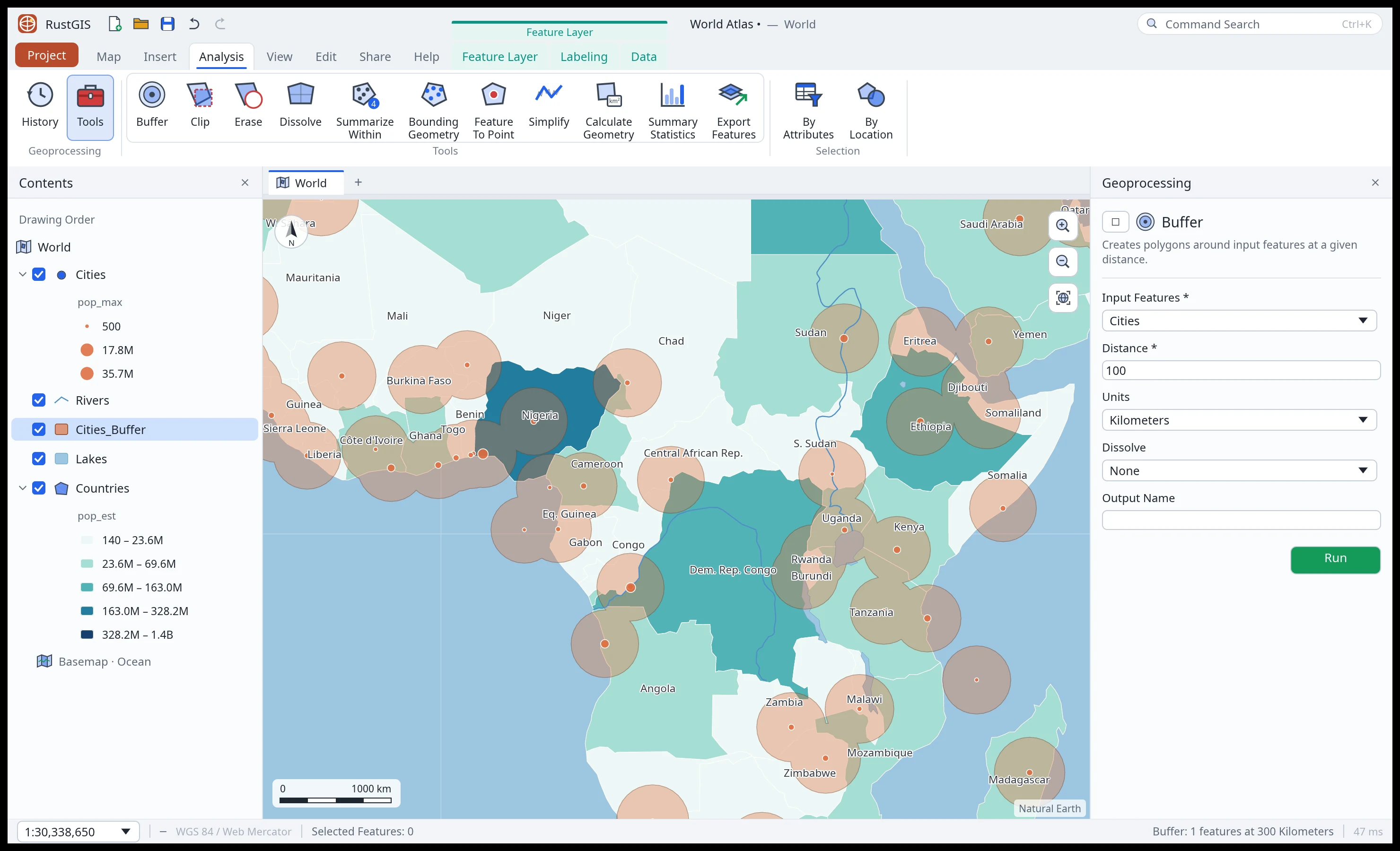
Open a tool from Analyze › Portal › Feature Analysis or Raster Analysis, Analyze › Tools (the Tools pane,
which searches every tool) or Command Search. Fill in its parameters and click Run: new
layers or tables are added to the project; selection tools select existing rows and Calculate
Geometry Attributes updates the input layer. Each run is listed under Analyze › History.
From the command line or a script (gp.run), a built-in tool's parameter with a list of choices, such as Buffer's
units, takes one of them in any letter case ("meters" for Meters); any other value is an error
that names the choices (Buffer's units no longer take the abbreviations m, mi or metres).
Buffer and Select Layer By Location accept Kilometers, Meters, Miles and Feet. Feet are international feet
(exactly 0.3048 metres): a 500-foot notification radius is 152.4 metres on the ground.
The History pane lists each run with when it ran (in UTC). Its ⋯ menu, or a right-click on
the tool's name, copies a run as code, with the parameters it ran with: Copy as Python (a
call for the rustgis package, one parameter a line), Copy as Command (a
line for the Script pane) and Copy as CLI Command (rustgis-cli run --project … --cmd …,
quoted for a POSIX shell: macOS, Linux, WSL or Git Bash; on Windows' own shells, use the Python
or the Script line). Open in Tool opens the tool's form with those values, to change and run
again. Save as Python Script… writes the whole history as a script that opens the project
and runs each tool in order; a run that failed is there as a comment. The CLI command and the
script open the project's file: for a project not saved yet, they name the file it would be
saved as, so save it there first; and a project changed since it was saved needs saving again,
or the script opens it without those changes (a layer added since, say). What gives access is
taken out of the code: addresses lose their keys, tokens and passwords, a connection its
password, a pasted private key goes, and a parameter named as a password, key, secret or token
is left empty (gp.historyCode and gp.historyScript do the same from a script). A secret
written some other way (a token typed into a SQL query, say) can still be there: read the code
before sharing it. A point buffered where the
map was clicked is copied as the command that buffered it, with the point.
There are 20 built-in tools; GeoLibre and plugin tools join them when available.
Use these ids in gp.run's tool parameter (gp.tools lists the available tools and their parameters):
| Tool | Id | Toolbox |
|---|---|---|
| Buffer | buffer |
Analysis › Proximity |
| Clip | clip |
Analysis › Extract |
| Erase | erase |
Analysis › Overlay |
| Spatial Join | spatialJoin |
Analysis › Overlay |
| Dissolve | dissolve |
Data Management › Generalization |
| Minimum Bounding Geometry | convexHull |
Data Management › Features |
| Feature To Point | featureToPoint |
Data Management › Features |
| XY Table To Point | xyTableToPoint |
Data Management › Features |
| Calculate Geometry Attributes | calculateGeometry |
Data Management › Features |
| Simplify | simplify |
Cartography › Generalization |
| Tissot's Indicatrix | tissot |
Cartography › Projections |
| A5 Grid | a5Grid |
Analysis › DGGS |
| Aggregate Points to A5 | a5Aggregate |
Analysis › DGGS |
| Select Layer By Location | selectByLocation |
Data Management › Layers and Table Views |
| Select Layer By Attribute | selectByAttributes |
Data Management › Layers and Table Views |
| Summarize Within | countPoints |
Analysis › Summarize |
| Summary Statistics | summaryStatistics |
Analysis › Statistics |
| Export Features | exportFeatures |
Conversion |
| IDW Interpolation | idwInterpolation |
Analysis › Interpolation |
| Ordinary Kriging | kriging |
Analysis › Interpolation |
Most feature tools process only the selected rows when an input has a selection. Selection tools
instead replace the input's selection; Select Layer By Location honours the selecting layer's
selection. Summarize Within counts the selected points against all input polygons, and
Calculate Geometry Attributes updates all rows. A built-in tool's output is a layer name in
the project, never a file path.
Buffer distances, and the distance of Select Layer By Location, are measured on the Earth (a sphere of radius 6,371 km), not in the map's display projection. Each feature is buffered in an azimuthal equidistant projection centred on it; long lines and large polygon outlines are buffered in stretches of a few hundred kilometres to limit projection error. Negative Buffer distances shrink polygons. Buffer and Select Layer By Location limit distances to 5,000 km.
IDW Interpolation works like the QGIS tool of the same name: every point weighs on every
cell by 1/distanceᴾ, where P is the distance coefficient (2 by default). Lines and polygons
contribute their vertices. Leave the extent empty to use the input's, or give it as
xmin,ymin,xmax,ymax in degrees. pixelSize sets the cell size in degrees; when omitted it
starts at 300 cells across the extent and coarsens for large inputs. The result is a Float32
GeoTIFF layer. The Geostatistical Wizard is a separate IDW workflow: it uses 12 nearest
neighbours by default (neighbors), rather than every point.
Ordinary Kriging (kriging) estimates both a value and its uncertainty. Set input and a
numeric field, then choose a model: Spherical (default), Exponential or Gaussian.
neighbours defaults to 12 (minimum 2, capped at 32). Optional nugget, sill and range
override the defaults: zero nugget, the sample variance (1 for near-constant values), and a
third of the extent's diagonal. Coordinates, range, extent and pixelSize are in degrees
(WGS 84). Points at the same location are averaged; multipoints contribute their points, while
lines and polygons contribute their bounding-box centres. At least two distinct locations with
numeric values are needed. It adds two separate Float32 GeoTIFF layers: the prediction,
named by output, and <output>_variance.
Spatial Join (spatialJoin, also gp.spatialJoin) copies attributes from join features
to target features in the same coordinate system. match is Intersects (default),
Contains (target contains join) or Within (target lies within join).
Join one to one (the default operation) copies the first matching feature's attributes,
not their sum or mean; Join one to many makes a row for each match. Both add join_count,
the total matches for that target, and prefix joined fields with join_ (change prefix to
override it). keepAll defaults to Keep all, leaving unmatched joined values null; choose
Keep only matching to drop those targets. Selections in both layers are honoured.
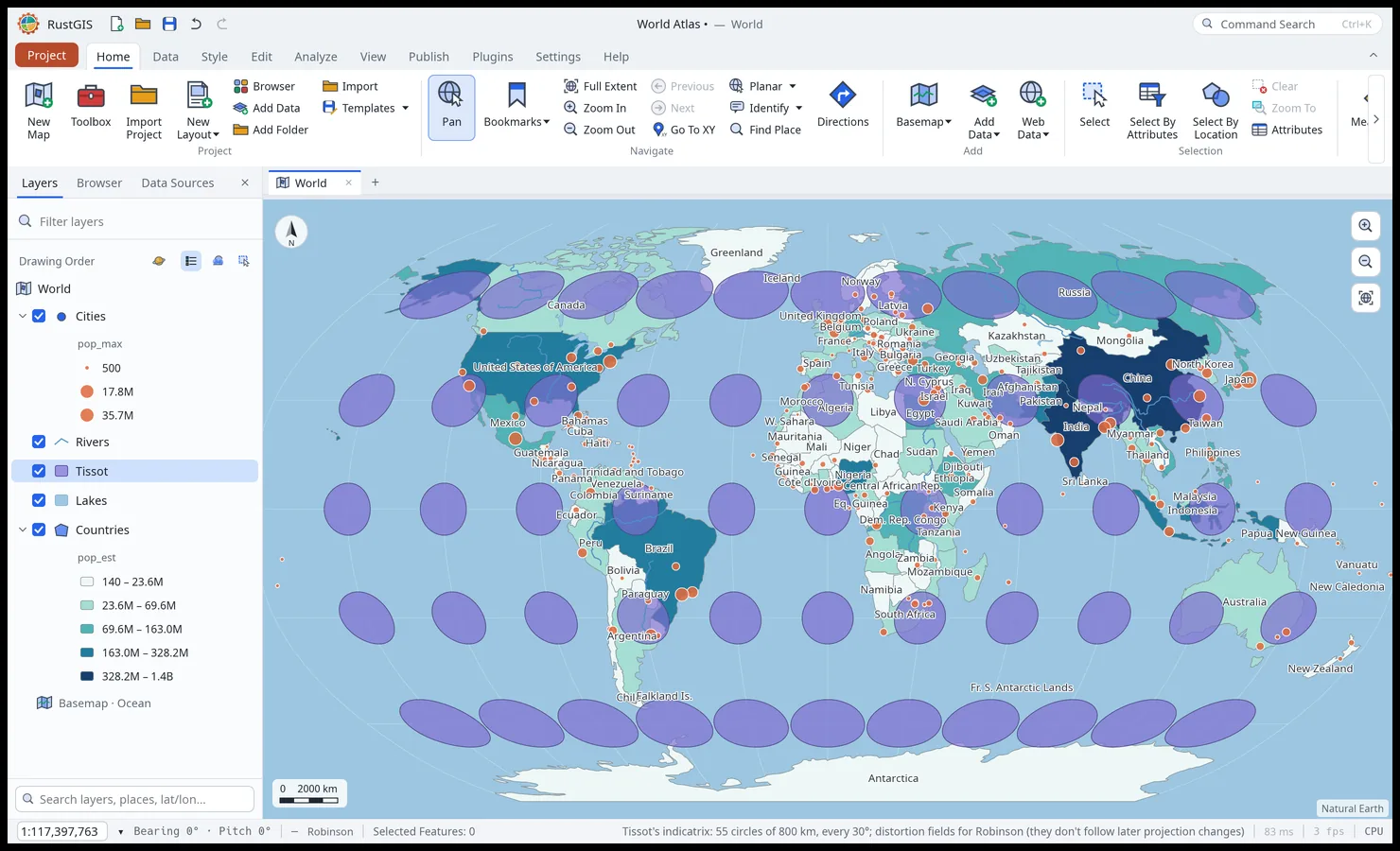
Tissot's Indicatrix shows what the map's projection does to the Earth. It draws the same small circle repeated over a grid: by default circles of 500 km radius every 30° over the whole world. With Area: Map Extent it fills the view instead (the whole Earth on the globe), for a country or a state with a smaller spacing and radius.
- The circles are geodesic, in longitude/latitude. The map draws each one as the ellipse its projection makes of it, and redraws them when you change the projection: growing circles in Web Mercator, flattened ellipses of equal area in Mollweide.
-
On a flat map, each circle also records Tissot's parameters at its centre for the projection the map had when the tool ran:
handk: scale along the meridian and the parallel;aandb: the ellipse's semi-axes;area_scale:a·b, which is 1 on an equal-area projection;max_angle: the largest angular distortion ω in degrees, 0 on a conformal projection.
They are measured against the WGS 84 ellipsoid. For a world projection the map draws on a sphere (Mollweide, Robinson…), they can be off by a few tenths of a percent. - Making a distortion map: color the circles by
area_scaleormax_angle.
A5 Grid and Aggregate Points to A5 use A5, a discrete global grid of pentagonal cells that all have the same area at a given resolution. A count per cell is therefore already a density, and stays comparable between regions, unlike a grid of cells that change size with latitude or the map's projection.
- A5 Grid makes the cells at a resolution (0–30; each step divides a cell into four: 5 is about 33,000 km², 9 about 130 km², 12 about 2 km²) over the map's extent, an input layer's polygons (or the extent of its points and lines), or the whole world. Cells: Overlapping covers the area without gaps; Center keeps the cells whose centre is inside. A run makes at most 200,000 cells.
- Aggregate Points to A5 counts a point layer's points (its selection, when there is one) by the
cell holding them, and keeps only the cells that hold any. It adds
countanddensity_per_km2, and a numeric field's_sumand_mean, where a feature's value counts once in each cell (a multipoint's, however many of its points fall there). - Both write
a5(the cell's 64-bit id in hex, as other A5 tools read it: DuckDB, PostgreSQL, Python'spya5, R),resolutionandarea_km2. A cell across the antimeridian, or round a pole, is split at ±180° into two parts of one polygon, each within −180° to 180°.
GeoLibre tools
The desktop app and the command line can also run the GeoLibre tool suite: over 1,000 tools from Whitebox and GeoLibre for terrain analysis (slope, aspect, hillshade, curvature), hydrology (fill depressions, flow direction and accumulation, watersheds), image processing, interpolation and vector work. They run on the map's layers and add their outputs as new layers.
The suite is an optional download, so RustGIS itself stays small: the GeoLibre runner, a
single geolibre program (about 20 MB to download). In the Tools pane, click
Install Whitebox and GeoLibre tools under Whitebox and GeoLibre tools: RustGIS downloads the latest runner for your
platform from the geolibre-rust releases,
checks it against its published SHA-256 checksum (which catches a corrupted download; the
release itself is trusted as when you download it by hand) and installs it in its data folder
(by default ~/.local/share/rustgis/geolibre on Linux, ~/Library/Application Support/RustGIS/geolibre
on macOS, %LOCALAPPDATA%\RustGIS\geolibre on Windows). RUSTGIS_APP_DATA_DIR overrides the
data folder; Linux also honours XDG_DATA_HOME. From the command line, gp.installGeolibre
does the same.
To remove it, click Uninstall beside GeoLibre at the top of the Tools pane, then
Confirm uninstall (gp.uninstallGeolibre from the command line): RustGIS deletes the runner
it installed and removes the geolibre folder only if it is empty. Other files there, a runner
you located yourself, and one on your PATH are left alone; RustGIS looks for a runner again.
You can install the tools again at any time. In the browser,
Remove unloads the tools and stops loading them when RustGIS starts.
To install it yourself instead, download the archive for your platform
(geolibre-<version>-<platform>.tar.gz, or .zip on Windows), unpack it anywhere, and click
Locate… to pick the geolibre program; RustGIS remembers it.
RustGIS also finds the runner without asking when it is next to the RustGIS program (or in a
geolibre folder beside it), on your PATH, or named by the RUSTGIS_GEOLIBRE environment
variable (the command line uses these). The tools then appear under GeoLibre in the Tools
pane and the Browser's toolboxes, grouped by the category and subcategory the runner gives
each tool (Conversion, Hydrology, LiDAR, Projection, Raster, Remote Sensing, Terrain, Vector,
then e.g. GeoLibre › Terrain › Derivatives). A runner too old to list subcategories groups
them by category only. Find Tools searches them.
- Raster inputs are passed as their own files; vector layers (or their selection) are written in the first raster input's coordinate system, or, with no raster input, the UTM zone around the data. The latter uses metres; data spanning more than 40° of longitude stays in degrees.
- Tools that take several layers (a composite's bands, a mosaic's tiles) list them in order:
Add picks a layer, and ▲ ▼ change its place (the order of the bands, for a composite). From
the command line, name them separated by
;:"inputs":"red;green;blue". In the desktop app a file not open as a layer can be added too: type its path below the list and press Enter. - Raster outputs are kept inside the project, so they save and reopen with it. Table outputs become standalone tables; text reports appear in the tool's messages.
- LiDAR and other inputs RustGIS doesn't open as layers take a file path, read like Add Data reads one. Outputs are written to a fresh scratch folder and loaded from there.
- Each run is a separate
geolibreprocess, so a tool that fails can't take RustGIS down. - From the command line:
gp.run={"tool":"geolibre:slope","params":{"input":"dem"}};gp.toolslists every tool's parameters,gp.geolibreshows the runner in use andgp.setGeolibre={"path":"…"}picks one.
In the web app, click Load Whitebox and GeoLibre tools in the Tools pane instead. RustGIS
loads geolibre-rust's WebAssembly runner (the geolibre-wasm package, from jsDelivr, about
25 MB the first time, then from the browser's cache) and the tools run in the page, in an
in-memory folder: nothing is uploaded. The web app remembers this and loads them again on your
next visit. The runner's code comes from jsDelivr, pinned to one geolibre-wasm release, the
same trust as installing that package. Tools that read files by path (LiDAR files, for instance) need the desktop app,
since a web page has no file system.
In the desktop app and on the command line, RustGIS waits while a tool runs, so a long run on a large raster or point cloud keeps the window busy until it finishes. In the web app the run is started in the background and the result is added when it ends, but the tool itself runs in the page, so the page is busy while it computes.
Analysis workflows
The Analyze tab's Workflows pane holds guided analyses. Where one needs points, it asks you to click them on the map:
| Workflow | What it does |
|---|---|
| Raster Functions | Slope, aspect, hillshade, NDVI, band math ((b4-b3)/(b4+b3)), remapping, thresholds, resampling |
| Function Editor | Chains raster functions, each on the previous output |
| Suitability Modeler | Scores rasters 1–10 and adds them with weights |
| Visibility Analysis | A viewshed from a point on an elevation raster |
| Exploratory 3D Analysis | A line of sight between two points, split into seen and hidden parts |
| Geostatistical Wizard | An IDW surface from feature values, using 12 nearest neighbours by default |
| Network Analysis | The shortest (or cheapest, by a cost field) route over a line layer |
| Neighborhood Explorer | What lies within a distance of a point, with sums of numeric fields |
| Simulation | Random points in polygons (a fixed number, or from a field × rate) |
| Data Engineering | Counts, nulls, distinct values, min, max and mean of every field |
| Exploratory Analysis | Histograms and correlations of numeric fields |
| Embeddings | The features most like the selected one, by their numeric attributes |
| Data Interop | KML, GPX, CSV with WKT, GeoJSON or CSV |
Rasters these make are kept in the project. Environments (gp.env) set an extent from the map
view, full extent, a layer or a longitude/latitude box (or null to clear it). For tools that
honour it, this restricts an unselected main feature input by bounding-box intersection, not by
clipping its geometry; an existing selection takes precedence and overlay inputs stay whole.
The Geostatistical Wizard uses the environment's extent and raster cell size (degrees).
IDW Interpolation and Ordinary Kriging instead use their own extent and pixelSize parameters;
the environment does not set their output grids. Raster Functions › Resample matches a target
raster's grid.
The Script pane runs commands from text, one per line (id {json}); its box grows with the script down to the bottom of the pane,
short of the buttons, and then scrolls, so Run stays in view; Ctrl+Enter (⌘+Enter on macOS)
in the box runs the script too. Above a run's results, a line tells its number, how long it took
and when it started (Run #2 (0.84 s), and 14:04 UTC on the right), so a run made again by
mistake shows (Undo takes a whole run back). It colours the commands as you type, in both
themes: # comments in green italics, the command id, and the JSON's strings, numbers and
true/false/null; an id no command has, or one that can't run in a script (ui.*, script.*,
notebook.run), and parameters that aren't valid JSON are red and underlined. A script is read to
its 10,000th line; any further are dimmed, as Run doesn't read them. Typing a line's first word
opens a list of the commands it starts, under the cursor: ↑/↓ to move, Enter or Tab to accept,
Escape to close, or a click. Beside it, the highlighted command's help: its signature (keys with ?
may be left out), its name, its parameters one per line, and where it sits in the interface.
Accepting a command on a line of its own adds its braces: with its required keys ready for their
values, the cursor at the first (map.goToXY {"lon": , "lat": }), or empty with the cursor inside
when every key may be left out; a command with no parameters gets none, and a line that has
parameters keeps them. While you type a command's parameters (the cursor inside its {…}), the same help stays by the cursor;
Escape closes it. A quote that starts a key in a command's braces opens the list of its keys not
given yet, beside the highlighted key's description; accepting one closes it with its colon
("size":). The same goes in a key's own object, or in each object of its list, for the keys the
command's description gives it (topology.rules {"add": {"rule": …}}). In a gp.run line, a
quote after "tool": opens the list of the tools, beside the highlighted tool's help; accepting
one closes it. In its "params": {…}, the keys offered are those of the tool its "tool" names
(by id or name, before or after params), beside the highlighted key's kind, name, default and
help; there the help by the cursor is the tool's. A task.addStep line works the same way: its
"command": " offers the commands, and its "params" that command's keys and help. For a
command that takes them, "layer": " offers the map's layers, top first, each with its kind's
icon and beside it what it holds; "field": " offers the fields of the layer the line names
(before or after it), or of the active layer when it names none, with each field's type beside it. Accepting one writes its name
as the line's JSON needs it ("Big \"lakes\""). A { or [
typed closes itself, the cursor inside, unless text follows it or it's in a string or a comment;
so does a " where a string can start (after a space, {, [, , or :). A } or ] typed
before the same one steps over it, as does a " typed before the quote that ends its string, and
Backspace in an empty {}, [] or "" deletes both. The lists open in a quote that closed
itself, and accepting keeps that quote. Pasting adds nothing.
ModelBuilder
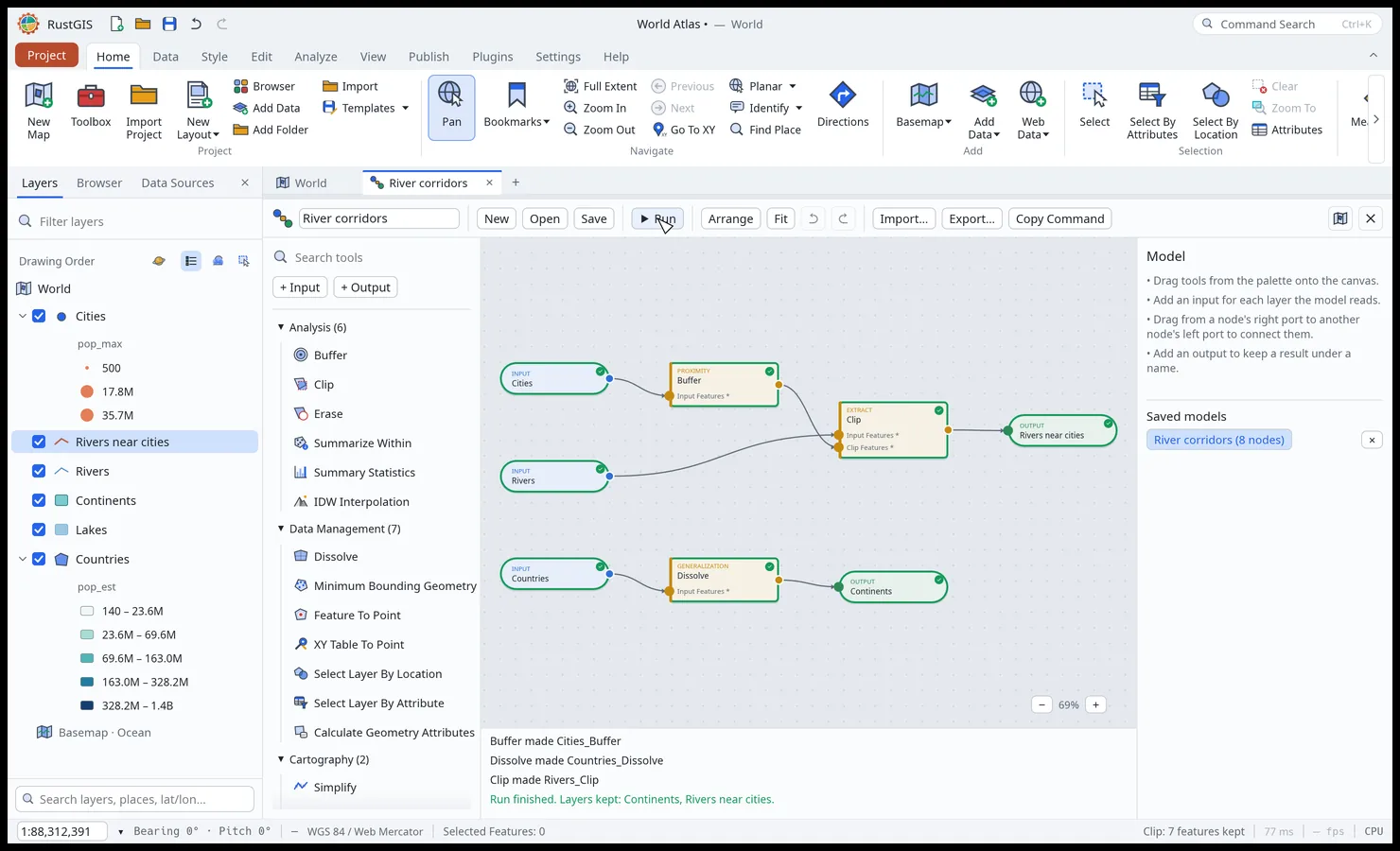
Analyze › Model Builder opens a model in a view of its own, a tab beside the maps and layouts. A model is a graph of three kinds of node: inputs (blue) name layers of the map, tools (amber) are geoprocessing tools, and outputs (green) keep a result as a layer of their name.
- Drag a tool from the palette on the left onto the canvas, or click it; + Input and + Output add the other nodes.
- Drag from a node's right port to another node's left port to connect them. A tool's left ports are its layer parameters; a parameter that isn't connected can name a layer of the map instead, in the settings on the right.
- Select a node to set its parameters there; Keep this result adds an output for it.
- Drag the background to pan, Ctrl+wheel (or pinch) to zoom; Arrange lays the nodes out along the flow and Fit shows the whole model. Delete removes the selected node or wire, Ctrl+D copies a node, Ctrl+Z and Ctrl+Y undo and redo.
- Problems are listed below the canvas as you build (an input without a layer, a required parameter left empty, a loop) and the nodes concerned are marked; Run waits until there are none. The tools then run in flow order, and each node shows how it fared. A result that only feeds other tools is removed once the model has run; the outputs, and tools at the end of the flow, stay on the map. A run that fails is undone as a whole.
- Save keeps the model in the project; Export writes it as a
*.model.jsonfile, which Import (or dropping the file on the window) opens again. A model from a file may not read or write files. Copy Command copies amodel.runcommand that runs the model from the Script pane, the command line or Python.
The Workflows pane's Models section lists the project's models, and New Model From History turns
the geoprocessing you've run into one. Models made as steps (model.new with steps, where %1
stands for step 1's output) run as they always have until they are saved from ModelBuilder, which
shows them as a graph and saves them as one. The model.* commands build, check (model.validate),
save and run models without the canvas:
{"graph": {"nodes": [
   {"id": "i1", "kind": "input", "layer": "Cities"},
   {"id": "t1", "kind": "tool", "tool": "buffer", "params": {"distance": 50}},
   {"id": "o1", "kind": "output", "name": "City zones"}],
 "edges": [
   {"from": "i1", "fromPort": "out", "to": "t1", "toPort": "input"},
   {"from": "t1", "fromPort": "out", "to": "o1", "toPort": "in"}]}}
Imagery
The Analyze tab's imagery groups open their tools in the Workflows pane:
- Ortho Mapping and Reality Mapping workspaces mosaic georeferenced images into an orthomosaic, or elevation rasters into a surface model that exports as a 3D mesh (OBJ).
- Georeference places a raster from control points (column, row, longitude, latitude) or
stretches it over the map view. Those only shift and scale a north-up grid, as RustGIS's
geotransform has no rotation. With
transform(raster.georeference) the points are fitted by any of the Control Point Fit transforms and the raster is warped onto a new north-up grid covering the warped image:{"layer": "scan", "transform": "spline", "points": [[column, row, x, y], …], "pointsCrs": "EPSG:4326", "crs": 32613, "resampling": "bilinear", "cellSize": 5, "name": "warped", "path": "warped.tif"}.pointsCrsis the coordinate system the points' x and y are in (default EPSG:4326) andcrsthe output's (defaultpointsCrs, so nothing is reprojected unless asked). Each output cell is taken back through the fit, after reprojection, to the image and sampled there withnearest,bilinear(the default) orcubic; cells that fall outside the image are no data, or see-through for a colour image, which gains an alpha band for it (a grey byte image becomes grey with alpha; alpha is 0–255 in every pixel type). An image warped into a geographiccrsgets square cells in degrees, and one that would span more than 180° of longitude is refused: give a projectedcrs. The cell is about the source pixel's size on the ground unlesscellSize(output units) says otherwise. The result replaces the layer's raster, or becomes a new layer withname;pathalso writes it as a cloud-optimised GeoTIFF, which then is the layer's file. A raster opened from an overview is warped at that reduced resolution, and the result says so. - Control Point Fit (
raster.gcpFit) fits a similarity, affine, projective, second- or third-order polynomial, or thin plate spline transform to control points and reports how well it holds: each point's residual in pixels and map units, the RMSE, and each point's error when it is left out of the fit. Withcompareit fits them all and recommends the simplest whose leave-one-out error is close to the best. - Change Detection (difference, ratio, percent), Spectral Analysis (every band at a pixel), Indices (NDVI, NDWI, SAVI, NBR, NDBI, EVI), Process (clip to the view, to a box, or to a polygon layer's selected or all polygons, with the cells outside them no-data; resample) and the Pixel Editor (set the pixels inside a polygon).
- Mosaic Rasters (
raster.mosaic) merges tiles of one grid, such as the 1 km tiles of a state elevation model, into one raster in their own coordinate system and cell size, optionally written to a GeoTIFF:{"inputs": ["dgm_1.tif", "dgm_2.tif", …], "path": "dem.tif"}. Inputs are layers or file paths; where they overlap, the first one with data wins. Tiles in different coordinate systems or cell sizes, or opened from an overview, are refused rather than quietly resampled, as are tiles whose cells don't line up; the mosaic has to fit in memory (120 million values: cells times bands). - Classification Wizard (unsupervised k-means) and Classification Tools (minimum distance from training polygons).
- Mensuration: distances along the surface, heights between two points, areas, and volumes above or below a base height, with a list of results.
Trend analysis
Trend Analysis (cube.trend, in the Workflows pane after Change Detection) asks of a series of
rasters whether each cell is changing, how fast, and how surely: an NDVI series greening or
browning, a temperature series warming. Each cell gets Sen's slope, the median of the slopes
between every two dates, which holds up against outliers such as a cloud left in an NDVI scene,
and a Mann–Kendall test of whether the trend is significant.
- The series (a data cube) is any of:
- raster layers, a date each, dated by their names (
ndvi_2024-06-01, MODIS'sA2024153,2024-06, a year) or by thedatesgiven:{"layers": ["ndvi_2015", "ndvi_2016", …]}; - a Zarr variable along its time dimension, by its layer or its store, as for Summarise over time
(see Data):
{"path": "air.zarr", "variable": "t2m"}; - a raster of several bands, a date each, as Earth Engine and openEO export, dated by the bands'
names or
dates; - a STAC collection's band (desktop), read in place from its cloud-optimised GeoTIFFs over an
area, as Add as Time Series finds them (see Web data):
{"url":
    "https://data.inpe.br/bdc/stac/v1", "collection": "mod13q1-6.1", "asset": "NDVI", "bbox": [-46,
    -10.95, -40.35, -2.7], "start": "2001", "end": "2025"}
. Each date's files (a grid tile each, MODIS's h13v09 and h13v10 for Piauí) are put together on one grid, each scaled as its own metadata says (NDVI's 0.0001)."cellSize"reads the level of the files' overviews nearest it (1000reads MODIS's 926 m one), which reads far fewer bytes; by default the full images. An overview is often one pixel taken from each block (the Brazil Data Cube's are), so a cell is then one 250 m pixel, which can differ much from the place's mean;"resampling": "average"makes each cell the mean of the full images' pixels in it, reading those (16 times the bytes at 1 km from 250 m). It needs every file's corner on a cell's corner, as MODIS's tiles are; a file on a grid shifted by part of a cell is refused: set"resampling": "nearest"and run it again. A file's no-data value is skipped, from its header or from its asset's metadata (raster:bandsnodata). Where two tiles' files overlap on a date (items without a tile name are told apart by footprint), a cell is the mean of their values, while the data cube on the map shows one of them. This source is given as parameters (a script, the assistant, the command line);cube.trendwaits for the search and the reads with no Cancel, the app with it, as for a Zarr store's address, so keep the area and period small there, or run a large one from the command line.
The rasters have to be on one grid; put them on one first with Raster Functions › Resample.
- The test: NDVI and temperature series are autocorrelated, which makes the plain test report
too many significant cells, so the default is the modified Mann–Kendall test of Hamed &
Rao (1998): the variance of S is corrected by the autocorrelation of the detrended series'
ranks, at the lags significant at the test's level. The others:
- Yue & Wang (2004), from the lag-1 autocorrelation of the detrended series;
- Seasonal (Hirsch et al. 1982), for a series with a yearly cycle: the test is made within
each season ("seasons": 12 for months, 23 for 16-day composites) and summed, and Sen's slope
comes from pairs within a season;
- Mann–Kendall for independent values.
The definitions follow pymannkendall's, ties included.
- Options: the significance level ("alpha", 0.05), the slope per year or per decade (from the
real dates, so uneven spacing is handled), a period (start, end; a whole number from 1000 to
9999 is a year, and an end given as a year or a month takes all of it), a season across years
("months": [12, 1, 2]), and the dates a cell needs ("minValid", by default half of them, at
least 4). Missing values and no-data are skipped cell by cell.
- Outputs: four 32-bit layers, kept in the project as GeoTIFFs: Sen's slope, the test's Z, the
p-value, and the slope where p < alpha (no-data elsewhere), the one a map usually shows on a
diverging ramp centred on 0.
- Size: the cube is read into memory a slice at a time, up to 64 million values (cells times
dates; 16 million in the web app) and 2,000 dates. A STAC collection's area is read in pieces
instead, bands of rows each within that block (a whole number of the files' tile rows where they fit),
eight dates at a time, and the outputs are put together: Piauí at about 1 km over 25 years of
16-day composites (645 × 984 cells × 576 dates) is six pieces. Its area is up to 25 million
cells. The seasonal test compares only pairs within a season, so its time limit counts those.
It runs in the background with progress and Cancel.
rustgis-cli run --cmd 'cube.trend={"layers":["ndvi_2015","ndvi_2016","ndvi_2017","ndvi_2018"],"per":"decade"}'
rustgis-cli run --cmd 'cube.trend={"url":"https://data.inpe.br/bdc/stac/v1","collection":"mod13q1-6.1","asset":"NDVI","bbox":[-46,-10.95,-40.35,-2.7],"start":"2001","end":"2025","cellSize":1000,"test":"seasonal","seasons":23,"per":"decade"}' --save piaui.rgis
Summarising a data cube over time
Summarise a Data Cube over Time (cube.reduce) makes rasters of one statistic of each cell
over the dates of any of the series Trend Analysis takes (layers, a raster's bands, a Zarr
variable, a STAC collection's band): mean, min, max, sum, std (the population
standard deviation), count of values, or countAbove a threshold ("above"), as Summarise
over time does for a Zarr variable (see Data).
- Groups:
"by": "all"(the default) makes one layer of the whole period,"year"one for each calendar year (an annual mean NDVI from 16-day composites),"month"one for each month of the year across the years (a climatology)."start","end"and"months"pick the dates as for a trend. - Missing values: no-data and missing values are skipped cell by cell. A cell keeps no value
where it had fewer values than
"minValid"(a share of its group's dates, 0 by default: 0.5 wants half of a year's composites); with the default, count and countAbove give 0 where a cell never had a value. - Size: the slices are folded into running totals as they are read, so a long period takes no
more memory than a short one; a STAC collection's area is read in pieces, as for a trend. The
outputs hold up to 32 million values (cells times groups; 8 million in the web app). A summary by
month keeps every month's totals while it reads, up to five times the outputs' memory for
std (three for mean, min, max, sum and countAbove), so a large area by month may need a
coarser cell size or a smaller area. The layers
are named after what they hold (
NDVI mean 2001,NDVI mean 2001–2025 month 03, or the"name"given and the group) and kept in the project as GeoTIFFs.
rustgis-cli run --cmd 'cube.reduce={"layers":["ndvi_2015","ndvi_2016","ndvi_2017","ndvi_2018"],"stat":"max"}'
rustgis-cli run --cmd 'cube.reduce={"url":"https://data.inpe.br/bdc/stac/v1","collection":"mod13q1-6.1","asset":"NDVI","bbox":[-44.8,-7.5,-44.3,-7.0],"start":"2001","end":"2025","cellSize":1000,"stat":"mean","by":"year","minValid":0.5,"name":"NDVI"}' --save urucui.rgis
Deep learning and hosted imagery
Analyze › Deep Learning Tools trains a neural network (a multilayer perceptron) on the pixels under training polygons and classifies every pixel, adding a class raster with a confidence band and reporting the accuracy on held-back pixels. Trained models stay in the project; Publish › Share As › Deep Learning saves one as a package to apply in other projects. Analyze › Create Hosted Imagery cuts a raster into XYZ web map tiles (PNG, transparent outside the raster) with a TileJSON file and a viewer page.