Layouts and Reports
Layouts
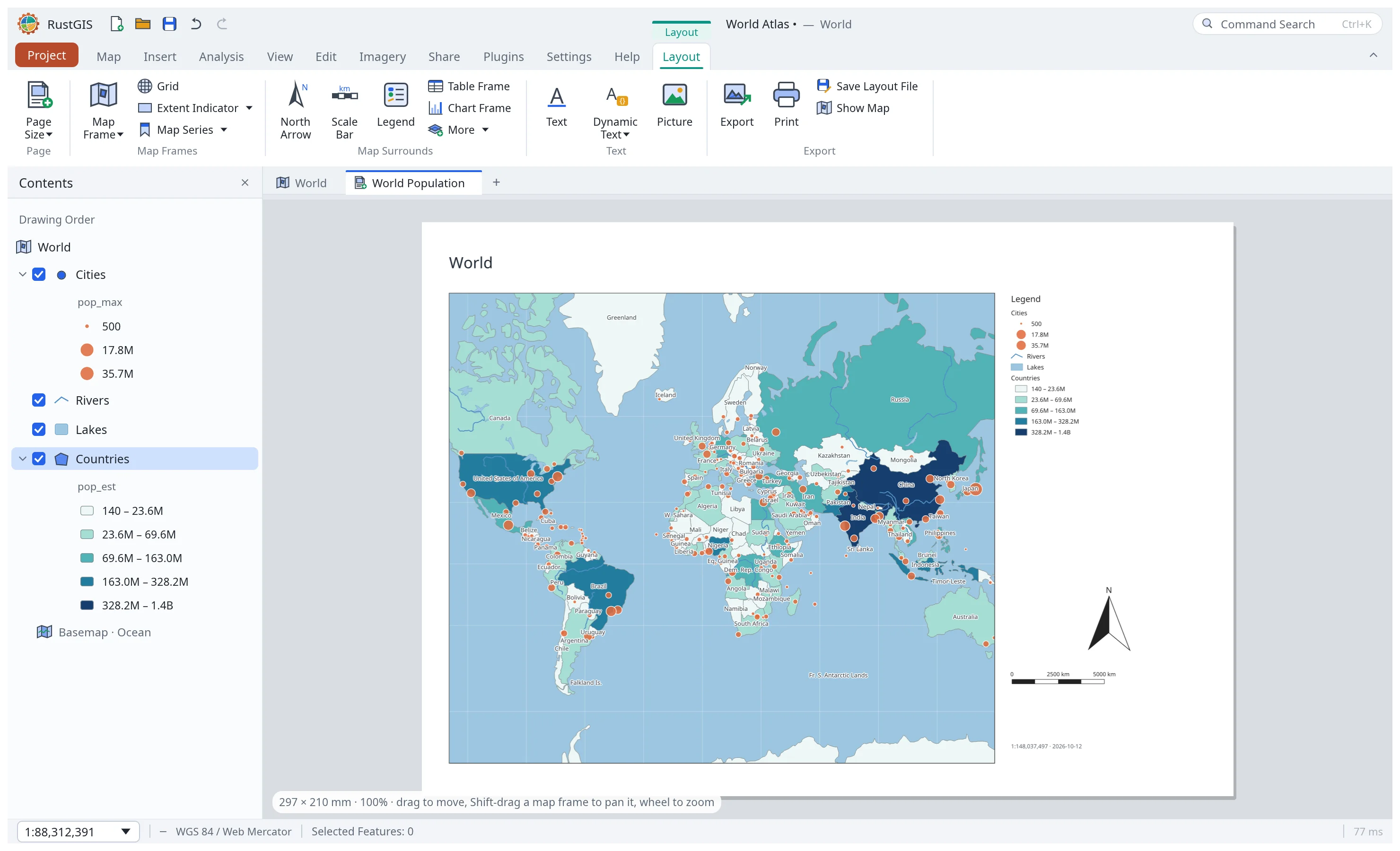
Home › New Layout adds a page layout (Letter, Legal, Tabloid or A5 to A0, landscape or portrait)
with a map frame, title, legend, north arrow, scale bar and a dynamic credits line. The command
layout.new also accepts custom width and height in millimetres and "template": "blank".
Layouts open as tabs next to the maps; while one is open, its groups lead the Publish tab:
- Publication layouts: Home › New Layout › Publication Layout builds a finished sheet or
figure of the map view in one step, with
layout.publicationbehind it: - Sheets (A4, A3 or A2, portrait or landscape): a frame and margin, the title and subtitle,
the map, and a footer of two boxed columns (sources, and the cartographic reference; one
with nothing in it is left out, the other taking the width) with a note and the authorship
under them. Text sizes follow the sheet: an A3's are 1.41 times an
A4's. Given its size alone (
"a4", the default,"a3"or"a2"), a sheet is turned to portrait or landscape, whichever the map comes out larger on: the area's extent east to west against north to south, on the map's projection, with the room the style leaves the map. The result names the profile chosen ("profile": "a4-landscape"); give it with its orientation ("a4-portrait") to have the other. - Figures for a journal (90, 140 or 190 mm wide, as tall as the map's shape asks) or a thesis (160 × 225 or 160 × 110 mm): the map edge to edge with a line of its projection and datum under it, at 7 pt. A figure's title and sources belong in its caption, so they are left out, and the result says so.
- The map: the
extentgiven (or the view) fitted north-up, without tilt, at a round scale, two significant figures, rounded up so it still fits within the strips the graticule's labels take inside the frame. A graticule's step follows the extent (2° for a state, 15′ for a city), with labels on every edge of a sheet. The north arrow, the legend (sized to what it lists), the scale bar with the numeric scale under it and the locator sit in the frame's corners, clear of the graticule's labels. Each takes the corner where it covers the least of what the map draws (its layers and labels, not the basemap), so a legend leaves a corner the data fills; when it makes no difference they keep theirs: the locator at the top left, the arrow at the top right, the legend at the bottom left and the scale at the bottom right. With more surrounds than free corners, one warning names those left on the data, to move by hand if that matters (data under every corner alike, such as a context layer filling the frame, isn't worth a warning); two that overlap (a frame too small) are said too. The top visible raster gets a colorbar beneath the vector legend if its renderer has a colour scale; RGB and untinted hillshade do not. If the legend or colorbar cannot fit, the result warns about clipping or resizing. A streamed layer still loading gets a fixed-size legend to adjust by hand. - Decimal comma:
"decimal": ","prints the graticule, scale bar and colorbar numbers and{scale}with a decimal comma and points between thousands (0,05,1:6.300.000).layout.page={"decimal": ","}sets it on any layout;"."restores decimal points. This changes generated numbers, not numbers typed into text. - Texts: the title, subtitle, footer lines and authorship are measured with the layout's
font (the title and headings bold, as drawn) and wrapped to their box, so none runs past it,
and each box grows to hold them.
{projection},{datum}and{grid}are filled from the map when the layout is made.{date}and the other dynamic text tokens stay live. The reference defaults to the projection, datum and graticule, and the authorship to "Made with RustGIS · {date}" ("author": ""leaves it out).headingsrenames the two columns. - The locator (at the frame's top left unless the data is there):
"locator": "globe"(a sheet's default) adds a separate globe map with simplified copies of the map's visible polygon layers held in the project. Streamed layers, rasters, points, lines and labels are left out. It uses the map's basemap, not its web tiles, in a round frame, the globe nearly filling it and the area outlined in red;"inset"shows the surrounding region (about four times the area across) on the map itself, outlined the same way;"none"(a figure's default) leaves it out. The legend stops short of it; a frame with no room for a legend beside it leaves the legend out, with a warning. Undo takes the globe's map away with the layout; a globe map no layout shows any more (its layout deleted) is replaced by the next sheet's rather than left beside it, which a warning says. - The style (
"style", on any sheet, portrait or landscape):"classic"(the default) sets the title over the map and the footer's boxes under it;"banner"puts the title and subtitle in a band of the accent colour across the top, the title in white;"panel"sets the map at the left and a pale panel at the right with the title, subtitle, locator and legend, and the sources and reference at its foot, the note across the bottom;"editorial"sets the title large in serif and a column at the right under a rule, with a heading (the third ofheadings), the note, the locator and the legend;"modular"sets cards with rounded corners on a light page: the map in one, the locator and the legend in one each beside it, the sources and reference in tinted ones under them;"poster"colours the whole page, sets the title and subtitle in light text across the top, the map in a light card and the footer in darker blocks with amber headings."accent"(#RRGGBB) colours the band, the panel's tint, the headings and rules, and a poster's page (a deep brown, green or blue by default). A figure leaves the style to its caption. - Every element is an ordinary one, to move or restyle afterwards. The command returns element
IDs for
layout.update, andwarnings. Running it again with anotherprofilemakes another layout of the same map.
layout.publication={"profile": "a4-portrait", "extent": [-46.8, -11.6, -38.5, -2.2],
  "title": "PIAUÍ", "subtitle": "Greening and browning of vegetation: NDVI trend, 2001–2025",
  "sources": ["NDVI: MOD13Q1 v6.1 (NASA LP DAAC), via the Brazil Data Cube (INPE)", "Boundaries: IBGE 2022"],
  "note": "Only cells with a significant trend (p < 0.05) are coloured."}
- Map frames: rectangle, circle and ellipse frames, or polygon and lasso frames drawn on the
page. Each frame shows a map of the project at its own centre and scale. Turn on Pan/Zoom
Map (Map Frames group, or a frame's properties) to drag inside frames to pan their maps and
turn the wheel to zoom them about the pointer; Esc turns it off. Without it, Shift-drag a frame
to pan its map. Double-click a frame to match the map view, or set the scale in its properties.
A frame can be turned and tilted like the map view: a new frame, or one matched to the view,
takes the view's bearing and pitch, and Bearing and Pitch in its properties (or
layout.updatewithbearingandpitch) set them. Its north arrows turn with it. Grid draws a labelled graticule over a frame; Extent Indicator outlines another frame's extent (an overview map). - Extent indicators: the Extent Indicator section of an overview frame's properties sets
the outline's Color and Line width (red and 2 pt to begin with), so it can sit quietly on a
muted page, and Remove Extent Indicator takes it away. Scripts set the same with
colorandwidthonlayout.addElement(kindextentIndicator), orlayout.updatewith"extentIndicator": {"color": "#555555", "width": 1}(falseremoves it). - Grids: the Grid section of a frame's properties turns the grid on and sets its
Interval in degrees (Auto picks one from the frame's extent), its Style (full lines
across the frame, ticks along its neatline only, or both, with the Tick length), its colour
and Line width, and its labels: decimal degrees (
112.5°W, as many decimals as the interval needs) or degrees, minutes and seconds (112°30′W), with a hemisphere letter or a sign (-112.5°), on any of the four edges (longitudes along the top and bottom, latitudes along the left and right; the bottom and left to start with), and the side labels horizontal or running along the edge. From a command:layout.addElement={"kind":"grid","step":0.5,"style":"ticks","format":"dms","edges":["top","bottom","left","right"],"labelOrientation":"vertical"}(given again, it changes only the options it names), orlayout.updatewith"grid": {…}(falseremoves the grid). - Map surrounds: north arrow, scale bar, legend, colorbar, table frame (a layer's attribute table) and
chart frame (a bar chart of a numeric field), plus a neatline or backdrop. A north arrow's
properties pick its Style (classic arrow, compass rose, triangle or star) and its Fill
and Outline colours (
"style":"compass","fill":"#B91C1C"). A scale bar's pick its Style (alternating bar, stepped line or single line), its Units (metres or kilometres to suit the scale, or kilometres, metres, miles or feet) and its Divisions (1 to 10), each labelled where there is room ("style":"line","units":"miles","divisions":2). A legend shows what its frame draws: only layers with a feature at the frame's scale (through their definition query, display filters and scale range) and, for Unique Values, only the classes those features have, with<all other values>only when some feature falls in it and its symbol is not fully transparent. Graduated Colors and Proportional Symbols list their classes as they are (they are taken from the kept features when the symbology is applied). A layer that draws nothing there, such as an empty one, is left out, in layouts saved before this too. Tick All classes in its properties ("allClasses": true) to list every class of every visible layer instead, and Hide other values ("hideOther": true) to leave<all other values>out of the legend in either mode (the features it stands for are still drawn). Its Layers section has a checkbox for each layer of the frame's map: untick one to leave it out of the legend while the map still draws it (a mask, a highlight, a basemap-like layer). Scripts give the same with"exclude": ["Graticule"]onlayout.addElementorlayout.update([]lists every layer again); a renamed layer stays left out. - Colorbar: the colour scale of a raster layer in the frame's map, as the map draws it (its
stretch, colour ramp and enhancement): a gradient bar for a stretch or a tinted hillshade,
steps labelled at their breaks for Classify, and a block per value for Unique Values and colour
tables. Its properties pick the Layer (the top visible raster unless one is picked), the
Title (the units, such as
Elevation (m); the layer's name to start with), the Orientation, which side the Labels go on, how many Ticks a gradient labels (2 to 21, the ends included) and Reverse (high values first). An RGB raster or a hillshade without a tint has no colour scale and shows a placeholder, as does a picked layer that was renamed or removed (it is kept by name, like a table or chart frame's layer) until another is picked. From a command:layout.addElement={"kind":"colorbar","layer":"DEM","title":"Elevation (m)","orientation":"vertical","ticks":3}. - Shapes: Rectangle, Circle, Ellipse and Line add a shape in the middle of
the page, to frame, highlight or divide parts of it. The Line menu starts a horizontal, vertical
or diagonal line; turn it to any angle with its rotation handle or properties.
A circle is an ellipse in a square box. The properties set a shape's fill, outline and
outline width (0 for none; a fill with no opacity leaves only the outline), a rectangle's
rounded corners (
"radius", in mm), and a line's colour, width, arrowheads and angle. From a command:layout.addElement={"kind":"line","dir":"falling","color":"#C0392B","width":2}. - Arrows: Arrow adds an arrow pointing right. Drag the round handle above a selected arrow
or line to turn it about its centre: it snaps to level, upright and diagonal within 3°, and
Shift turns it in 15° steps. Angle in its properties sets it exactly (0° points right,
90° up), and Arrowheads puts heads at its end, its start, both or neither, so any line can
be an arrow. From a command:
layout.addElement={"kind":"arrow","angle":30,"length":60}, orlayout.update={"element":7,"angle":-90}to turn one. - Text and Dynamic Text:
{date},{time},{scale},{map},{crs},{page},{pages},{pageName}and{layout}fill in when the page is drawn; the Format pane's Insert Dynamic Text menu, under the text, lists each with what it shows. The text, its size (2 to 400 points, as text graphics on the map), colour, bold, Italic (slanted, as water and ocean names are; the built-in fonts have no italic face, so the letters are slanted 12°), Alignment (left, center or right within the element) and Letter spacing in points (spaced-out names such as O C E A N O, or a negative value to tighten) are the same form a text on the map has in the pane; Enter ends the text and Shift+Enter starts a new line. Scripts set them withitalic,alignandletterSpacingonlayout.addElementandlayout.update. A layout's text also takes a Font: Sans-serif (the default) or Serif, for a title or a classic atlas look. The serif is one installed on the computer (Georgia or Times New Roman on Windows and macOS, Noto, DejaVu or Liberation Serif on Linux), with its own bold and italic faces, so italic there is a true italic rather than slanted letters (a family with no bold or italic file draws that style from its regular face: italic slanted, bold as the regular); RustGIS bundles no font. The project saves only the family, so it opens anywhere. Where no serif is installed (the web app, a minimal Linux), the text is drawn in the sans-serif and the pane says so, aslayout.addElementandlayout.updatedo in awarning. Scripts set it with"font": "serif"or"font": "sans". Picture places a PNG or JPEG. - Map Series: one page per feature of an index layer, with the frame zoomed to each feature; step through pages, refresh, and export every page into one PDF.
- Click an element to select it, drag to move, drag its handles to resize, and edit it in the Format pane, which opens as a tab beside the other right-hand panes. Closing the pane keeps the element selected; selecting an element, or clicking the selected one, opens it again. The wheel zooms the page. Delete (or Backspace, the delete key on a Mac) deletes the selected element, and Ctrl+D (⌘D on a Mac) duplicates it: the copy is placed 5 mm down and to the right, on top, and selected. The arrow keys nudge it 1 mm, or 10 mm with Shift, and keep it moving while held; a run of nudges is one step to undo.
- Locked, at the top of the Format pane, keeps a finished element from being changed by
mistake: it can still be selected (a lock marks its corner, and it has no handles), but not
moved, resized, deleted or edited, and a locked map frame's map isn't panned or zoomed. A map
series still turns its pages. Duplicate makes an unlocked copy, and a map frame isn't
deleted while one of its surrounds is locked. Scripts lock and unlock with
layout.update{"locked": true}or{"locked": false}. - Rulers and guides: rulers start on along the top and left and show millimetres from the page's corner. Drag out of a ruler to add a guide, drag a guide to move it, and drag it back onto a ruler to remove it. Guides are saved with the layout but never printed or exported. Clear Guides removes them all, and Rulers in the Page group hides the rulers.
- Snap starts on: a dragged or resized element snaps to the guides, the page's edges and centre, and the other elements' edges and centres, and the line it snapped to is highlighted. Hold Alt to place an element freely, or turn Snap off in the Page group.
- Export writes PDF (every map series page by default, up to 500) or PNG of the current page;
layout.exportacceptsdpiand"allPages": falsefor just the current PDF page. Print opens the PDF in the system viewer on desktop; Save Layout File and Import Layout move layouts between projects (.rgislayout).
Reports
Publish › New Report lists the selected layer's records page after page; the Report pane previews it and sets it up.
- Data: pick the detail Fields (or Autofill Fields), Group records by up to four
fields (each group gets a heading and its own statistics), add Statistics (count, sum,
mean, minimum, maximum), a Dynamic Picture per record (a field holding a PNG/JPEG path relative to the saved
project's folder, or base64 image data), Attachments (a field listing each record's files,
separated by
;; image files show when they're inside the project's folder), and a Chart Frame (records, or a field's sum, per category). - Report Section: Supplemental Pages of text before or after the records, New Template and Existing Template (a page layout drawn as a report page), a Related Report appended after this one, and Subreports (each record's related records through a relationship, listed beneath it).
- A where clause or the layer's selection limits the records; a sort field orders them within their groups.
- Publish › Report: Export Report writes a PDF (or the first page as PNG); Save As Report File keeps the report, and Report Template its design without the data source, to start reports on other layers (Publish › Import Report).
Presentations and notebooks
Publish › New Presentation starts a presentation with a title page; the Presentation pane previews, edits and plays it.
- Page: a Map page shows the map view as it is now, a Blank page shows text on a coloured page, an Image page a picture with a caption, and a Video page a video file or URL with an optional poster picture.
- Each page has a title, speaker notes and a duration (for Play), and can move up or down.
- Publish › Output › Presentation › Export Presentation writes an HTML slideshow (arrow
keys,
Nfor notes,Pto play; videos play in place), a PDF, or the first page as PNG. Video sources remain file paths or URLs, so keep them accessible beside the exported slideshow. Save As Presentation File in the same menu keeps it to import into other projects (.rgispres).
Analyze › New Notebook starts a notebook of text and command cells; Add and Open opens a
RustGIS (.rgisnb) or Jupyter (.ipynb) notebook. A command cell runs one command per line
(id {json}, as in scripts) and shows each command's result beneath it. Notebooks save in
either format.
The cells contain RustGIS commands, not Python, even in an .ipynb file. Notebooks opened from
a file or an existing project cannot run commands that read or write files or run other scripts.